Amazon AI Video Generator From Product Photos: 2026 Guide
Stop wasting thousands on production studios only to have your Sponsored Brands video rejected by a manual reviewer for “low-quality motion.” Audit your creative assets against the updated 2026 Amazon AI Video requirements to ensure your AI-generated clips actually go live.
Quick Reference Table
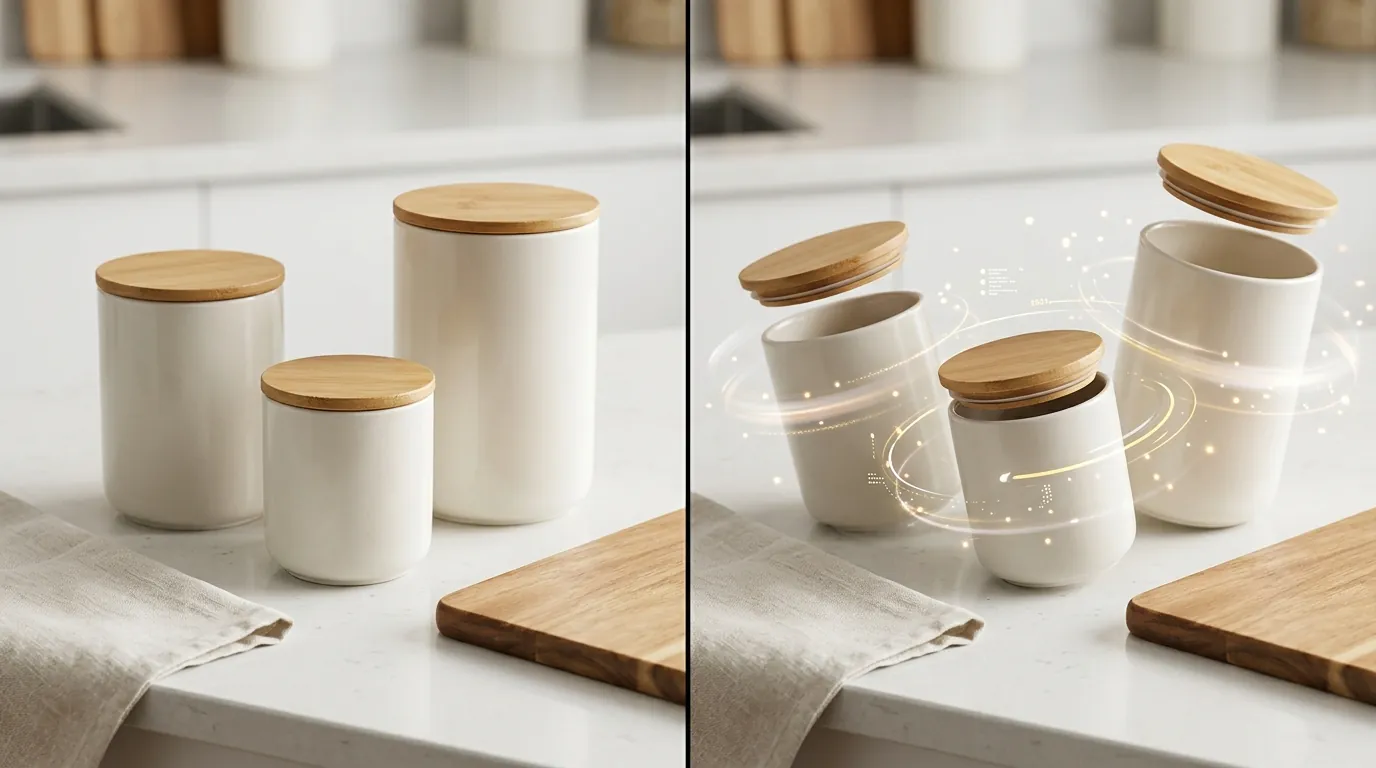
Audit your existing creative library against the 2026 spec table below to identify which assets require immediate re-processing. As Amazon’s automated moderation bots become more sophisticated, even a 1-pixel deviation from the 1920 x 1080 px requirement can trigger an automated campaign suspension.
| Feature | Sponsored Brands / TV Specs | Product Detail Page (PDP) Specs |
|---|---|---|
| Minimum Resolution | 1920 x 1080 px (16:9) | 1920 x 1080 px or 1080 x 1920 px |
| Max File Size | 500 MB | 5 GB |
| Duration | 6 to 45 seconds | Up to 3 minutes recommended |
| File Format | MP4 or MOV | MP4 or MOV |
| Audio Codec | AAC or MP3 | AAC or MP3 |
| Frame Rate | 23.976 fps or higher | 24 fps minimum recommended |
Detailed Requirements
Configure your AI prompt parameters to exclude text overlays and ensure a 16:9 aspect ratio before you hit the “generate” button. Amazon’s native AI tool, which widened access to all U.S. advertisers in late 2024, is designed specifically for Sponsored Brands. However, if you are a multi-platform seller, you need a workflow that handles more than just Amazon’s 16:9 horizontal format.
PixelMatch solves this by allowing you to batch-generate AI product images that serve as the high-fidelity source material for any video generator. Instead of relying on a single native tool, you can generate a consistent set of product shots and then push them into video tools to create 16:9 videos for Amazon and 9:16 vertical videos for TikTok Shop or Instagram Reels simultaneously.
Sponsored Ads vs. Product Detail Page Specs
Differentiate your assets based on where they appear. Sponsored Brands videos are “auto-play, mute-on,” meaning the first few seconds must be visually arresting without relying on sound. For these ads, Amazon mandates a 16:9 aspect ratio. If you attempt to upload a square (1:1) video intended for Instagram, Amazon will reject it for letterboxing (black bars).
Product Detail Page (PDP) videos are more flexible but higher stakes. While they allow for files up to 5 GB, the goal is conversion, not just attention. For PDPs, 1080p is still the gold standard, but you must ensure the video does not contain “off-Amazon” references.
Audio and Codec Requirements
Set your video export settings to 128 kbps or higher for audio and a sample rate of 44.1 kHz. Even though Sponsored Brands videos often play on mute, the file must contain an audio track that meets these technical specs to pass the automated validation check.
For the video stream, use the H.264 or H.265 codec. Most AI video generators like Booth.AI or Adobe Express default to these, but if you are using a custom Stable Diffusion pipeline, you must manually verify that your bitrate is at least 8 Mbps for 1080p content.
Common Rejection Reasons
💡 Skip the manual editing. PixelMatch batch-generates ecommerce-ready product images in 60 seconds — white background, lifestyle scenes, and variant mockups from a single source photo. Try PixelMatch free →
Scan your video timeline for any frame where the product occupies less than 50% of the screen. Amazon’s moderation team uses AI-assisted vision to flag videos where the product is “lost” in the background. In 2026, the threshold for “lifestyle” content has tightened; if the AI-generated background is too busy, it will be flagged as a distracting visual element.
Prohibited Visual Elements
Avoid the “Uncanny Valley” of AI generation. Amazon explicitly prohibits blurry frames and simple slideshows. If your video looks like a series of static images with a simple “Ken Burns” zoom effect, it will be rejected. The motion must be fluid and “video-like.”
Furthermore, do not use 360-degree rotational views in Sponsored Products video ads. While these are popular on Shopify or custom sites, Amazon reserves rotational views for specific interactive widgets on the PDP, not for video ad slots.
Common visual triggers for rejection include:
- Letterboxing: Any black bars on the top, bottom, or sides.
- Low Resolution: Anything appearing pixelated on a 4K screen.
- Emojis: Never use emoticons, hearts, or stars in the video overlay.
- Branding: Do not include logos unless they are physically part of the product or packaging.
Banned Text and Claims
Check your text overlays against the 2026 prohibited phrases list. Amazon’s OCR (Optical Character Recognition) bots scan every frame for text. If you include promotional claims like “Best Seller,” “Top Rated,” or pricing details, the video will be rejected immediately.
Specifically, avoid any “Call to Action” (CTA) that directs users away from the platform. Phrases like “Visit our website for a discount” or “Follow us on social media” are strictly forbidden. Your text should focus entirely on product features or benefits, such as “Waterproof up to 30m” or “100% Organic Cotton.”
How to Fix Each Issue
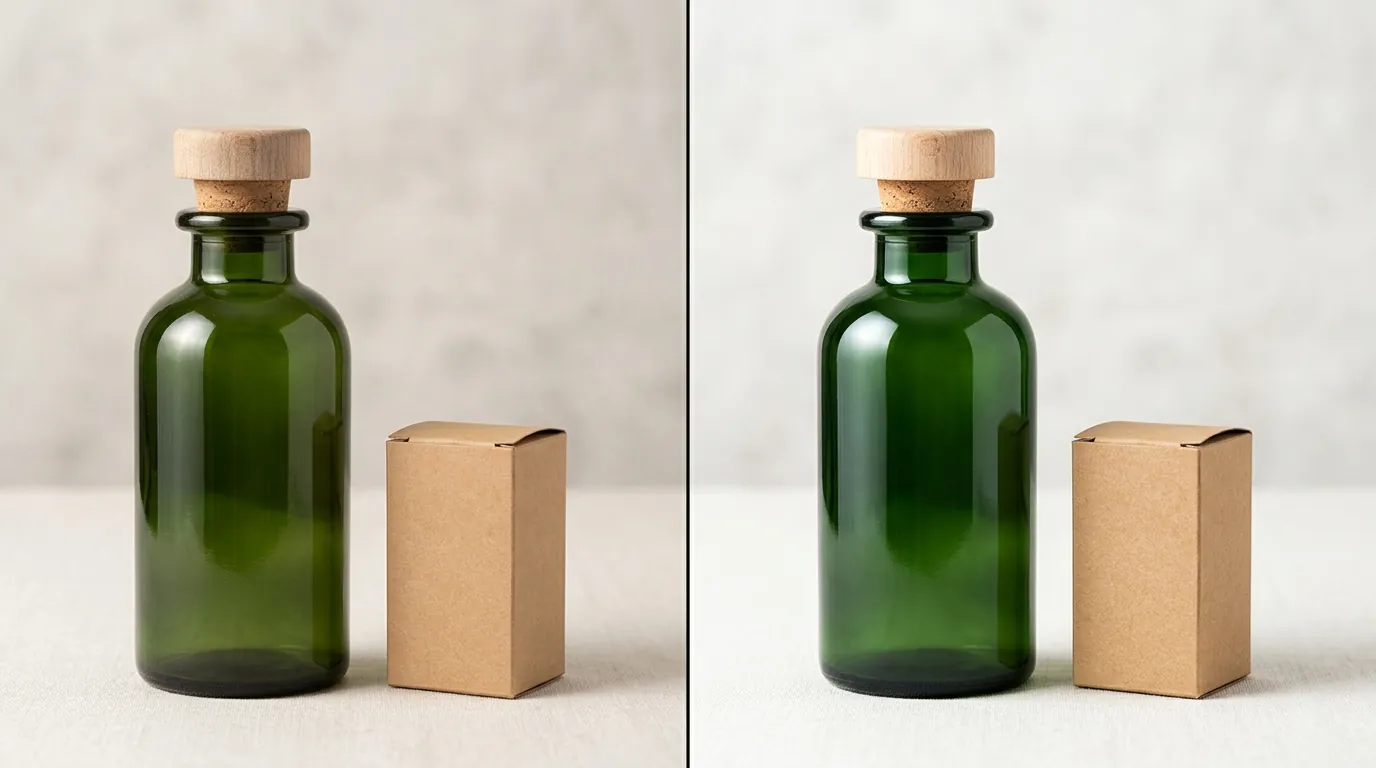
Apply dynamic “Camera Pan” or “Zoom” effects in your AI generator to bypass the “static slideshow” rejection trigger. If you are using a tool like Pebblely or Canva to animate your product photos, ensure the transitions are not just “fades.” Amazon requires the product to move or the environment to change dynamically to qualify as “video.”
Fixing Slideshow Rejections
If your video was rejected for being a “slideshow,” you need to increase the temporal consistency of your AI generation. Instead of stitching together five different AI images, use a video-first AI tool like Sora or Kling (or Amazon’s native generator) that treats the product as a 3D object in space.
If you don’t have access to high-end video AI, use PixelMatch to generate consistent product angles. By having the exact same lighting and product position across multiple images, you can create a “stop-motion” effect that looks intentional and professional rather than a cheap slideshow. Ensure the product takes up at least 50% of the frame throughout these transitions.
Correcting Aspect Ratio and Framing
Use generative fill to expand 1:1 square images into 16:9 canvases. Many sellers make the mistake of “stretching” their 1:1 images to fit 16:9, which results in distortion. Amazon’s policy on image quality prohibits any distorted or “squashed” visuals.
Instead, use an AI expansion tool (like those found in Adobe Express or Photoroom’s Pro tier at $12.99/mo) to “outpaint” the background. This creates a native 1920x1080 frame where the product remains at the correct scale.
Checklist for Fixing Rejections:
- Remove Text: Delete any “Free Shipping” or “Limited Time” text overlays.
- Verify Resolution: Ensure the export is exactly 1920x1080.
- Check Audio: Add a generic, royalty-free background track if your file is “video-only.”
- Re-center Product: Ensure the product doesn’t drift into the “safe zones” where Amazon overlays the “Sponsored” tag or the “Mute” button.
Official Source Links

Refer to the official documentation below to verify any policy changes as of May 28, 2026. Amazon frequently updates these pages without public announcements, so checking the “Last Updated” date on these links is a mandatory step for any high-volume seller.
| Source Name | Link | Key Information |
|---|---|---|
| Amazon Ads Help | Video Ad Specs | Resolution, Bitrate, and Duration |
| Seller Central | Upload Video Guide | PDP specific rules and file sizes |
| Amazon Ad Policy | Creative Guidelines | Prohibited text and visual content |
| Marketing Dive | AI Tool Launch News | Availability of native AI video tools |
Ready to scale your listings?
PixelMatch generates white-background, lifestyle, and variant mockups from a single source photo — built specifically for multi-platform ecommerce sellers. 50 free images on signup, no credit card.
Start free →
Sources
- Amazon Advertising: Video Ad Specifications and Guidelines
- Amazon Seller Central: Manage Product Videos
- Marketing Dive: Amazon widens access to video generator
- Photoroom: Official Pricing and Features
- Adobe Express: Premium Plan Details
- Canva: Pro Plan Pricing