
Amazon Rufus SEO for Product Listings: 2026 Image Guide
Your rankings are no longer just a matter of keywords; if your product images fail to communicate technical specs to Amazon’s AI vision models, you are invisible to the modern buyer. Audit your current image library before uploading a single new SKU to ensure every asset feeds the Rufus AI engine the high-density data it requires to recommend your products.
Amazon Rufus uses OCR (Optical Character Recognition) to analyze images. To rank, ensure your main image meets the pure white background (RGB 255, 255, 255) rule, while secondary images use text overlays to answer buyer questions.
Quick Reference Table

Related: Amazon AI Generated Content Disclosure Label Guide (2026) · Amazon Prime Day 2026 Main Image Bundle Policy Guide · Amazon Rufus Image Semantic Tagging Guide for Sellers
Standardize your image workflow using the 2026 Rufus Optimization Checklist below. Failure to meet the technical specs results in immediate search suppression, while failing the “Rufus SEO” column means the AI assistant will skip your product when answering natural language queries like “Which of these is best for hiking in the rain?”
| Asset Type | Technical Requirement | Rufus SEO Optimization |
|---|---|---|
| Main Image | Pure white background (RGB 255, 255, 255); Product fills 85%+ of frame. | High-resolution 2000 x 2000 px to allow AI vision models to detect textures and materials. |
| Secondary Images | No promotional text; No watermarks. | Use OCR-friendly sans-serif fonts for infographics that answer top 5 customer FAQs. |
| A+ Hero Banner | 970 x 600 pixels; Max 2MB file size. | Visual evidence of claims (e.g., “BPA Free” logo) that Rufus can verify against your text. |
| Lifestyle Shots | No placeholder or blurry images. | Contextual backgrounds that show the product in the exact environment described in the title. |
Detailed Requirements
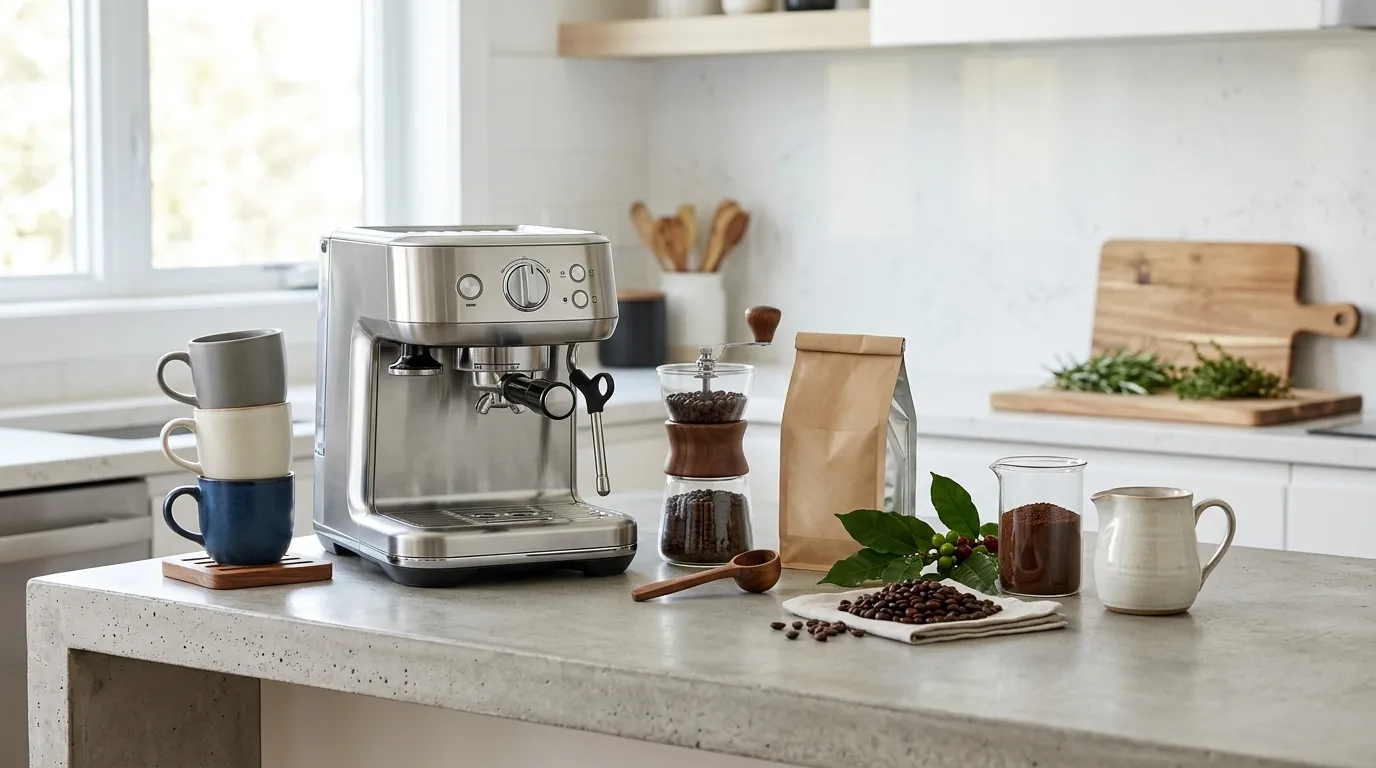
Calibrate your image metadata and visual hierarchy to align with Amazon’s COSMO algorithm. In 2026, the “search bar” is increasingly a conversation with Rufus, and Rufus does not just read your bullet points—it cross-references them with your visual assets to ensure you aren’t “keyword stuffing” features that don’t exist.
How Rufus Reads Your Images
Rufus operates on a multi-modal vision-language model. This means it processes your images and your text simultaneously to build a “probability score” of how well your product fits a specific intent. If your product title claims “heavy-duty waterproof,” but your secondary images only show the product on a dry shelf, Rufus may de-prioritize you for “waterproof” queries in favor of a competitor who has an infographic showing an IPX7 rating or a lifestyle shot in the rain.
The AI specifically utilizes Optical Character Recognition (OCR) to scrape text from your infographics. Amazon’s internal search systems have shifted toward the COSMO (Common Sense Knowledge Graph) framework, which attempts to understand the “why” behind a purchase. Rufus uses your images to verify these “common sense” attributes. For example, if a customer asks, “Will this fit in a standard cup holder?”, Rufus looks for a secondary image with dimensions or a visual comparison to a standard cup.
Main Image vs. Secondary Image Rules
Stick to the “One-Product, One-Background” rule for your main image. Amazon’s Main Image Policy remains the strictest gatekeeper in the ecosystem. You must use a pure white background (RGB 255, 255, 255). Any variation—including off-white, light grey, or “lifestyle” main images—triggers Error 18027, leading to search suppression.
Secondary images are where you win the Rufus SEO game. Unlike the main image, secondary images allow for text, logos, and environment shots. However, Amazon’s A+ Content Guidelines prohibit “promotional” language. You cannot include “Best Seller,” “On Sale,” or “Free Shipping” within the image itself. Rufus is trained to ignore high-pressure sales tactics and instead looks for functional data:
- Material callouts: “100% Organic Cotton”
- Safety certifications: “UL Listed” or “FDA Approved”
- Technical specs: “10-hour battery life”
Common Rejection Reasons
💡 Skip the manual editing. PixelMatch batch-generates ecommerce-ready product images in 60 seconds — white background, lifestyle scenes, and variant mockups from a single source photo. Try PixelMatch free →
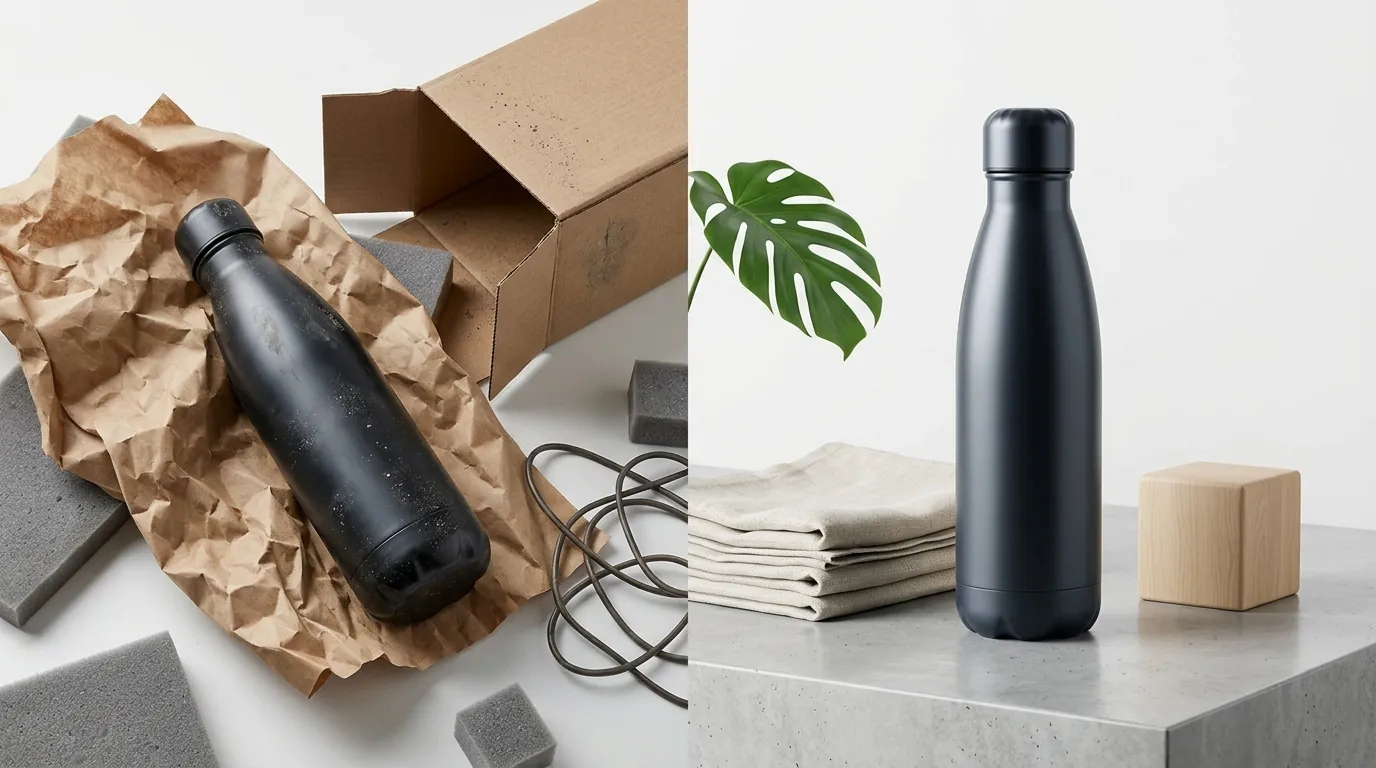
Review your listing’s “Image Health” report in Seller Central to identify suppressed assets before they impact your conversion rate. Rejections fall into two categories: “Hard Rejections” (where the image is removed) and “Rufus Suppression” (where the image remains, but the AI assistant refuses to use it as a source for buyer answers).
Technical Image Violations
The most frequent cause of “Hard Rejections” is the failure to meet basic pixel and color space standards. Amazon requires images to be in JPEG (.jpg), TIFF (.tif), or GIF (.gif) format, though JPEG is preferred for its compression-to-quality ratio. If you upload an image in the CMYK color space (standard for print), the colors will appear distorted or “neon” on digital screens, leading to a rejection for color accuracy.
Another common failure is the “85% Rule.” Amazon mandates that the product must occupy at least 85% of the image frame. Sellers often try to show the product “in scale” by leaving massive amounts of white space around it. This results in an automatic flag. Using a tool like PixelMatch allows you to batch-process your main images to ensure the product is centered and scaled perfectly to that 85% threshold without manual cropping.
A+ Content Policy Breaches
A+ Content is subject to a manual or semi-automated review process that is far more stringent than standard listing images. Including any of the following will result in a rejection of the entire A+ module:
- Time-sensitive information: Mentions of “holiday deals” or “limited time offer.”
- Contact information: Phone numbers, web addresses, or QR codes.
- Customer reviews: You cannot bake a 5-star graphic or a customer quote into your A+ Content images.
- Low resolution: Any image that appears pixelated on a standard 1080p monitor.
The “Invisible Penalty” occurs when your secondary images are so cluttered that Rufus’s OCR cannot parse the text. If you use script fonts, overlapping shadows, or low-contrast text (e.g., white text on a light grey background), Rufus will ignore that data. In the eyes of the AI assistant, that information does not exist, and it will tell the customer “The seller has not provided information on [Feature X].”
How to Fix Each Issue
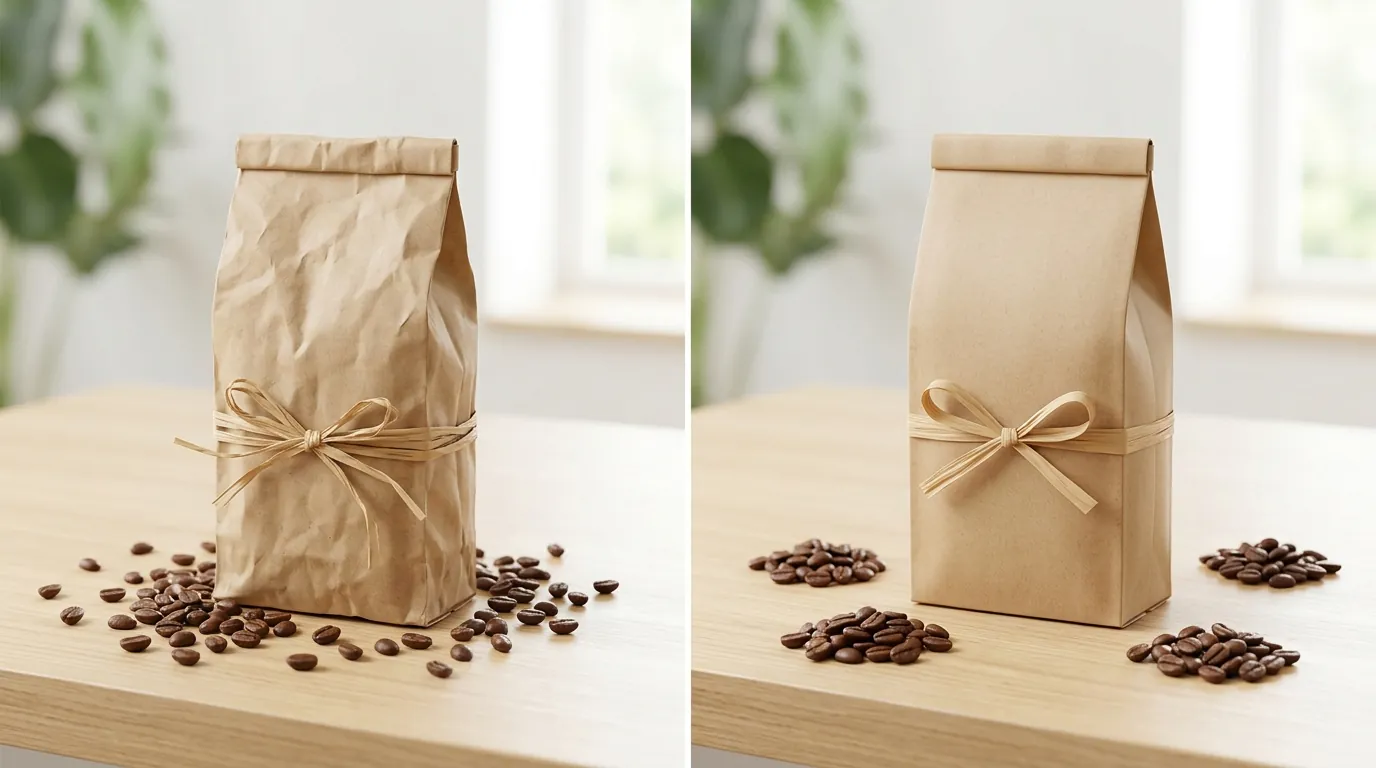
Implement a batch-processing pipeline to strip non-compliant backgrounds and inject OCR-optimized text overlays. Fixing your image SEO is a three-step process: compliance, clarity, and contextualization.
Automating Main Image Compliance
Stop manually masking backgrounds in Photoshop. To meet the RGB 255, 255, 255 requirement across a 50-SKU catalog, use an AI batch editor. PixelMatch is specifically built for this workflow, allowing you to upload raw shoots and output Amazon-ready main images that fill exactly 85% of the frame.
When configuring your batch:
- Set the output resolution to 2000 x 2000 pixels. This is the “sweet spot” for Amazon’s zoom feature and Rufus’s texture analysis.
- Enable “Pure White Background” removal.
- Set the “Object Margin” to 7.5% on all sides (this ensures the product fills 85% of the space).
Optimizing Secondary Images for OCR
For your secondary images and infographics, prioritize legibility over “fancy” design. Rufus needs to “read” your image to recommend you.
- Use High Contrast: Black text on a white box or white text on a dark overlay.
- Choose Sans-Serif Fonts: Fonts like Arial, Helvetica, or Roboto are more easily parsed by OCR engines than decorative or serif fonts.
- Answer the FAQ: Go to your listing’s “Customer Questions & Answers” section. Take the top 3 most-asked questions and create one dedicated infographic for each. If customers ask “Is this dishwasher safe?”, create an image with a clear “Dishwasher Safe” icon and text. This gives Rufus the “Visual Evidence” it needs to answer that question with 100% confidence.
For A+ Content images, ensure your file sizes are optimized. Amazon caps uploads at 2MB, but an unoptimized 2000px PNG can easily exceed this. Use a tool to convert these to high-quality JPEGs at 80% quality to maintain the 970 x 600 px requirement without triggering a “file too large” error.
Official Source Links

- Amazon Seller Central: Product Image Requirements (Error 18027)
- Amazon KDP: A+ Content Image Specifications & Policies
- Amazon Seller Central: Packaging and Tagging Requirements (Error 100584)
- Amazon Advertising: Creative Guidelines for Custom Images
Frequently Asked Questions
Does Rufus prioritize listings with more images?
Rufus does not have a strict “image count” requirement, but it prioritizes listings that provide the most comprehensive answers to buyer questions. Since Rufus uses OCR to extract data from images, having the maximum allowed 7-9 images (depending on category) gives you more opportunities to provide visual evidence for your product’s features, which can indirectly boost your Rufus “recommendation” score.
Can I use AI-generated lifestyle images for Amazon Rufus SEO?
Yes, you can use AI-generated lifestyle images as secondary images, provided they are realistic and do not misrepresent the product. However, you must ensure the product itself is not AI-generated; it should be a real photo of your SKU “placed” into an AI environment. For Rufus SEO, the background should provide context (e.g., a waterproof speaker near a pool) to help the AI understand the product’s use case.
How do I fix a “Search Suppressed” listing due to images?
Check your “Fix Your Products” dashboard in Seller Central. If the suppression is due to the main image, it is likely because the background is not pure white (RGB 255, 255, 255) or the product is too small. Use a batch-process your main images tool to re-center the product and strip the background, then re-upload. Suppression usually lifts within 24 hours of a compliant image being processed.
What is the best font size for Rufus OCR to read my infographics?
While Amazon doesn’t publish a “minimum font size” for OCR, industry standards for vision models suggest using at least 16pt font on a 1000x1000px canvas. Ensure there is significant “breathing room” around the text. If the text is touching the edge of the product or other graphic elements, the OCR may fail to distinguish the letters, making the data invisible to Rufus.
Ready to scale your listings?
PixelMatch generates white-background, lifestyle, and variant mockups from a single source photo — built specifically for multi-platform ecommerce sellers. 50 free images on signup, no credit card.
Start free →
Sources
- Amazon Seller Central. (2026). “Product image requirements.” https://sellercentral.amazon.com/help/hub/reference/18027
- Amazon KDP Help. (2026). “A+ Content Guidelines.”
- Amazon Seller Central. (2026). “Prohibited Seller Activities and Actions.” https://sellercentral.amazon.com/help/hub/reference/200386250
- Photoroom. (2026). “Pricing and Plans.” https://www.photoroom.com/pricing
- Canva. (2026). “Canva Pro Pricing.” https://www.canva.com/pricing/