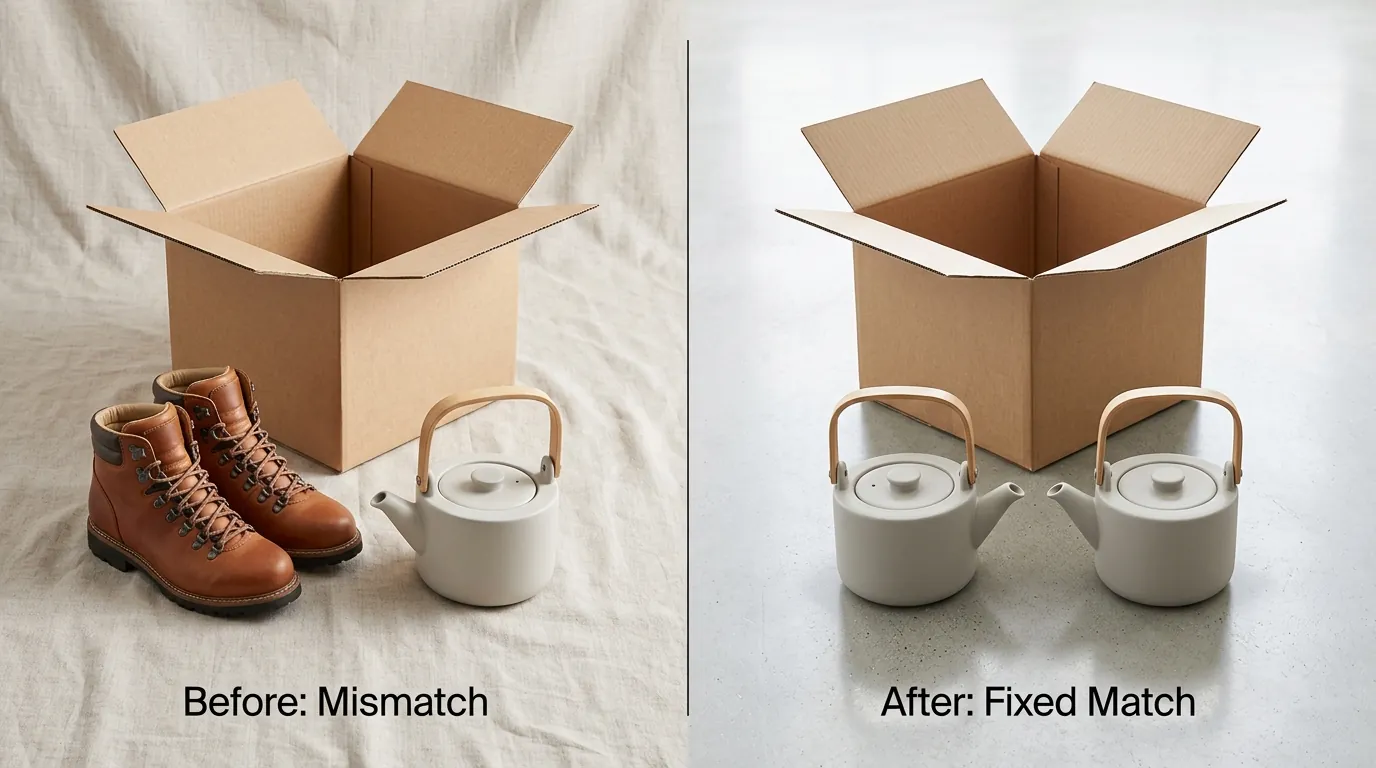
Amazon Rufus Visual Search Product Mismatch Fix: 2026 Guide
Stop losing sales to competitors because Amazon Rufus misinterprets your product’s visual features or flags a mismatch between your photos and listing data. This 2026 guide provides the exact technical steps to align your visual assets with Amazon’s Cosmo algorithm and conversational search requirements.
Quick Answer: To fix an Amazon Rufus visual search product mismatch, verify your main image is at least 1000 pixels on the longest side on a pure white background (RGB 255,255,255) and fills 85% of the frame. Update backend attributes to match visual features exactly.
Quick Reference Table
Related: Etsy Creativity Standards for AI Images: 2026 Policy Guide · Amazon AI Image Disclosure Penalty 2026: Policy & Fixes · Etsy AI Search Visibility Penalty 2026: Seller Guide
Run your current catalog through this technical checklist to ensure your images meet the baseline for AI indexing. Amazon’s Rufus assistant relies on high-resolution data to perform feature extraction; failing any of these specs can lead to a “mismatch” flag or exclusion from conversational search results.
| Feature | Requirement | Reason for Rufus Optimization |
|---|---|---|
| Minimum Dimensions | 1000 pixels on the longest side | Enables the zoom function used by Rufus for high-resolution feature extraction. |
| Maximum Dimensions | 10,000 pixels on the longest side | Prevents file processing errors in the Amazon imaging pipeline. |
| Background Color | RGB 255, 255, 255 | Ensures clean AI silhouette isolation for the Cosmo algorithm. |
| Frame Coverage | 85% or more of the image frame | Maximizes pixel density for object recognition and attribute mapping. |
| File Format | JPEG, TIFF, PNG, or non-animated GIF | JPEG is preferred for its balance of quality and compression. |
| Color Mode | sRGB or CMYK | Maintains color accuracy across different device screens. |
Detailed Requirements
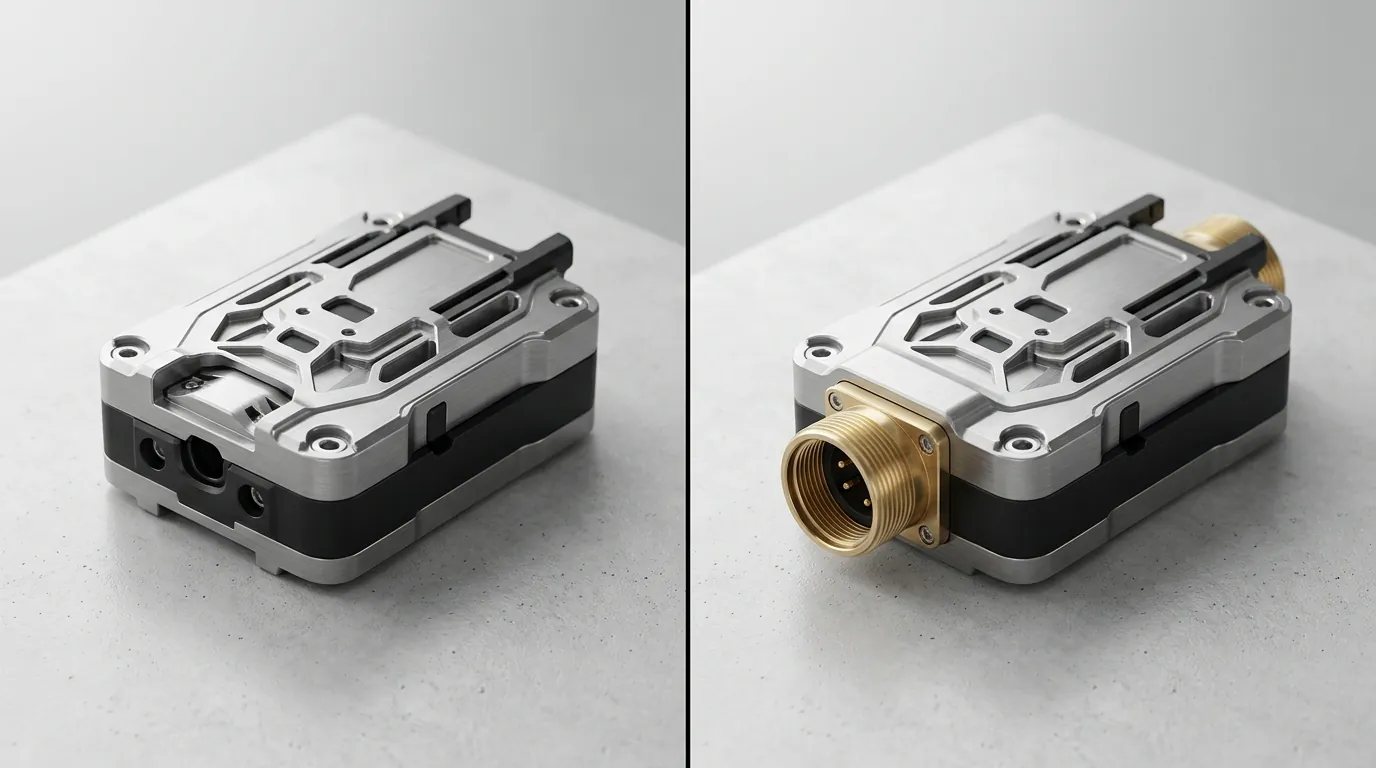
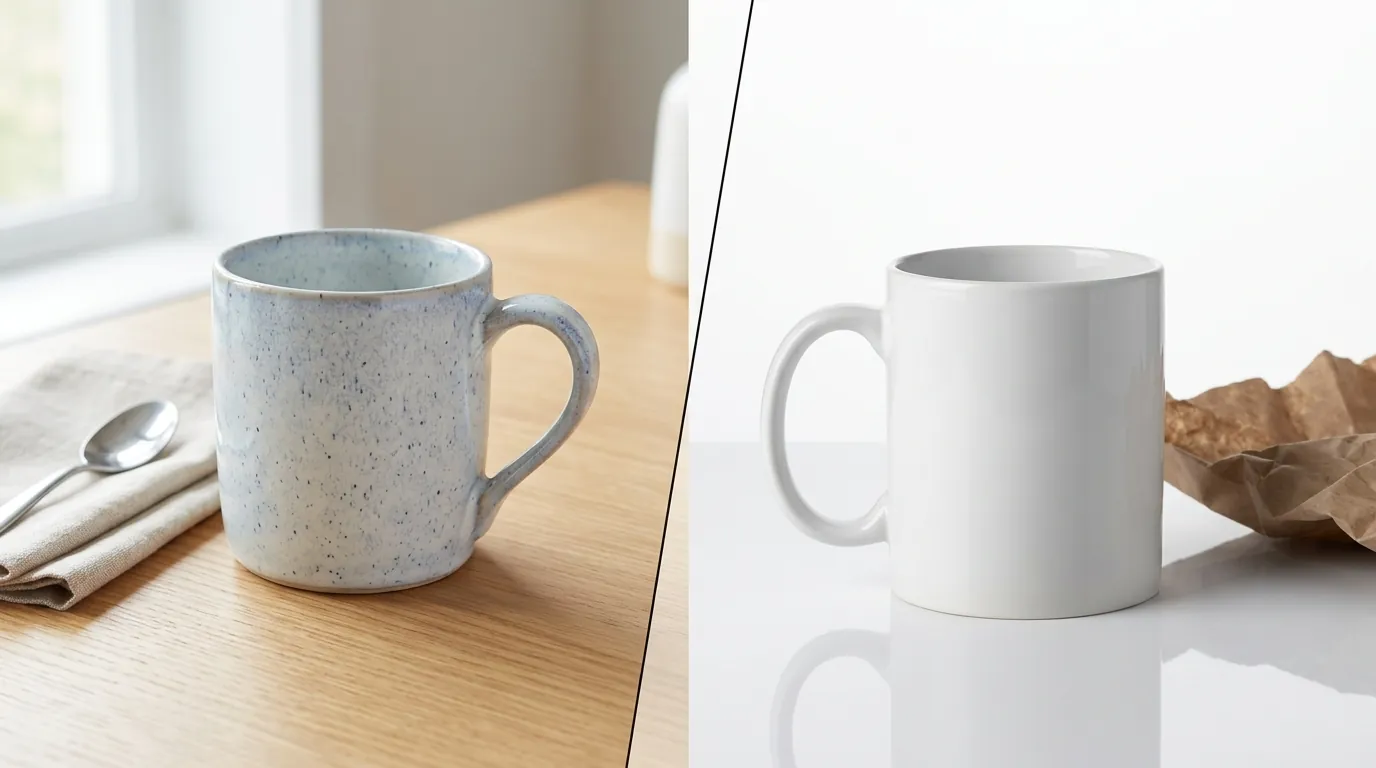
Amazon Rufus and the underlying Cosmo algorithm represent a shift from keyword-only indexing to multimodal AI evaluation. Rufus doesn’t just read your bullet points; it “sees” your images to verify if the product matches the shopper’s intent. If your text says “matte finish” but the image shows a high-gloss reflection, the AI detects a conflict, potentially resulting in a product mismatch error or lower ranking in conversational queries.
Main Image Technical Specs
Your main image serves as the primary data source for Amazon’s computer vision models. To satisfy the requirements for amazon image optimization guidelines, you must provide a clear, professional photograph of the product being sold.
- Pixel Density: While the absolute minimum is 500 pixels, Rufus requires the 1000-pixel threshold to trigger the zoom functionality. This resolution allows the AI to “read” packaging text, identify material textures (like leather vs. faux leather), and map fine details to your backend attributes.
- Pure White Background: Amazon enforces a strict RGB 255,255,255 background for main images. This isn’t just for aesthetics; it allows the AI to segment the product from the background without “noise” from shadows or props. If your background is off-white (e.g., RGB 250, 250, 250), the AI might struggle to define the product’s edges, leading to poor visual search performance.
- File Naming: Ensure your file name includes the product identifier (ASIN, ISBN, EAN, JAN, or UPC) followed by a period and the file extension (e.g.,
B000123456.jpg). Avoid using spaces or special characters, as these can disrupt the automated ingest process.
Secondary Image Context Rules
Secondary images are where Rufus extracts “common sense” knowledge. While the main image is clinical, secondary images should be contextual. Rufus uses these to answer specific conversational questions like “Will this fit in a small kitchen?” or “Is this bag good for hiking?”
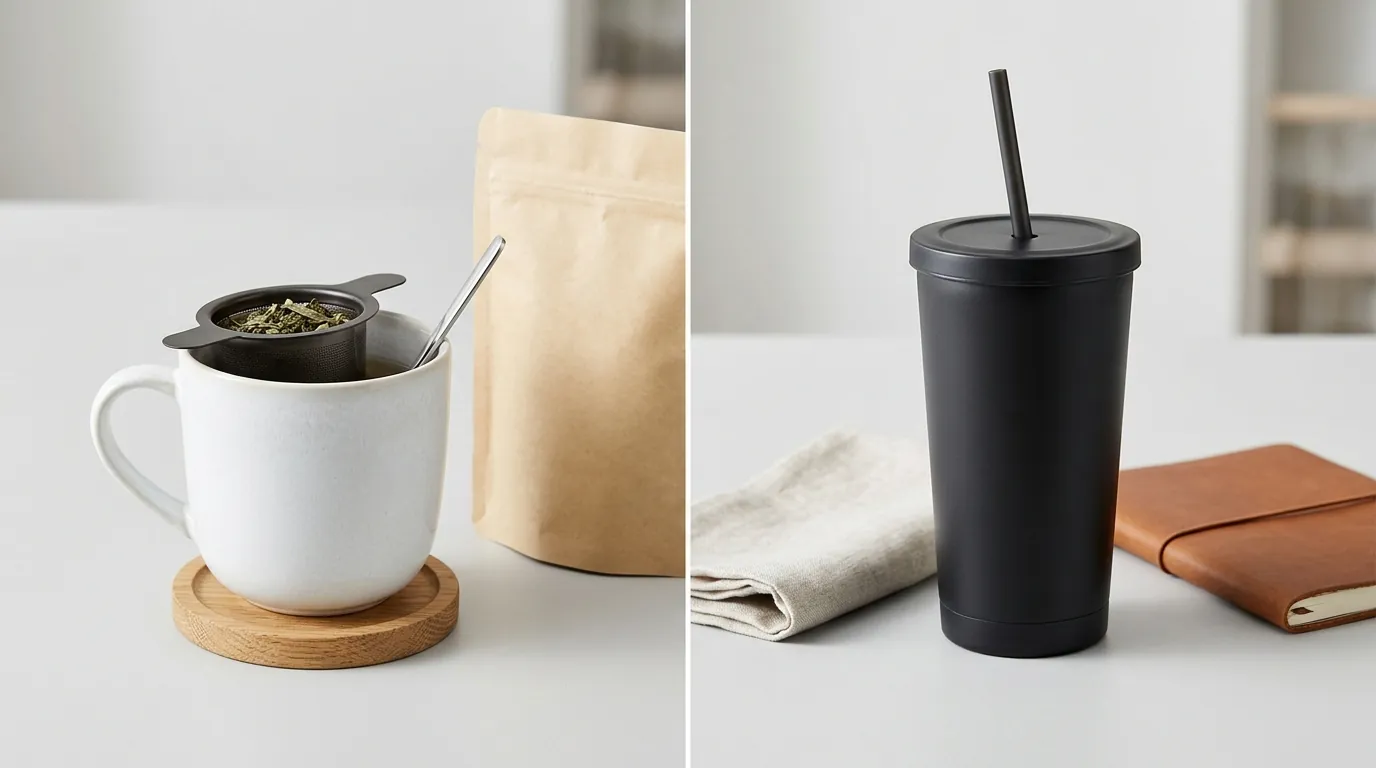
- Scale and Dimensions: Include at least one image that shows the product next to a common object or a human model. This helps Rufus understand the physical scale, preventing mismatches where a shopper expects a large item but receives a miniature version.
- Environment and Use Cases: Show the product in its intended environment. For a waterproof speaker, an image near a pool provides visual evidence that supports the “waterproof” claim in your text. Rufus scans these lifestyle images to build a semantic map of where and how the product is used.
- Texture and Material: Use close-up shots to highlight specific features mentioned in your listing. If you claim a “brushed metal” finish, a high-resolution secondary image allows the AI to confirm that visual attribute against the textual description.
Common Rejection Reasons
💡 Skip the manual editing. PixelMatch batch-generates ecommerce-ready product images in 60 seconds — white background, lifestyle scenes, and variant mockups from a single source photo. Try PixelMatch free →
Identifying why Rufus is mismatching your product requires looking at your listing through the lens of a computer vision model. Most mismatches stem from a lack of clarity or a direct contradiction between the visual and textual data.
Visual vs. Text Discrepancies
A common cause for a Rufus mismatch is the “Attribute Conflict.” If your backend data specifies the color as “Navy Blue” but the image looks “Black” due to poor lighting, the AI flags the discrepancy. Rufus is designed to prioritize buyer trust; if it cannot confidently verify a feature visually, it may omit the product from specific filtered searches.
Another issue arises with “Quantity Mismatches.” If your main image shows a pack of three items but the listing title and backend “Unit Count” attribute say “1 Count,” Rufus will likely flag this as a mismatch. The AI is trained to recognize quantities to prevent customer dissatisfaction. You must ensure that the number of items shown in the main image exactly matches the number of items the customer will receive.
AI Object Recognition Failures
Rufus uses object recognition to categorize your product. If your main image is cluttered with props, the AI may misidentify the primary product. For example, if you are selling a “Phone Case” but the main image shows a phone, a charger, and a stand, the AI might categorize the listing under “Cell Phone Stands.”
- Text Overlays and Watermarks: Including text like “Best Seller” or “Free Shipping” on your main image is a violation of Amazon’s image standards. More importantly, it obscures the product’s silhouette, making it harder for Rufus to extract clean visual data.
- Low Resolution: Images under the 1000-pixel zoom threshold often appear blurry when the AI attempts to upscale them for feature analysis. This lack of detail leads to “semantic ambiguity,” where the AI cannot distinguish between similar materials or components.
- Shadows and Reflections: Harsh shadows that break the product’s outline or excessive reflections that change the perceived color can confuse the AI’s edge-detection algorithms.
How to Fix Each Issue
Fixing a Rufus mismatch involves a three-step process: technical standardization, data alignment, and, if necessary, manual intervention.
Step 1: Standardize Main Images
Audit your entire catalog to ensure every main image adheres to the pure white background (RGB 255,255,255) rule. If you have hundreds of SKUs, manually editing each one is inefficient. You can use tools like PixelMatch to batch-process your catalog (referencing bulk ai product photography tools). These tools automatically remove non-compliant backgrounds, center the product to fill 85% of the frame, and export the files at the required 1000x1000px minimum resolution.
When using AI tools, ensure the “AI-generated” elements do not alter the physical appearance of the product. Rufus is sensitive to “hallucinations” where an AI might add a button or a seam that doesn’t exist on the real item. PixelMatch is better suited for this workflow because it preserves the original product pixels while strictly modifying the background and framing to meet Amazon’s specs.
Step 2: Sync Visuals with Backend Attributes
Once your images are technically sound, you must align them with your metadata. Open your “Edit Product” page in Seller Central and check the following:
- Color Map: Ensure the “Color” attribute matches the visual color in the photo. If the photo is “Teal,” do not just select “Blue” in the backend; use the specific color name and ensure the image reflects it under neutral lighting.
- Material Type: If your image shows a “Wood” texture, verify the “Material Type” attribute is correctly set to “Wood.”
- Bullet Points: Explicitly mention features that are visible in your images. If your third secondary image shows a “reinforced handle,” include “Reinforced Handle” in your bullet points. This creates a “confirmation loop” for Rufus, increasing the AI’s confidence in your listing’s accuracy.
Step 3: Submit a Discrepancy Report
If you have updated your images and synced your attributes, but Rufus still provides incorrect answers or mismatches your product after 48 hours, you must take manual action.
- Use the Feedback Tool: In the Rufus chat interface on the Amazon mobile app or desktop, use the “thumbs down” icon on the incorrect response. This sends a direct signal to the Rufus training team that the AI has made a mistake.
- Open a Seller Support Case: Navigate to Seller Central > Help > Get Support. Select “Product, Listings, or Inventory” and then “Fix a Product Page.” Provide high-resolution manufacturer photos as evidence and explicitly state: “The Rufus AI assistant is providing inaccurate information regarding [Attribute]. I have updated my images and metadata to reflect the correct information as shown in the attached manufacturer proof.”
- Check for “Shadow” Attributes: Sometimes, Amazon’s system retains old data from previous contributors or “Amazon Retail.” If you see incorrect information in the Rufus response that isn’t in your current listing, ask Support to “refresh the catalog data” to overwrite any stale attributes.
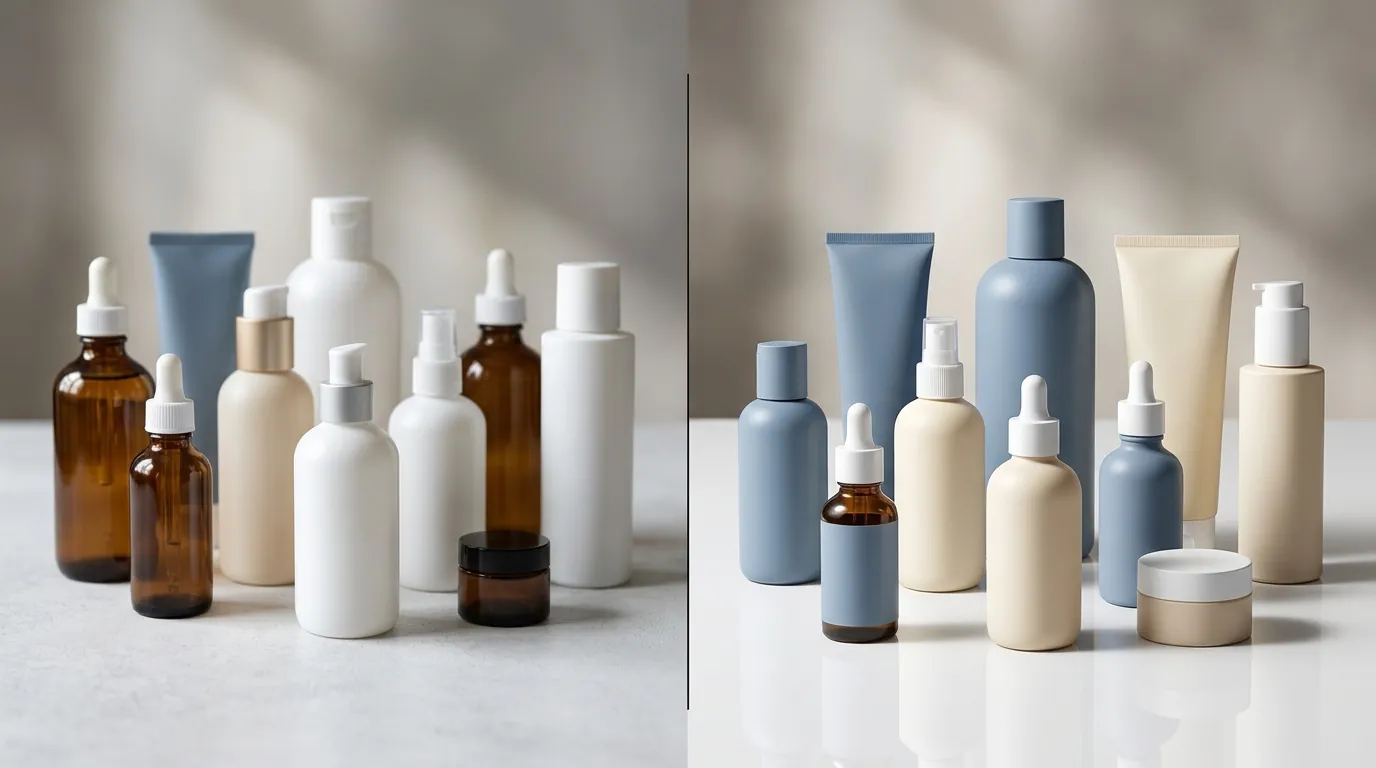
Before and After Optimization: A typical “mismatch” listing often features a 600px image with a greyish background and props. After using PixelMatch to standardize the image to a 1000px, pure white (RGB 255,255,255) background with the product filling 85% of the frame, the AI recognition confidence score increases, allowing Rufus to correctly identify the product in conversational queries.
Official Source Links

Refer to these official Amazon resources to stay updated on the latest imaging and AI policies:
- Amazon Seller Central: Product image requirements - The definitive guide for pixel dimensions, backgrounds, and file formats.
- Amazon Science: Building Rufus - Technical background on how Amazon uses LLMs and computer vision to power shopping assistants.
- Amazon Help: Rufus AI Assistant - Consumer-facing guide on how Rufus works and how to provide feedback.
Frequently Asked Questions
Why is Rufus saying my product is a different color than it is?
This usually happens due to a mismatch between your “Color” attribute in the backend and the visual data in your images. Ensure your main image is shot under neutral lighting (5500K) and that your backend “Color Map” matches the visual appearance. If the AI still gets it wrong, use the “thumbs down” feedback in Rufus to report the error.
Does Rufus use secondary images to answer questions?
Yes, Rufus uses multimodal AI to scan all images in your gallery, including lifestyle and infographic shots. It looks for visual cues to answer questions about scale, usage, and environment. To optimize for this, ensure your secondary images are high-resolution and clearly demonstrate the product’s features in real-world settings.
What is the Cosmo algorithm and how does it affect my images?
Cosmo is Amazon’s “Common Sense Knowledge Graph” that helps Rufus understand the relationships between products and buyer intent. It analyzes images to verify if a product truly fits a specific “intent” (e.g., “shoes for standing all day”). High-quality images that show ergonomic features help Cosmo categorize your product more accurately.
Can I use AI-generated images on Amazon in 2026?
Amazon allows AI-generated or AI-enhanced images as long as they accurately represent the product and do not mislead customers. For main images, the product itself must be a real photograph; however, tools like PixelMatch can be used to generate compliant white backgrounds or lifestyle scenes for secondary images, provided the product’s physical attributes remain unchanged.
Ready to scale your listings?
PixelMatch generates white-background, lifestyle, and variant mockups from a single source photo — built specifically for multi-platform ecommerce sellers. 50 free images on signup, no credit card.
Start free →