
Google Shopping AI Image Authenticity Policy: 2026 Guide
Stop guessing why your Google Merchant Center account is flagged for “Misrepresentation” while your competitors scale their AI-generated creative. Audit your image metadata and background generation workflow immediately to ensure every asset complies with the latest Google Shopping AI image authenticity standards.
Google Shopping allows AI images but requires the IPTC DigitalSourceType tag set to trainedAlgorithmicMedia. Synthetic items that do not physically exist are disapproved.
Quick Reference Table
Related: Etsy AI Transparency Label & Search Ranking Impact (2026) · Amazon Prime Day 2026 Main Image Compliance Check Guide · Shopify Magic Image Expansion Seam Line Fix & Specs (2026)
Download this specification checklist to audit your current image library. If your export settings do not match these values, your images risk immediate disapproval in Google Merchant Center (GMC).
| Requirement | Specification |
|---|---|
| Minimum Image Size | 500 x 500 pixels |
| Recommended Size | 1500 x 1500 pixels or above |
| Required AI Metadata Tag | IPTC DigitalSourceType = trainedAlgorithmicMedia |
| Maximum File Size | 16 MB |
| Accepted File Formats | JPEG, WebP, PNG, GIF, BMP, TIFF |
| Non-Apparel Minimum | 100 x 100 pixels |
| Apparel Minimum | 250 x 250 pixels |
Detailed Requirements

Run a metadata audit on your top-performing SKUs today using a tool like ExifTool or an online metadata viewer to confirm your AI tags are actually reaching Google. Google Merchant Center explicitly requires that any image created or modified using generative AI tools must retain its original metadata tags, specifically the IPTC DigitalSourceType property.
Metadata Preservation Rules
Google uses metadata to provide transparency to shoppers. When you use generative AI to create a lifestyle background or enhance a product photo, the software typically embeds a specific schema. The core requirement is the DigitalSourceType field. For AI-generated content, this must be set to trainedAlgorithmicMedia.
The challenge for multi-platform sellers is that many image optimization pipelines—including those built into Shopify, BigCommerce, or common Content Delivery Networks (CDNs)—automatically strip metadata to reduce file size. Lossy compression tools often strip EXIF and IPTC data automatically, which can trigger a policy violation even if the image itself is high quality. If Google’s crawlers detect AI-generated patterns but find a “clean” metadata profile, the system may flag the account for failing to provide required transparency.
Physical Product Accuracy
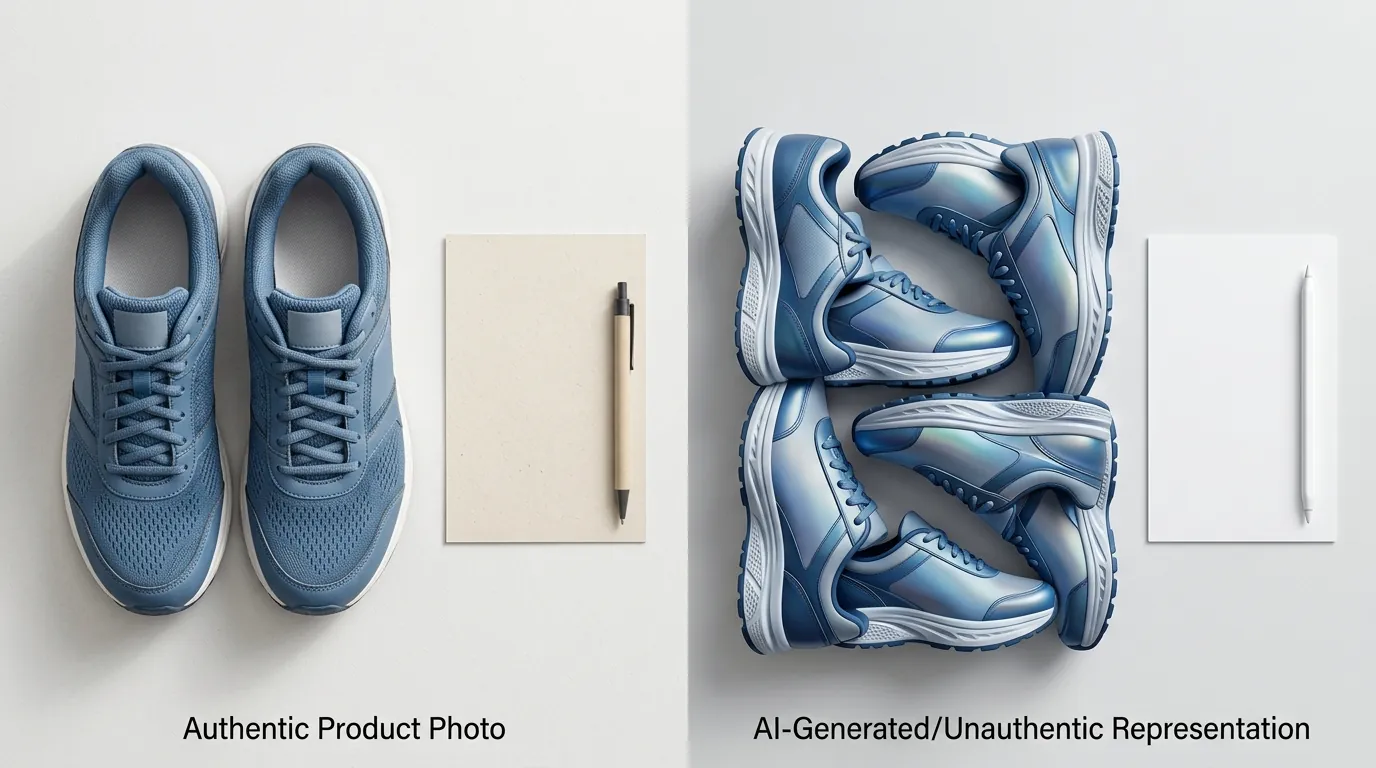
The physical product depicted in the image must be the actual product being sold; fully synthetic main images of non-existent items violate the core product data specification. This is the “Misrepresentation” trap. You can use AI to change the environment (e.g., placing a coffee mug on a marble countertop), but you cannot use AI to “hallucinate” features onto the mug itself.
If your product is a blue cotton shirt, using generative AI to add a pocket that doesn’t exist on the physical SKU is a direct violation of the Misrepresentation policy. Google’s automated systems compare your product images against other data points in your feed, such as titles and descriptions. Discrepancies between the AI-enhanced visual and the text-based attributes lead to “Inaccurate product data” warnings.
Common Rejection Reasons

💡 Skip the manual editing. PixelMatch batch-generates ecommerce-ready product images in 60 seconds — white background, lifestyle scenes, and variant mockups from a single source photo. Try PixelMatch free →
Review the “Diagnostics” tab in your Google Merchant Center account to identify specific image-level disapprovals. Most AI-related rejections stem from technical metadata failures or over-aggressive creative edits that obscure the product’s true nature.
Stripped Metadata
Missing IPTC metadata is the most frequent disapproval reason for advanced sellers. This often occurs when sellers use basic compression tools or CDNs that strip or ignore IPTC data. Even if your AI tool (like Photoroom or Adobe Express) correctly embeds the trainedAlgorithmicMedia tag, your website’s backend might delete it during the upload process to save a few kilobytes of bandwidth.
When Google crawls the image_link or additional_image_link provided in your feed, it expects to see that tag. If the tag is missing but the image is clearly AI-generated, Google may interpret this as an attempt to bypass AI disclosure policies.
Synthetic Main Images
Using raw text-to-image outputs without a real product anchor leads to immediate account-level warnings for misrepresentation. Many sellers attempt to save money on photography by typing “a professional photo of a stainless steel water bottle” into a generator. Because the resulting image is not a photo of the specific bottle in the warehouse, it violates the requirement that images must accurately represent the product.
AI-inflated features—such as adding elements via generative fill that were never manufactured—violates the rule that the image must match the physical product. This includes changing the texture of a fabric to look more “premium” or altering the dimensions of a product to appear larger than its actual specifications.
Promotional Text Overlays
Strict enforcement still flags images containing promotional text, price callouts, or watermarks. While not exclusive to AI, many sellers using AI tools accidentally include “hallucinated” text or logos in the background of their images. Google’s Image Link policy is clear: the main image must be a clear view of the product without obstructing elements. If your AI background generator adds a “Sale” sign in the distant background of a lifestyle shot, Google’s OCR (Optical Character Recognition) will likely flag it as a promotional overlay.
How to Fix Each Issue

Audit your image processing pipeline to ensure that AI-generated assets are both compliant and high-converting. By shifting your workflow to tools that prioritize commerce-specific requirements, you can avoid the manual labor of fixing individual disapprovals.
Restoring IPTC Tags
To fix missing metadata, use lossless compression methods or specialized tools that preserve the trainedAlgorithmicMedia tag before uploading to your feed. If you discover that your current toolset wipes metadata, you can use a command-line tool like ExifTool to batch-reinsert the tags.
For example, the command to set the required tag is:
exiftool -DigitalSourceType="trainedAlgorithmicMedia" image.jpg
If your ecommerce platform strips metadata, consider hosting compliant images externally and overriding the image_link attribute in your Google Merchant Center feed. By hosting images on a dedicated server or a cloud storage bucket (like Google Cloud Storage or AWS S3) and linking directly to them in your feed, you bypass the platform’s internal image processors that strip IPTC data.
Using PixelMatch for Compliant Backgrounds
When generating lifestyle backgrounds, use tools like PixelMatch that anchor your real product photo and apply AI only to the background, ensuring the main item remains authentic. PixelMatch is built specifically for the multi-platform seller workflow, allowing for batch-generating AI product images while maintaining the integrity of the original product pixels.
Unlike general-purpose tools like Adobe Express ($9.99/mo) or Photoroom ($12.99/mo), which may require manual adjustments to preserve metadata, PixelMatch is designed to output feed-ready assets that respect Google’s transparency requirements. By keeping the product “anchored” (using the actual photo of the item), you satisfy the requirement that the image must be a faithful representation of the physical SKU.
Feed Attribute Overrides
Avoid using general-purpose tools like Canva ($15.00/mo) if their export settings automatically wipe IPTC data; verify your exports with a metadata viewer before committing to a full catalog update. If you have already uploaded thousands of images and are seeing disapprovals, use GMC Feed Rules to fix the issue without changing your website’s primary images.
- Identify the affected SKUs: Filter your GMC Diagnostics for “Image quality” or “Inaccurate image” issues.
- Upload compliant versions: Host the metadata-corrected images on a stable URL.
- Apply a Feed Rule: Map the
image_linkattribute to a new supplemental feed that contains the URLs of the compliant, AI-tagged images.
This approach allows you to keep your fast-loading, compressed images on your Shopify or BigCommerce storefront while providing Google with the high-fidelity, metadata-rich versions it requires for Shopping Ads.
Frequently Asked Questions
Does Google penalize AI images in Shopping search results?
No, Google does not penalize images simply for being AI-generated. However, it does penalize images that fail to meet transparency requirements (missing metadata) or accuracy requirements (misrepresenting the product). As long as the product itself is real and the metadata tag is present, AI-generated lifestyle backgrounds are a standard and accepted practice.
How do I check if my images have the IPTC DigitalSourceType tag?
You can use a free online metadata viewer like Jeffrey’s Image Metadata Viewer or a local tool like ExifTool. Look for the “Digital Source Type” field under the IPTC or XMP section. If it is blank or says “software,” it is not compliant for AI-generated content. It must specifically read trainedAlgorithmicMedia.
Can I use AI to change the color of my product for different variants?
While technically possible, this is risky. Google’s Misrepresentation policy requires that the image accurately depict the product. If the AI-generated color does not perfectly match the physical item’s hue, you risk a high return rate and account suspension. It is always safer to use a real photo of each color variant and use AI only for the background.
What happens if I don’t label my AI images?
If Google’s automated systems identify an image as AI-generated but find no IPTC metadata, the image may be disapproved. Repeated violations of Google’s Shopping policies can lead to a full Merchant Center account suspension, which stops all your Shopping ads and organic listings.
Do these rules apply to “Generative Fill” in Photoshop?
Yes. If you use Adobe Photoshop’s Generative Fill to expand a background or add elements to an image, it is considered AI-generated content. Adobe typically embeds the Content Credentials (C2PA metadata) automatically, but you must ensure your export settings do not strip this information before the image reaches Google.
Official Source Links

- Google Merchant Center Help: AI-generated content
- Google Merchant Center Help: Shopping ads policies
- Google Search’s guidance on using generative AI content
- Google Merchant Center: Product image requirements
- IPTC Photo Metadata Standard for AI
Ready to scale your listings?
PixelMatch generates white-background, lifestyle, and variant mockups from a single source photo — built specifically for multi-platform ecommerce sellers. 50 free images on signup, no credit card.
Start free →
Sources
- https://developers.google.com/search/blog/2023/02/google-search-and-ai-content
- https://www.rewarx.com/google-shopping-image-requirements/
- https://www.rewarx.com/google-crackdown-on-ai-product-photos/
- https://www.rewarx.com/google-shopping-image-overlays/
- https://www.adobe.com/express/pricing
- https://www.photoroom.com/pricing
- https://www.canva.com/pricing/