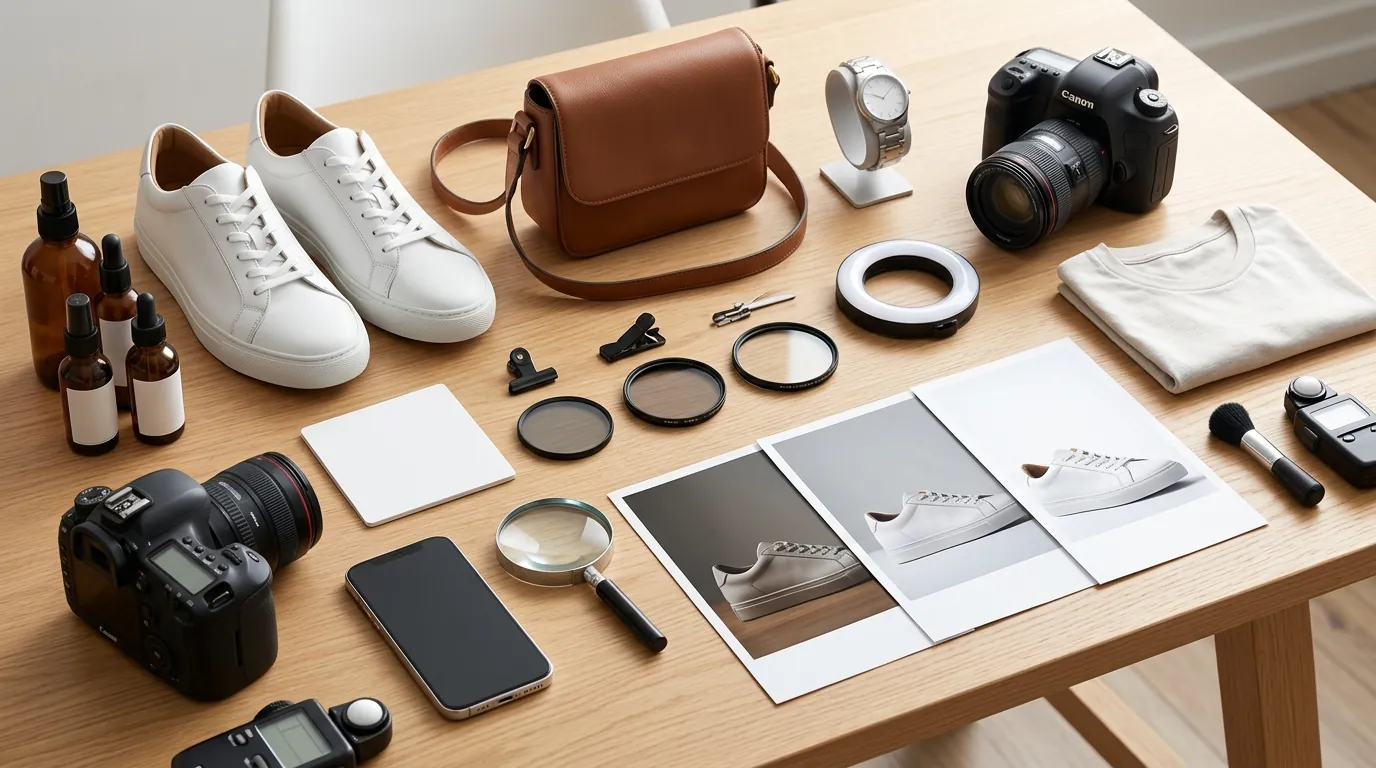
Optimizing Shopify Product Images for Google Lens Search
Stop losing sales to “search by image” competitors who undercut your price because their product photos look identical to yours. When a customer uses Google Lens to find a product they saw in the wild, your Shopify store only wins the click if your images are technically perfect and visually distinct enough for Google’s computer vision to prioritize your listing.
Article Type: policy_guide Title: Optimizing Shopify Product Images for Google Lens Search Slug: optimizing-shopify-product-images-google-lens-search Meta Description: Learn the exact 2026 specs for optimizing Shopify product images for Google Lens search. Avoid Merchant Center disapprovals and scale with AI.
Quick Answer: Shopify product images for Google Lens must meet Merchant Center specs: minimum 500x500 px, max 16 MB, and 75-90% product fill.
Quick Reference Table
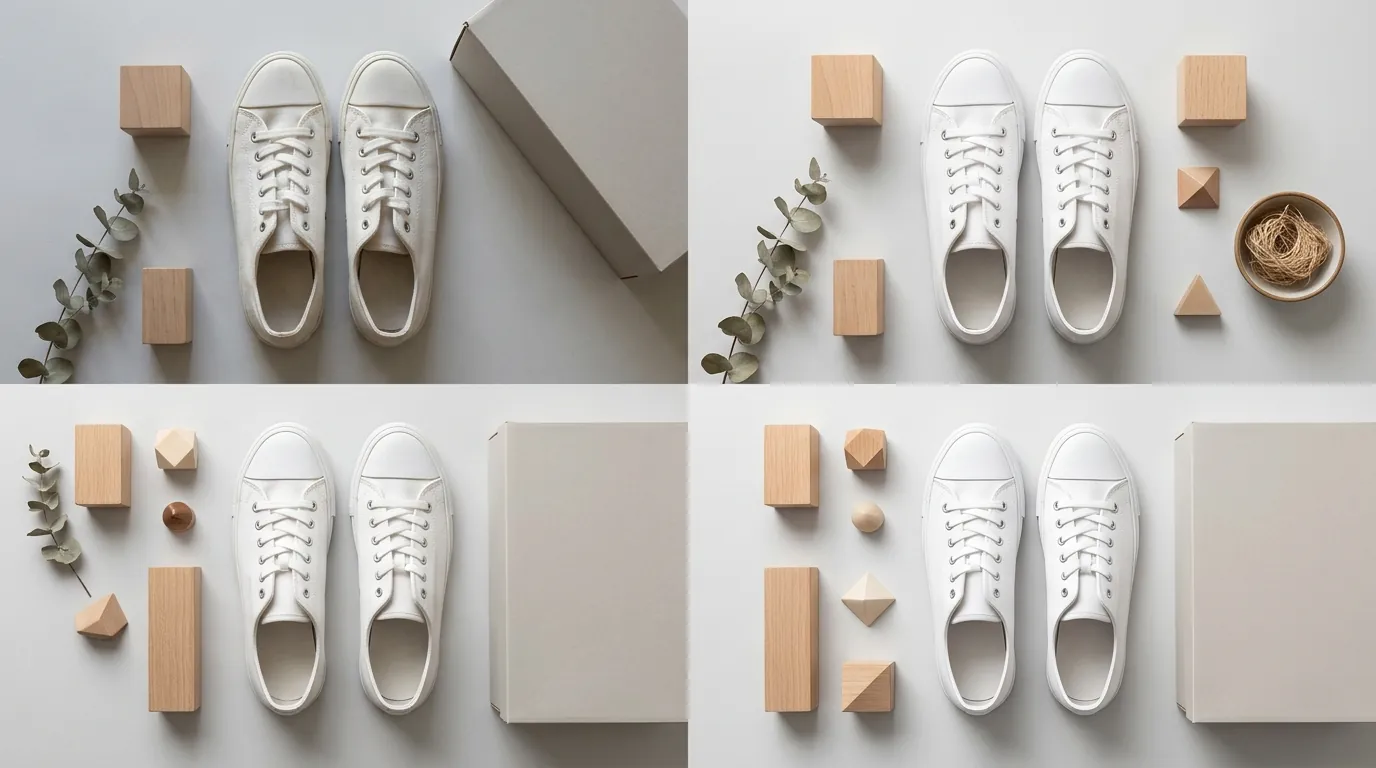
Run a manual audit of your top 10 best-selling SKUs against these 2026 standards today. If your current assets fall below the “Recommended” threshold, Google Lens may deprioritize your products in favor of competitors with higher-fidelity imagery.
| Requirement | Specification | Enforcement / Policy Link |
|---|---|---|
| Minimum Resolution | 500 x 500 pixels | Enforcement begins Jan 31, 2027 |
| Recommended Resolution | 1500 x 1500 pixels | For optimal zoom/Lens matching |
| Maximum File Size | 16 MB | Hard limit for GMC uploads |
| Product Fill Area | 75% to 90% of the frame | Google Merchant Center Requirement |
| Supported Formats | JPEG, PNG, WebP, GIF, BMP, TIFF | Merchant Center Image Specs |
| Background Color | Solid white or transparent | Clean image policy |
Detailed Requirements
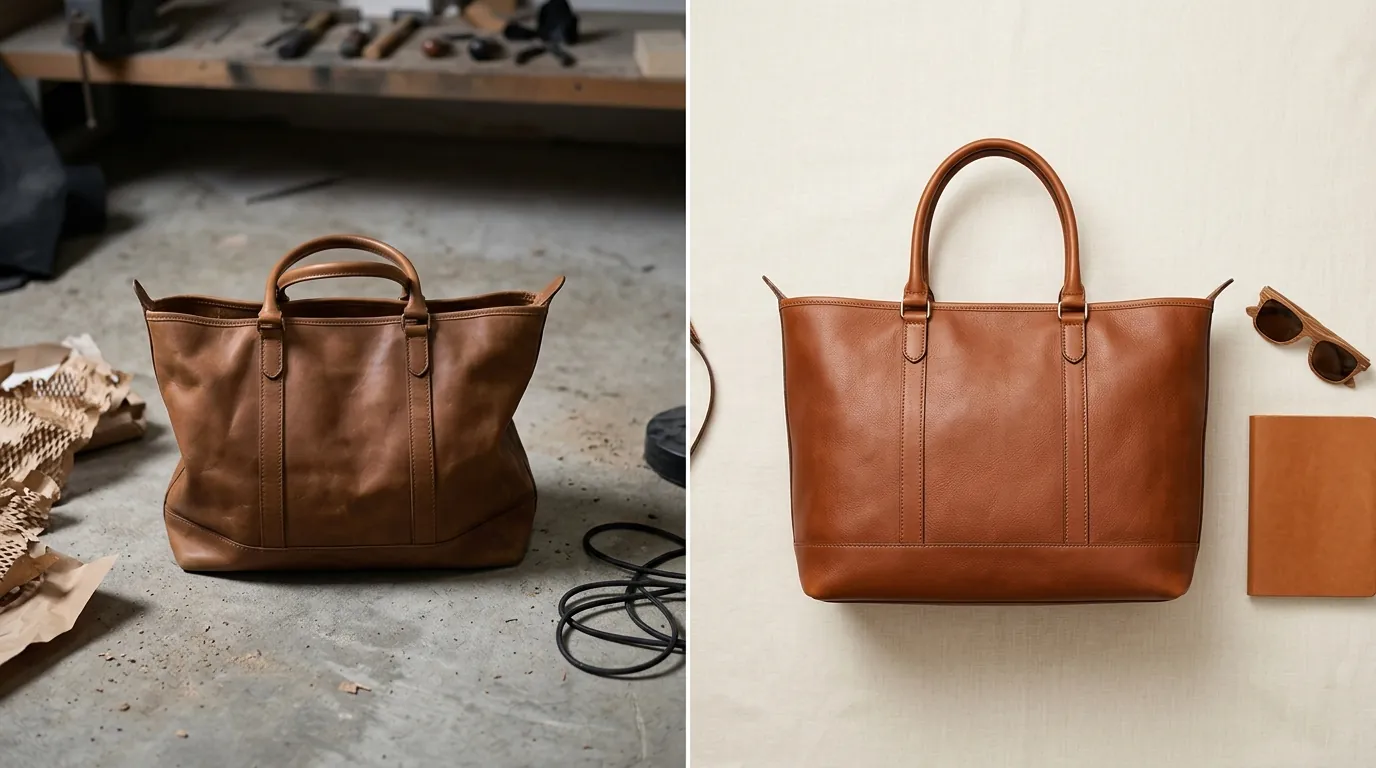
Google Lens does not “see” images the way humans do; it uses feature extraction to identify shapes, textures, and logos. To appear in Lens search results, your Shopify store must feed the Google Merchant Center (GMC) clean, high-contrast data that the AI can easily parse.
Technical Image Specs
While Google supports multiple formats, Shopify sellers should prioritize high-resolution originals. Shopify’s Content Delivery Network (CDN) automatically serves images in WebP format, which reduces file sizes by up to 30% compared to PNG without sacrificing the visual quality needed for Lens identification.
However, you should never upload low-resolution WebP files directly. Instead, upload high-quality JPEGs or PNGs (at least 1500px on the longest side). This provides enough data for Google’s “Scale-Invariant Feature Transform” (SIFT) algorithms to identify your product even when a user takes a blurry or angled photo with their smartphone.
The aspect ratio is equally critical. While Shopify allows various ratios, Google Lens performs most reliably with a 1:1 square ratio. Non-square images often get cropped in the “Shopping” tab of Lens results, which can hide key identifying features of your product and lead to lower click-through rates.
Structured Data & Schema
Google Lens relies heavily on the connection between an image and its underlying data. Most modern Shopify themes include basic Product schema, but you must verify that your image property in the JSON-LD points to your highest-quality asset.
Check your store’s eligibility for Google Lens and Google Images by running a URL through the Google Rich Results Test. If your schema is missing the brand, color, or material properties, Google Lens may struggle to differentiate your product from a generic alternative. By adding these specific attributes in your Shopify Admin under “Product Category” and “Product Variants,” you provide the textual context that “anchors” your image in Google’s Knowledge Graph.
Common Rejection Reasons
💡 Skip the manual editing. PixelMatch batch-generates ecommerce-ready product images in 60 seconds — white background, lifestyle scenes, and variant mockups from a single source photo. Try PixelMatch free →
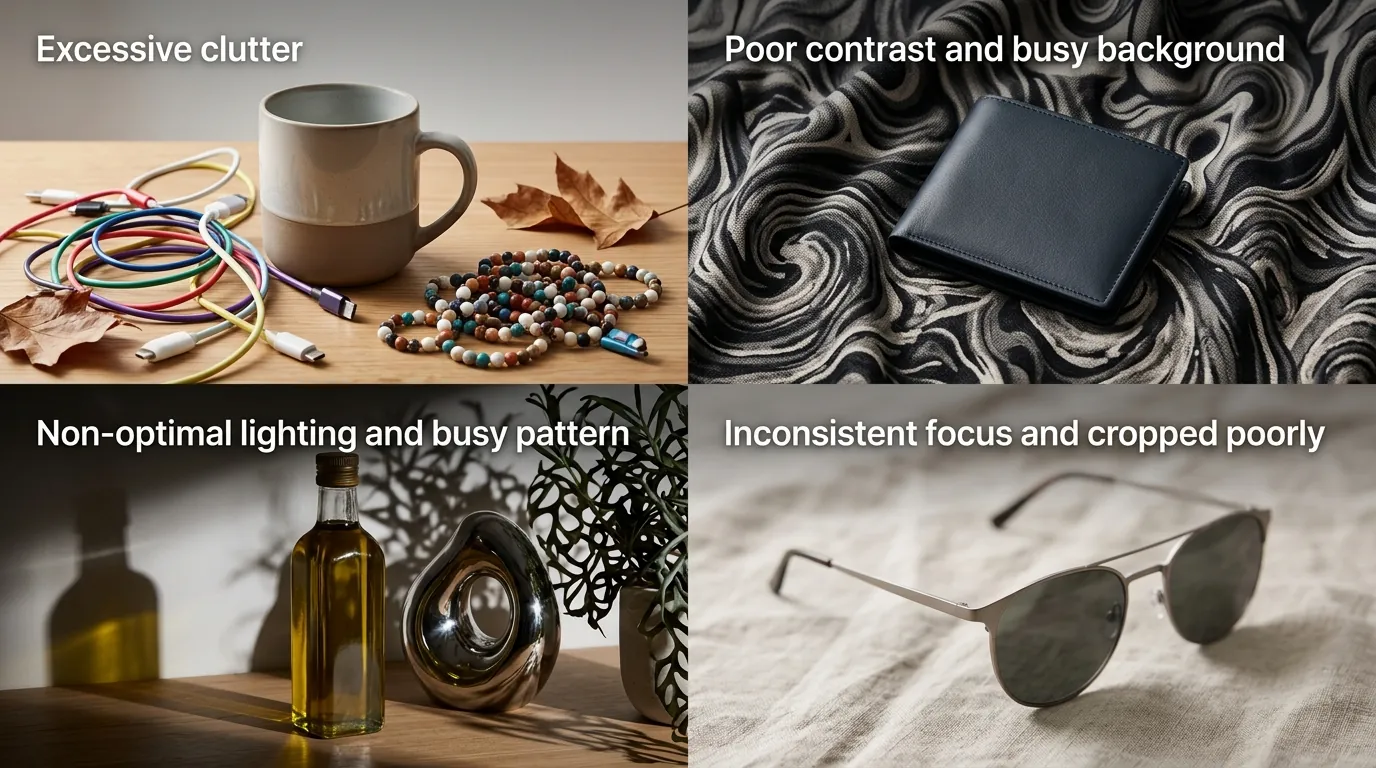
Open your Google Merchant Center account and navigate to Products > Diagnostics. If you see a “Needs attention” warning or a red “Disapproved” status, your images are likely violating one of the following four criteria.
Image Too Small
Uploading images under the 500 x 500 pixel minimum is the most common reason for rejection in 2026. While older 100x100 pixel thumbnails were once tolerated for non-apparel items, Google has moved toward a high-definition standard to support the precision required for visual search. A small image prevents the Lens AI from identifying unique textures—like the grain of leather or the weave of a fabric—resulting in a “hard rejection” where the product is removed from the Shopping tab entirely.
Cluttered Backgrounds
Lifestyle images are excellent for social media but often fail in Google Lens search. If your product occupies less than 75% of the frame, or if the background contains other objects (e.g., a coffee cup next to a smartphone case), the Lens algorithm may misidentify the primary object. Google’s vision algorithms are trained to isolate the “silhouette” of a product; a cluttered background creates “noise” that lowers the confidence score of the match.
Promotional Overlays
Adding watermarks, “Free Shipping” badges, or brand logos over the product image is a direct violation of Google’s clean image policies. These overlays obscure the product’s actual appearance. If your Shopify store uses an app to automatically add “Sale” stickers to your product images, ensure those stickers are not being pushed to your image_link attribute in the Google Merchant Center feed.
File Size Limits
Uploading uncompressed TIFFs or massive PNGs that exceed the 16 MB limit will result in a hard rejection. While high resolution is good, excessive file size suggests a lack of optimization that can slow down the Google Image crawler. Use a balance of high resolution (1500px to 2000px) and efficient compression.
How to Fix Each Issue
Fixing image issues at scale is the primary bottleneck for multi-platform sellers. If you have 500+ SKUs, manual editing is not a viable strategy. You need a workflow that standardizes your catalog for Google’s strict 2026 requirements.
Batch Processing with PixelMatch
For low-resolution or cluttered images, use AI tools to strip backgrounds and upscale. While tools like Photoroom offer background removal for individual photos (with a Pro tier starting at $12.99/mo), PixelMatch is better suited for multi-platform sellers because it can batch-process entire Shopify catalogs in a single session.
To fix your catalog today:
- Sync your Shopify Feed: Connect your store to PixelMatch to identify images that fall below the 500x500 px threshold.
- Apply Global Rules: Set a rule to automatically generate a solid white background and center the product.
- Calibrate Fill Ratio: Use the PixelMatch slider to ensure every product hits the exact 75-90% fill ratio required by Google Merchant Center. This prevents the “product too small in frame” error that plagues lifestyle-heavy brands.
- Export and Re-sync: Push the optimized assets back to Shopify. This ensures that the
image_linksent to Google contains the clean, high-res version, while your store can still keep lifestyle shots in the secondary gallery.
Updating Alt Text in Shopify
Google Lens uses alt text to confirm what it “sees” in the pixels. Avoid keyword stuffing (e.g., “wallet, leather wallet, best wallet 2026”). Instead, use descriptive, visual language that helps a blind user—and the Google AI—understand the image.
Example of a bad Alt Text: IMG_5422.jpg
Example of a Google Lens-optimized Alt Text: Men's bifold wallet in cognac top-grain leather with six card slots and RFID protection.
To update this at scale in Shopify:
- Go to Products in your Shopify Admin.
- Select all products and click Bulk Edit.
- Add the Alt Text column.
- Rename your image files descriptively before uploading. Shopify’s CDN does not automatically rewrite file names for SEO, so
blue-leather-wallet.jpgis always superior toDCIM001.jpg.
Optimizing for the “Visual Match”
Google Lens often shows a “Visual matches” section below the primary search result. To win this section, your product must be the clear hero of the shot. If you are selling a set (e.g., a pack of 3 candles), the primary image should show all three items clearly, but without overlapping them so much that their individual silhouettes are lost. PixelMatch’s AI can help rearrange or “clean up” the composition of these sets so that Google’s computer vision identifies all components of the SKU correctly.
Official Source Links
Refer to these official documentation pages to stay updated on policy changes as we approach the 2027 enforcement deadlines:
- Google Merchant Center Help: Image requirements and best practices
- Google Search Central: Image SEO Best Practices
- Shopify Help Center: Adding alt text to images
- Google Developers: Product Structured Data Specs
Ready to scale your listings?
PixelMatch generates white-background, lifestyle, and variant mockups from a single source photo — built specifically for multi-platform ecommerce sellers. 50 free images on signup, no credit card.
Start free →
Sources
- Google Merchant Center Help: Image too small
- Google Developers: WebP Compression Study
- Shopify Help Center: Image Alt Text Limits
- Photoroom: Pricing and Features
- Google Search Central: Product Schema Documentation