Revvel Standards Marketplace Relisting Pipeline Setup Guide
Managing a high-volume gear shop means fighting a constant battle against marketplace-specific image rejections that stall your cash flow. If you are scaling a multi-platform ecommerce business, setting up a “Revvel” (Reverb) standards marketplace relisting pipeline is the only way to ensure your musical instruments and pro audio gear stay live and visible without manual intervention.
Quick Reference Table
Related: Shopify C2PA Metadata for AI Product Images: 2026 Policy Guide · Optimizing Listings for Etsy AI Slop Filter: 2026 Policy Guide · Meta AI Image Labeling Backlash for Sellers: 2026 Policy Guide
Compare your current per-item margins against the standard Reverb fee structure and technical constraints to identify which products in your catalog are optimized for this specific pipeline.
| Metric | Requirement / Value | Source |
|---|---|---|
| Selling Fee | 5% of total sale price (Min $0.50, Max $500) | Reverb Official |
| Payment Processing | 3.19% + $0.49 per transaction (Standard US) | Reverb Official |
| Min Image Width | 620 pixels | Reverb Help Center |
| Max Image Resolution | 1600 x 1600 pixels | Reverb Help Center |
| Max File Size | 10MB per image | Reverb Help Center |
| Max Photos | Up to 25 photos per listing | Reverb Help Center |
| Used Gear Photos | Original Photography Only (No Stock Photos) | Reverb Policy |
Detailed Requirements
Export a CSV of your current SKU list from Shopify or eBay and flag any “Used” items that currently rely on manufacturer stock imagery for immediate replacement before initiating a bulk sync. Reverb’s Marketplace Integrity Team is significantly more aggressive than eBay or Amazon when it comes to visual authenticity because the community relies on seeing the specific “wear and tear” of a unique instrument.
Image Quality Standards
To pass the “Revvel” standards marketplace relisting pipeline setup, your images must meet a strict threshold of clarity and authenticity. Reverb requires a minimum width of 620 pixels, but aiming for that minimum often results in blurry listings on high-resolution mobile devices. However, you must stay within the 1600x1600 pixel maximum. If your pipeline automatically pushes 4K images from a PIM (Product Information Management) system, the Reverb API will likely reject the upload or downscale it aggressively, leading to compression artifacts.
PixelMatch solves this by allowing you to set a hard output limit of 1600 pixels on the longest side. This ensures your images are as sharp as the platform allows without triggering a size-related rejection. Furthermore, while platforms like Amazon prefer a pure white background (Hex #FFFFFF), Reverb allows for more “lifestyle” or “studio” looks, provided they are not distracting.
Condition Mapping Rules
One of the most common points of failure in a relisting pipeline is a mismatch in condition taxonomy. Reverb uses a specific set of condition grades: Brand New, Mint, Excellent, Very Good, Good, Fair, Poor, and Non-functioning.
If you are syncing from Shopify, where you might only have “New” and “Used,” you must configure your middleware (like LitCommerce or Crosslist) to map these correctly. Reverb’s Listing Guidelines state that “Brand New” can only be used by authorized dealers. If you are a reseller listing a guitar that has never been played but you are not an official dealer for that brand, you must map that item to “Mint.” Failure to do so can result in a “Not as Described” claim, which Reverb often decides in favor of the buyer.
Common Rejection Reasons
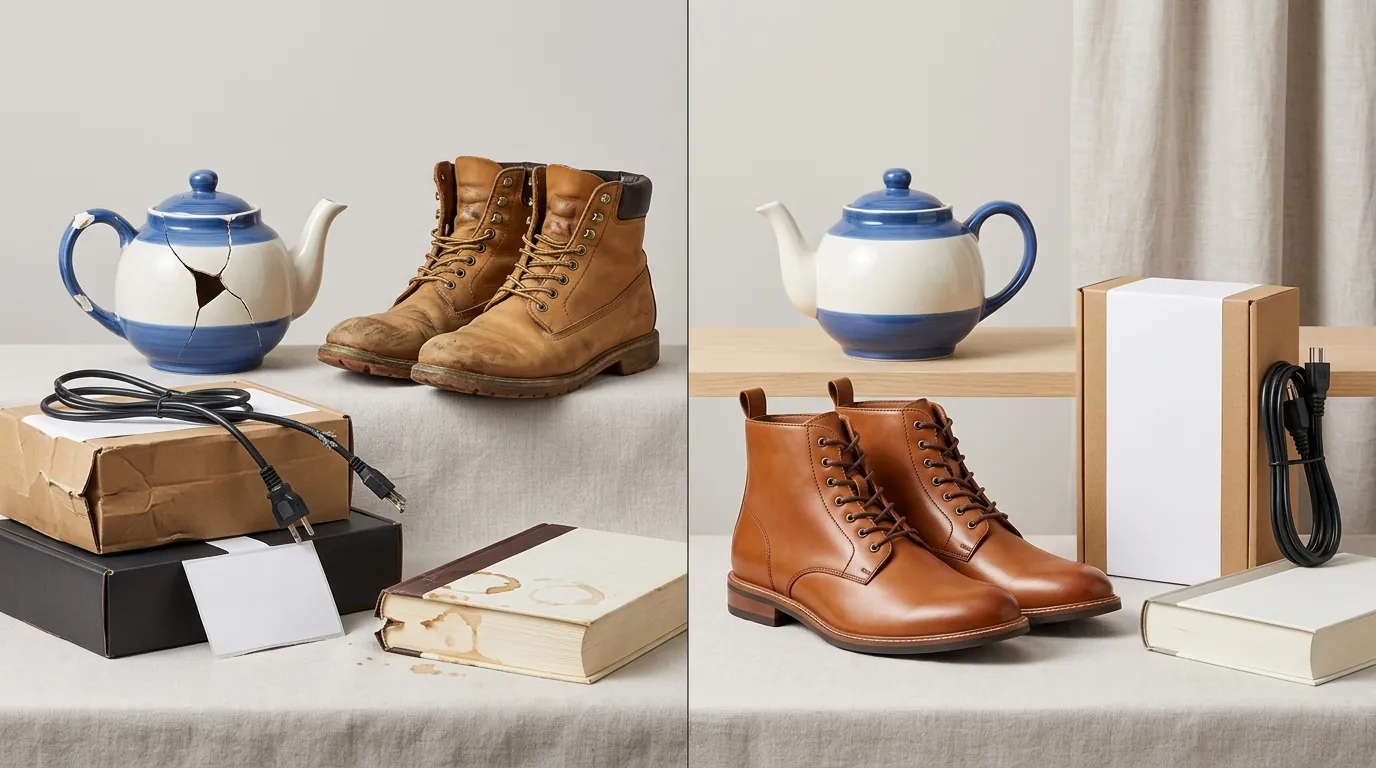
💡 Skip the manual editing. PixelMatch batch-generates ecommerce-ready product images in 60 seconds — white background, lifestyle scenes, and variant mockups from a single source photo. Try PixelMatch free →
Inspect your mobile-uploaded photos for “UI bleed”—black bars, battery icons, or cellular signal strength indicators—and purge these from your pipeline before they trigger a Marketplace Integrity Team flag. These elements are common when sellers take screenshots of their own listings from other platforms rather than using the original source files.
Screenshot Suspensions
Reverb’s automated systems and manual reviewers are trained to spot screenshots. If an image contains the tell-tale signs of a phone interface, the listing is often shadow-banned from the main search feed or suspended entirely. This is part of their effort to prevent fraudulent listings where scammers “clip” images from legitimate sellers. In a high-volume pipeline, a single screenshot can halt an entire batch upload.
If your current workflow involves grabbing images from a live Shopify site because you lost the original files, do not use the “Save Image As” function if it results in a WebP format that your cross-listing tool doesn’t support, and never take a screenshot. Instead, use a tool like PixelMatch to batch-process your source URLs and regenerate high-quality, platform-compliant JPEGs.
Watermark Violations
While Reverb does not have a blanket ban on all watermarks like some platforms, they explicitly prohibit “distracting” watermarks. If your logo covers the bridge of a guitar or obscures the serial number, it will be rejected. More importantly, listings with watermarks are often excluded from Reverb’s external ad spend (Google Shopping and social media ads).
If you are importing listings from a platform where you previously applied heavy watermarking to prevent image theft, you need to strip those before the Reverb sync. Manually editing 500 listings in Adobe Express’s $9.99/mo Premium tier or Photoroom’s $12.99/mo Pro plan is time-prohibitive for a scaling business. PixelMatch allows you to automate the background removal and “cleaning” process, essentially giving you a fresh, un-watermarked product shot from your original photo.
How to Fix Each Issue
Configure your PixelMatch batch settings to output images at exactly 1600x1600 pixels to maximize visibility without exceeding Reverb’s resolution ceiling. This step should be the “bridge” between your product photography and your cross-listing software.
Batch Image Optimization
The most efficient “Revvel” standards marketplace relisting pipeline setup uses an AI-driven image layer. When you take photos of a used synthesizer, the background might be a cluttered warehouse or a messy studio. While Reverb requires original photos, they do not require bad photos.
You can use PixelMatch to batch-remove messy backgrounds and replace them with a clean, neutral grey or off-white. This maintains the “original photography” requirement—because the item itself is still your specific unit—but elevates the listing to a professional standard. Unlike manual editors, PixelMatch can process hundreds of gear photos in minutes, ensuring that your pipeline doesn’t bottle-neck at the creative stage.
Pipeline Configuration
To fully automate your relisting, follow this configuration flow:
- Source Input: Connect your primary store (e.g., Shopify) to a cross-listing tool. LitCommerce’s Basic plan starts at $29/mo and is a popular choice for this.
- Image Scrubbing: Before the data reaches the cross-listing tool, run your image URLs through PixelMatch. This ensures every image is resized to the 1600px limit, converted to a standard JPEG/PNG, and stripped of any prohibited borders or text overlays.
- Data Mapping: Inside your cross-listing tool, set a “Condition Mapping” rule. For example:
If Shopify Condition = 'New' AND Brand = 'Fender' AND Authorized_Dealer = 'False', then Reverb Condition = 'Mint'. - Final Sync: Push the optimized data to Reverb.
By inserting PixelMatch into the second step, you eliminate the #1 cause of Reverb listing rejections: poor image quality and policy-violating visual elements.
Replacing Prohibited Content
If you discover that your pipeline has already pushed prohibited content (like stock photos for used items), you must act quickly. Reverb’s “Marketplace Integrity” flags can lead to a permanent decrease in your “Seller Rating,” which affects your placement in the “Reverb Bump” ad program.
Use your PIM to identify all SKUs marked as “Used” or “B-Stock.” Batch-upload new, original photos for these SKUs into PixelMatch. Use the AI to enhance the lighting—often difficult with gear photography due to chrome hardware and glossy finishes—and then use the “Bulk Update” feature in your cross-listing tool to refresh the images on Reverb. This is significantly faster than deleting and recreating listings, which would destroy your “watch” counts and SEO juice.
Frequently Asked Questions
Can I use manufacturer stock photos on Reverb?
You can only use manufacturer stock photos if you are an authorized dealer and the item is in “Brand New” condition. For any item listed as Mint, Excellent, or lower, Reverb policy requires original photos of the actual item you are selling.
What is the maximum number of photos I can upload to a Reverb listing?
Reverb allows you to upload up to 25 photos per listing. For used gear, it is highly recommended to use this capacity to show every angle, including any scratches, dings, or serial numbers, to protect yourself from “not as described” claims.
Why was my listing rejected for “Image Quality”?
The most common reasons for image quality rejections are images smaller than 620 pixels wide, the use of screenshots containing phone UI elements, or the inclusion of borders and text overlays. Reverb prefers clean, high-resolution original photography without distracting edits.
How much does it cost to sell on Reverb in 2024?
Reverb charges a 5% selling fee on the total sale amount (including shipping), with a minimum of $0.50 and a maximum of $500. Additionally, there is a standard payment processing fee of 3.19% + $0.49 per transaction.
Official Source Links

- Reverb Listing Standards & Guidelines
- Reverb Selling Fees and Payout Pricing
- LitCommerce Pricing Plans
- Photoroom Pro Pricing
- Adobe Express Premium Pricing
Ready to scale your listings?
PixelMatch generates white-background, lifestyle, and variant mockups from a single source photo — built specifically for multi-platform ecommerce sellers. 50 free images on signup, no credit card.
Start free →