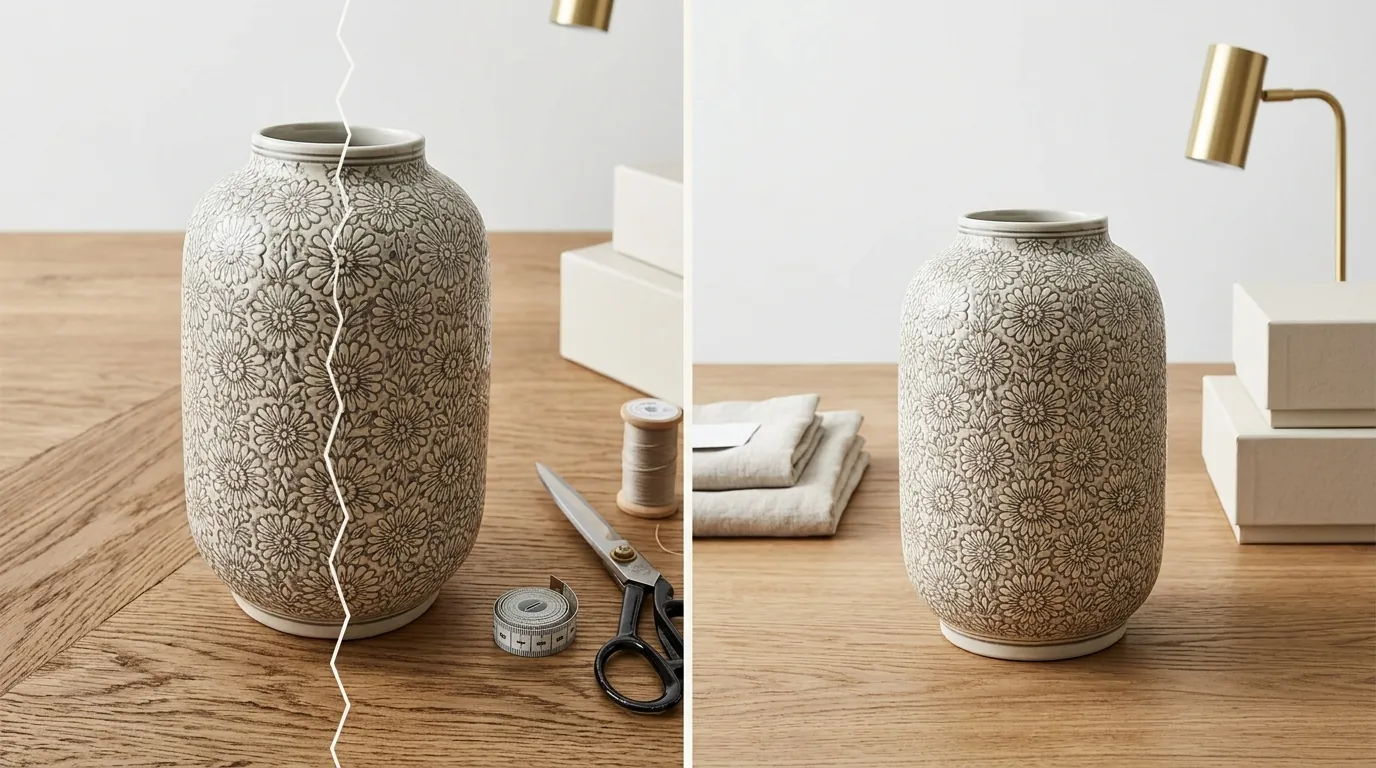
Shopify Magic Image Expansion Seam Line Fix & Specs (2026)
Stop wasting hours manually cloning out visible edges on your expanded product photos. If your Shopify Magic background expansions look like a collage instead of a professional shoot, you are likely hitting the “seam line” artifact common in basic generative fill tools.
To fix a Shopify Magic expansion seam line, regenerate the background entirely using a dedicated AI editor. Shopify requires images under 20 MB and recommends 2048 × 2048 px for optimal zoom.
Quick Reference Table
Related: Amazon Rufus Visual Search Product Mismatch Fix: 2026 Guide · Etsy Creativity Standards for AI Images: 2026 Policy Guide · Amazon AI Image Disclosure Penalty 2026: Policy & Fixes
Audit your current product catalog against these technical thresholds to ensure your images don’t just look good, but actually load and convert. Use this table as a checklist before your next batch upload.
| Metric | Shopify Requirement | PixelMatch / Pro Tool Standard |
|---|---|---|
| Recommended Resolution | 2048 x 2048 px | 3000 x 3000 px (for 4K displays) |
| Maximum File Size | 20 MB | < 5 MB (optimized for speed) |
| Maximum Resolution | 5000 x 5000 px | 8000 x 8000 px (upscaled) |
| Megapixel Limit | 25 Megapixels | N/A (platform dependent) |
| Supported Formats | JPEG, Progressive JPEG, PNG, WEBP, HEIC | JPEG, PNG, WEBP |
| Expansion Quality | Often leaves visible seam lines [1.4.1] | Seamless global scene generation |
| Batch Processing | Manual, one-by-one | Batch-generate AI product images (100+ SKUs) |
Actionable Step: Open your Shopify Admin, go to Settings > Files, and sort by size. Any image approaching 15MB should be compressed to prevent slow mobile page loads, even if it falls under the official 20MB limit.
Detailed Requirements
Check your Shopify Admin settings under the “Product” section to see if Shopify Magic is enabled for your region. While the tool provides a low-barrier entry to AI editing, its architectural limitations often create more work for high-volume sellers.
Shopify Magic Capabilities
Shopify Magic is a suite of AI features integrated directly into the Shopify admin. For image editing, it primarily offers background removal, background replacement, and image expansion. The expansion tool uses generative AI to “outpaint” the edges of a photo, attempting to fill in the space when you change a portrait shot to a square aspect ratio.
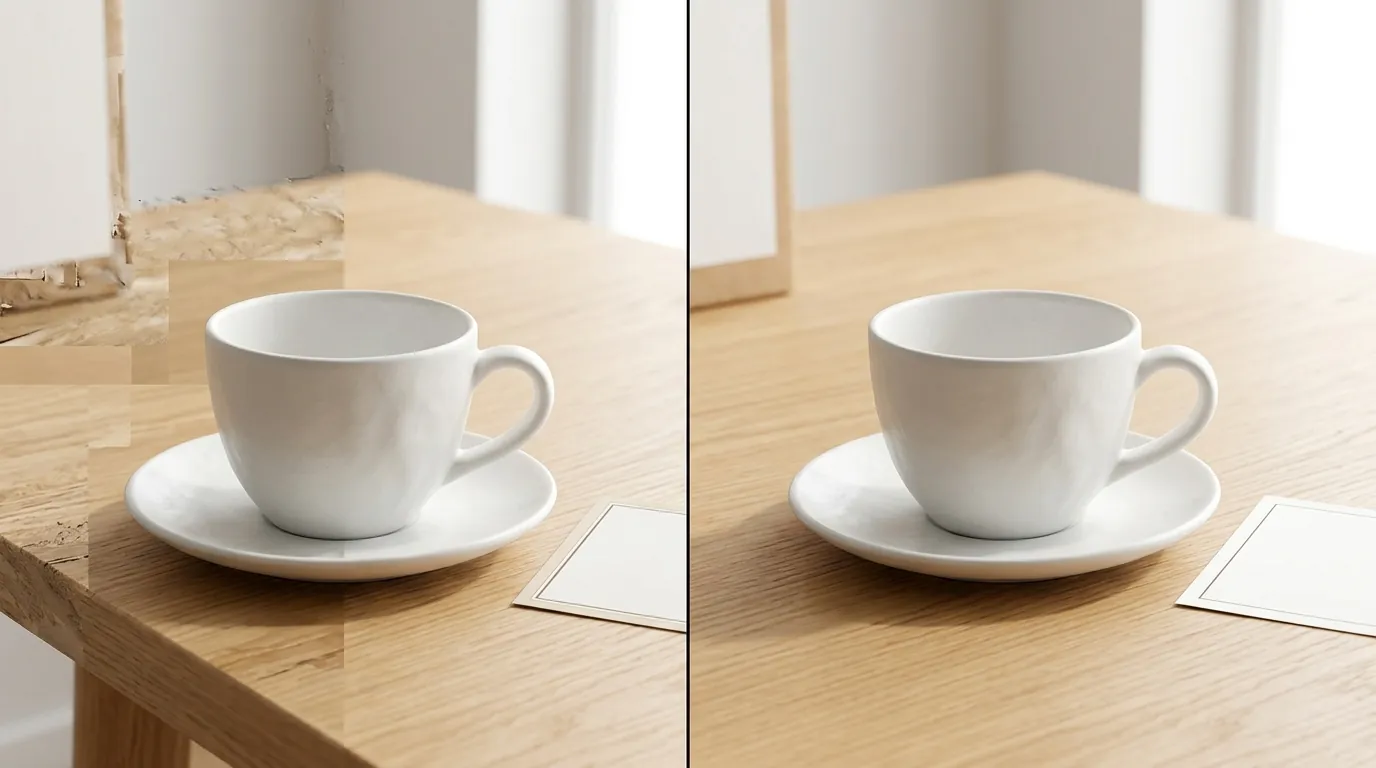
The limitation lies in how the AI interprets the “boundary” of your original photo. When you use the expansion tool, the AI often treats the original image as a static box and builds around it. If the lighting, grain, or texture of the generated area doesn’t perfectly match the original pixels, a visible line—the “seam”—appears. This is particularly prevalent on complex textures like wood grain, marble, or fabric, where the AI struggles to continue the pattern’s geometric flow.
Image Size and Format Specs
To ensure your customers can use the “Magnify” or “Zoom” feature on your product pages, you must adhere to Shopify’s scaling logic. Shopify automatically creates several versions of your uploaded image to serve the smallest possible file to the customer based on their device.
- The 2048px Rule: Uploading at 2048 x 2048 px ensures that when a customer zooms in, the image remains crisp. If you upload at the 500px minimum, the zoom feature will either be disabled or appear extremely pixelated.
- The Aspect Ratio: Shopify’s themes often perform best with a 1:1 square ratio. If you are using Shopify Magic to expand a 4:5 vertical photo into a 1:1 square, this is where the seam line issue is most likely to occur.
- Format Selection: Use JPEG for standard product photos to keep file sizes low. Use PNG only if you require a transparent background (e.g., for floating UI elements). Shopify will often convert your images to WEBP automatically to improve delivery speed, but providing a high-quality JPEG source is the best starting point.
Actionable Step: Before a major product launch, upload one “test SKU” and view it on a mobile device using a 4G connection. If the image takes more than 1.5 seconds to snap into focus, your source file is likely too large or unoptimized.
Common Rejection Reasons
💡 Skip the manual editing. PixelMatch batch-generates ecommerce-ready product images in 60 seconds — white background, lifestyle scenes, and variant mockups from a single source photo. Try PixelMatch free →
Run a “Zoom Test” on your live product page. If you see a blur or a “ghost line” where the background was expanded, you have a seam line issue that can hurt your conversion rate. Customers often equate poor image editing with a lack of brand legitimacy.
Visible Seam Lines and Jagged Edges
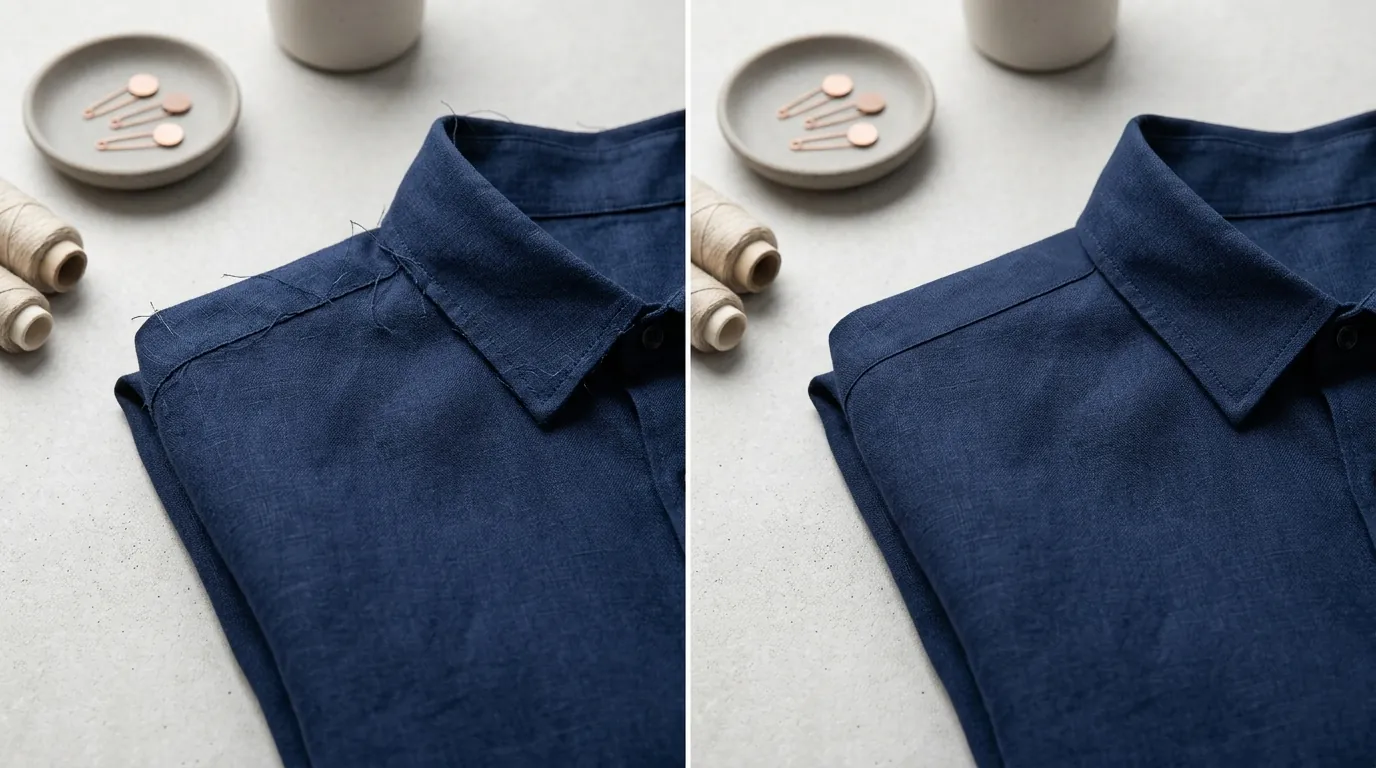
Shopify Magic’s AI can leave jagged edges when expanding backgrounds or removing complex backgrounds (like hair or jewelry). These jagged edges or seam lines occur because the tool’s edge detection may fail to distinguish between the product’s shadow and the product itself. When the AI “fills” the expanded area, it leaves a 1-pixel wide transition zone that looks like a faint gray or white stroke around your product.
File Size and Resolution Hard Stops
If your upload fails, it is almost always due to one of three hard limits:
- The 20MB Wall: High-resolution TIFF or uncompressed PNG files frequently exceed the 20 MB limit.
- The 25MP Ceiling: Resolution is not just about the long edge. A 6000 x 5000 px image is 30 megapixels, which will be rejected by Shopify even if the file size is small.
- The 5000px Limit: No single side of the image can exceed 5000 pixels.
Unnatural Lighting and Flat Shadows
Automated editors often “flatten” the product. When Shopify Magic replaces a background, it may remove the natural “contact shadow” (the dark area where the product touches the surface). Without this, the product appears to be floating unnaturally in space. This lack of depth is a secondary form of “seam line” where the product feels disconnected from its environment.
How to Fix Each Issue
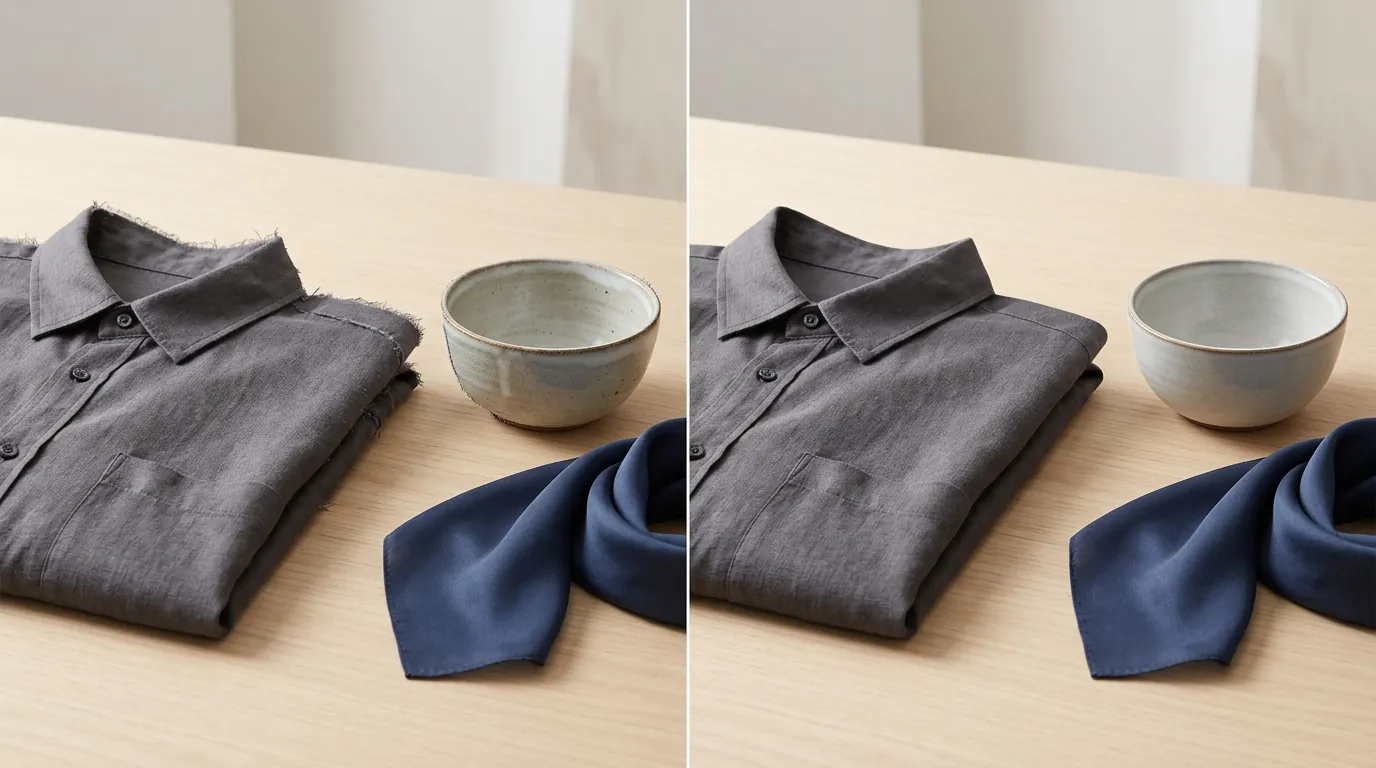
Switch from an “Expand” workflow to a “Generate” workflow. Instead of asking AI to stretch your existing background, use a tool that creates a cohesive environment from scratch.
Eliminating the Expansion Seam Line
To fix the seam line, you must stop using “Generative Expand” on an existing background. Instead, use a “Background Removal + New Scene” approach.
- Remove the Background: Use a high-precision tool to strip the original background entirely. This removes the source of the seam.
- Generate a Global Scene: Instead of expanding the edges, use PixelMatch or a similar tool to place the product into a completely new AI-generated environment. Because the entire background is generated in one pass, there are no “edges” to stitch together, eliminating the seam line entirely.
- Feathering: If you must use Shopify Magic, use the “brush” tool to manually soften the edges of your product before hitting the “Generate” button. This helps the AI blend the transition zone more effectively.
Automating Batch Edits
Shopify Magic is designed for the “side-hustle” seller with five products. For multi-platform sellers with hundreds of SKUs, editing one by one is a bottleneck.
- Consistency: When you edit one by one in Shopify, the AI generates a slightly different light source for every photo. Your collection page will look messy.
- The PixelMatch Advantage: PixelMatch is better suited for high-volume workflows because it allows you to apply a single “Scene Template” to an entire batch. This ensures that the lighting, shadows, and resolution are identical across your entire catalog, providing a “big brand” look without the cost of a professional studio.
- Competitor Pricing Context: If you are looking at dedicated tools, Photoroom offers a Pro tier at $12.99/mo, while Adobe Express Premium is $9.99/mo. These tools offer batch features that Shopify Magic currently lacks.
Resizing and Compression
If you have high-quality images that are failing the 20MB upload limit, do not just lower the resolution.
- Maintain 2048px: Keep your long edge at 2048px.
- Use TinyJPG or Optimizilla: Use these tools to strip metadata and compress the file size without touching the pixel dimensions.
- Check the Megapixels: If your image is 5500 x 4000, resize it to 5000 x 3636 to stay under the 5000px limit.
Official Source Links

- Shopify Help Center: Product media types and specs
- Shopify Help Center: Using the Image Editor and Shopify Magic
- Shopify Help Center: Image Uploading Limits
Frequently Asked Questions
Why does Shopify Magic keep leaving a blurry line around my product?
This is a result of the AI’s “masking” process. If the original photo has a slight motion blur or a “soft” edge, the AI expansion tool fails to find a hard boundary to start the generation. To fix this, ensure your original photos are shot with a high aperture (f/8 or higher) to keep edges sharp, or use a dedicated background remover before expanding.
What is the best aspect ratio for Shopify product images in 2026?
The 1:1 square ratio remains the standard for Shopify because it is the most versatile for mobile “swipe” galleries and grid views. However, many modern themes now support 2:3 (Portrait) for fashion. Regardless of the ratio, ensure your product occupies at least 85% of the frame to maintain detail on mobile screens.
Can I use Shopify Magic to batch-edit 100 images at once?
No, as of June 2026, Shopify Magic’s image expansion and background replacement features are manual processes performed within the individual product’s media editor. For batch processing, you must use a third-party SaaS like PixelMatch or Photoroom that supports bulk uploads and consistent scene application.
Does Shopify charge for using Shopify Magic image expansion?
Shopify Magic features are currently included in your standard Shopify subscription plan. There is no “per-image” fee for using the built-in AI editor, though the time cost of manual editing often outweighs the “free” software cost for growing brands.
Ready to scale your listings?
PixelMatch generates white-background, lifestyle, and variant mockups from a single source photo — built specifically for multi-platform ecommerce sellers. 50 free images on signup, no credit card.
Start free →