
Shopify Markets Pro Image Localization Workflow Guide
Selling globally through Shopify Managed Markets feels like a win until your Spanish customers see English-only packaging and bounce. You are losing conversion rate and risking customs rejections because your product images aren’t localized for the 150+ countries Global-e supports.
Shopify Markets Pro (now Managed Markets) handles international taxes and duties for a 6.5% fee, but native tools don’t localize product images. To show region-specific images, you must use metafields or third-party apps alongside standard 2048x2048px image specs.
Quick Reference Table

Audit your current top-selling international market today and check if the primary product image matches local language requirements or compliance standards.
| Feature | Specification / Requirement | Source Link |
|---|---|---|
| Platform Name | Shopify Managed Markets (formerly Markets Pro) | Official Help Center |
| Transaction Fee | 6.5% of total order value | Pricing Details |
| Currency Conversion | 2.5% fee | Pricing Details |
| Max Image Resolution | 5000 x 5000 px | Media Specs |
| Max File Size | 20 MB | Media Specs |
| Recommended Size | 2048 x 2048 px (1:1 aspect ratio) | Best Practices |
| Native Localization | Not supported for product media | Translate & Adapt Limits |
Key Platform Distinctions
When you scale from domestic to global, the “Pro” or “Managed” version of Shopify Markets shifts the legal responsibility of the sale to Global-e. This means your images must not only sell the product but also satisfy the “Merchant of Record” (MoR) compliance standards. If your image shows a product feature that is restricted in France, Global-e can proactively delist that SKU for the French market, even if your text is perfectly translated.
Detailed Requirements
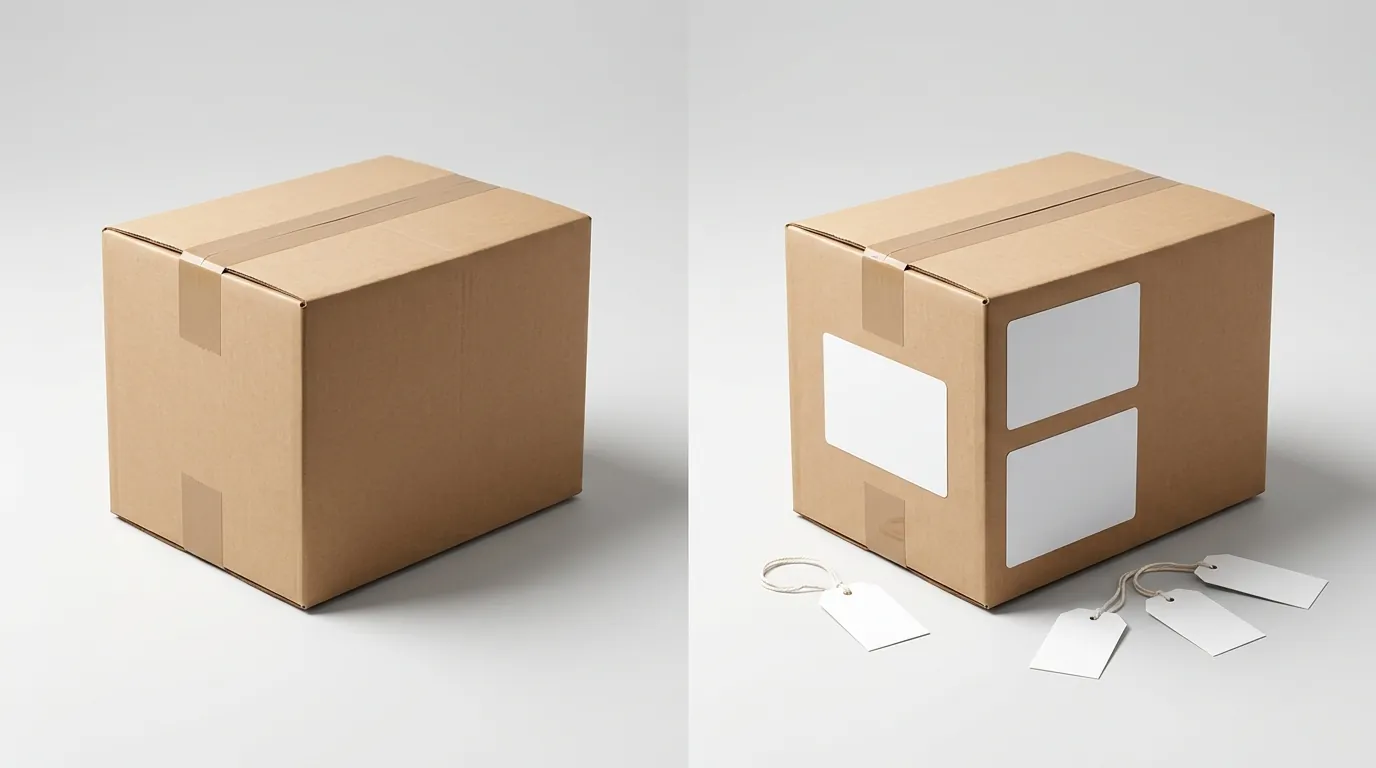
Create a “Regional Media” metafield in your Shopify Admin to store localized image URLs for your top three non-English markets to bypass the current limitations of the Translate & Adapt app.
Image Specs and Limits
Shopify’s infrastructure supports high-resolution imagery, but Managed Markets adds a layer of scrutiny. Your images must adhere to the standard 20 MB file size limit. While Shopify supports PNG, JPEG, and WebP, using WebP is recommended for international storefronts to ensure fast loading times on slower mobile networks in emerging markets.
The platform automatically creates different sizes for your images, but the 2048 x 2048 px square remains the gold standard. This resolution allows the Shopify zoom feature to function correctly across all themes without pixelation. When localizing, maintain this exact aspect ratio across all regional variants to prevent your storefront layout from “jumping” when a user switches markets.
The Native Localization Gap
The most common point of failure for sellers is assuming that the Shopify Translate & Adapt app handles images. It does not. The app is designed to translate text fields (titles, descriptions, alt text) and theme-level media (like your homepage hero banner). It cannot swap out the product gallery images based on the visitor’s country.
This gap creates a “visual-linguistic mismatch.” A customer in Mexico sees a Spanish product title and price in Pesos, but the product photos show a bottle with English instructions and a USDA Organic seal that may not be recognized locally. To bridge this gap, you must utilize the Shopify Metafields system or dedicated apps like Image Translate Easy or EZ Product Image Translate.
PixelMatch solves this at the production level. Instead of manually editing hundreds of photos in Adobe Express or Canva to swap a flag or a language label, you can use PixelMatch to batch-generate these regional variants. By feeding the AI your base product photo and specifying the regional requirements (e.g., “Spanish text packaging, 1:1 ratio”), you can produce a full global catalog in minutes.
Merchant of Record (MoR) Compliance
Because Global-e acts as the seller of record, they are liable for what is shipped. Your images are considered part of the product claim. If you sell a supplement and your image shows a “Free Shipping” badge that only applies to the US, or a “FDA Approved” claim that is illegal to display in the EU, your product may be flagged during the Global-e onboarding sync.
Common Rejection Reasons
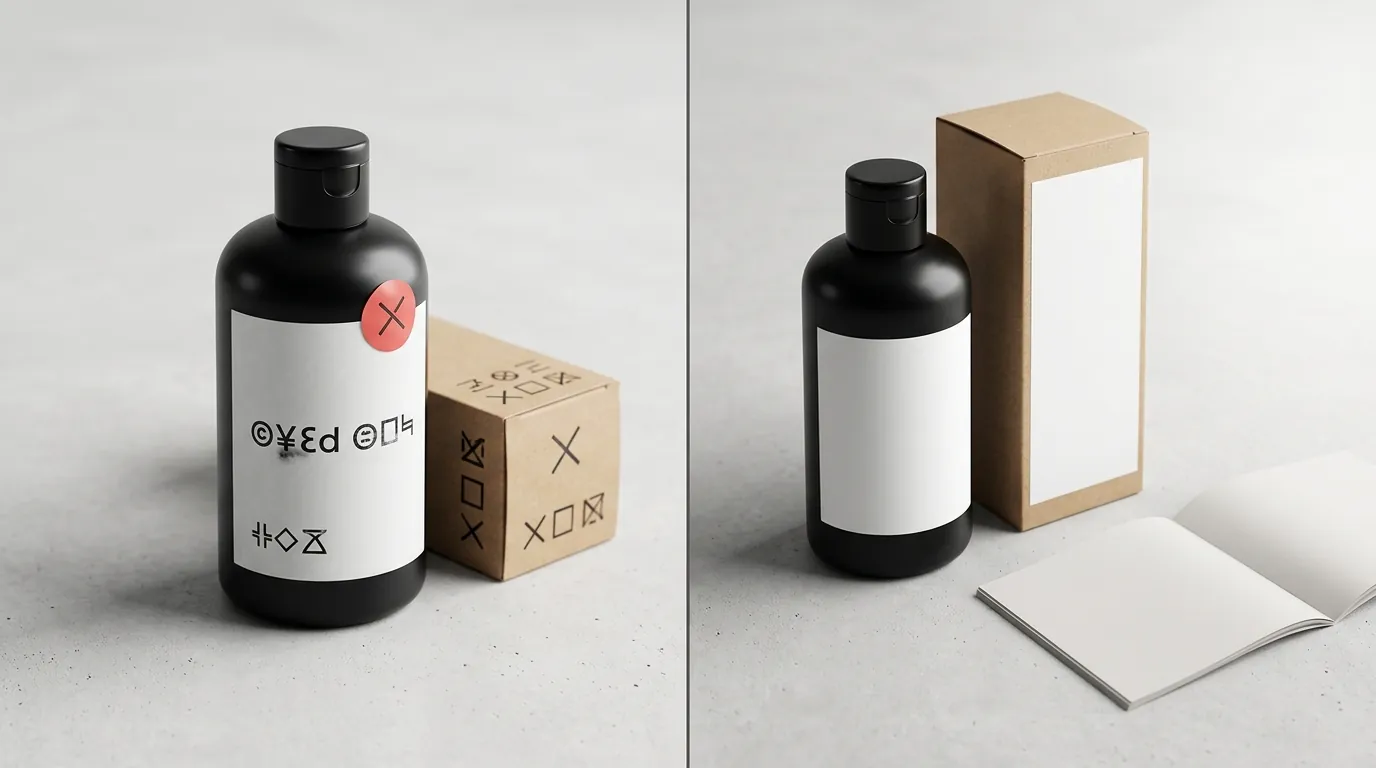
💡 Skip the manual editing. PixelMatch batch-generates ecommerce-ready product images in 60 seconds — white background, lifestyle scenes, and variant mockups from a single source photo. Try PixelMatch free →
Cross-reference your catalog against the Global-e restricted items list to identify lifestyle photos containing prohibited props like perfume bottles, loose lithium batteries, or CBD products.
Prohibited Item Flags
Managed Markets has strict “Prohibited and Restricted” categories. Often, a product is allowed, but the lifestyle imagery causes a rejection. For example, if you sell travel bags but your lifestyle photo shows a Class 3 flammable liquid like a large bottle of perfume or a nail polish remover, the AI scanners used by customs and MoR partners may flag the listing.
Common visual triggers for rejection include:
- Loose Batteries: Showing uninstalled lithium-ion batteries in the frame.
- CBD/Hemp: Images featuring hemp leaves or CBD branding, even if the product itself is a standard topical cream allowed in some regions.
- Weapons/Tactical Gear: Even decorative items that resemble weapons can trigger a block in markets like the UK or Australia.
Missing Regional Compliance Badges
The European Union and the United Kingdom have specific marking requirements that differ from the US. If you are selling electronics, toys, or personal protective equipment, your images should ideally show the CE mark for the EU and the UKCA mark for the UK.
Selling a product in Germany with an image that only shows a US FCC label can lead to “item not as described” disputes or regulatory blocks. Furthermore, Managed Markets labeling requirements dictate that certain products must have labels in the local language. If your images show an English-only nutritional panel for a product being sold in Quebec, you are technically in violation of local language laws (Bill 101).
Mismatched Packaging and Social Proof
Using “Social Proof” images—like a screenshot of a five-star review—is a common conversion tactic. However, showing an English review from “John D. from Ohio” to a customer in Tokyo is ineffective. Managed Markets users often see a drop in conversion when they fail to localize these “infographic” style images. If your secondary images contain text, they must be translated, or they will be ignored by the local audience.
How to Fix Each Issue
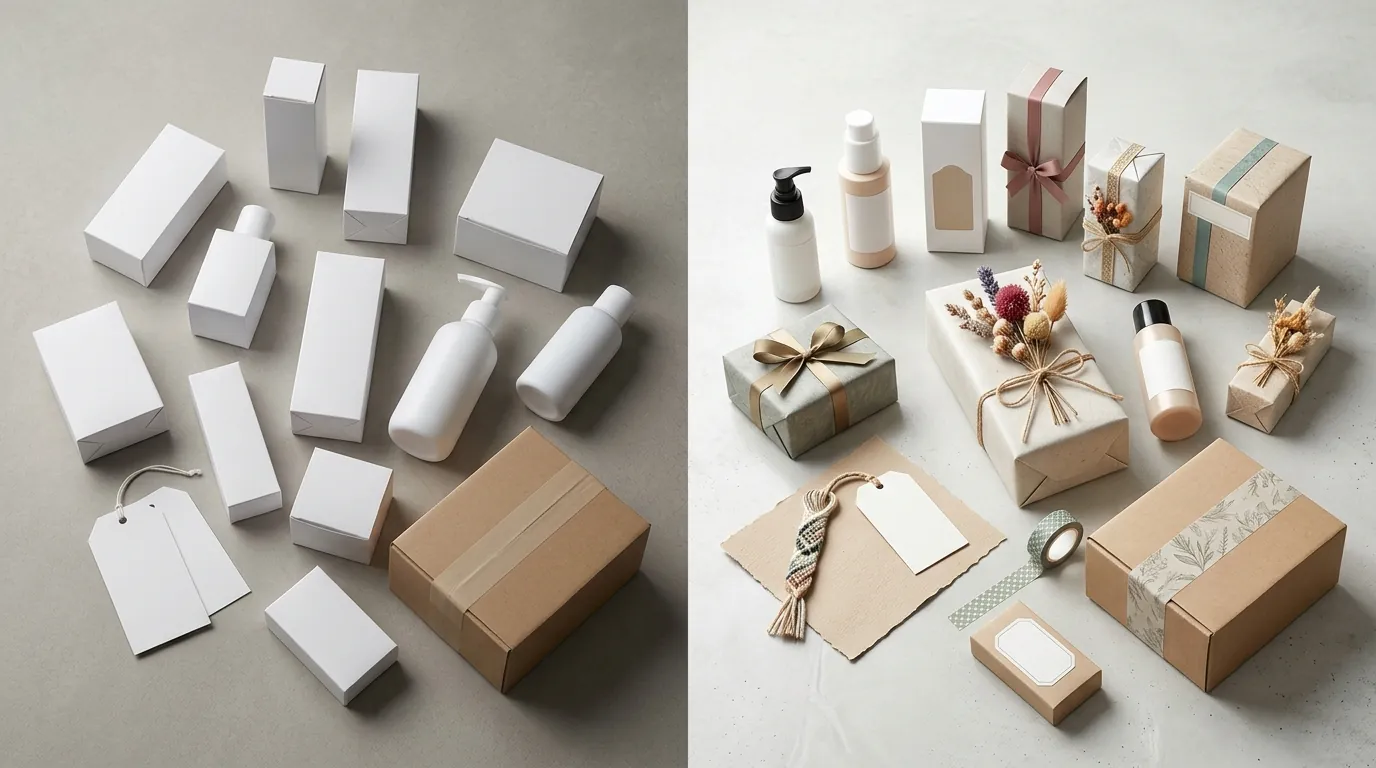
Set up an automated workflow using a third-party app to map your PixelMatch-generated localized files to their respective country markets via Shopify Metafields.
Batch-Generating Regional Variants
The manual way to fix localization is to open every product in Photoroom or Canva, remove the background, and manually type in translated text for every market. This is not scalable for a multi-platform seller with more than 10 SKUs.
Instead, use PixelMatch to batch edit ecommerce product images by applying regional templates.
- Upload your master high-res image (2048x2048 px).
- Define regional zones: Use the AI to identify where the compliance badges (CE, UKCA) or text labels should sit.
- Batch-apply region-specific badges: Upload the CE mark once and tell the system to apply it to all electronics SKUs destined for the EU Market.
- Export by Market: Download folders organized by country (e.g.,
_ES,_FR,_JP) to keep your assets organized for the next step.
Implementing Metafields or Apps
Since Shopify doesn’t natively swap product images, you have two primary technical paths:
Path A: The Metafield & Liquid Method (Free)
This is the best route for developers or sellers who want to avoid monthly app fees.
- Go to Settings > Custom Data > Products.
- Create a new Metafield called
localized_images, set the type to “File” and check “List of files.” - In your theme’s
product.liquidormain-product.liquidfile, add a conditional statement. The code should check thelocalization.country.iso_code. - If the country is “ES” (Spain), the code tells the gallery to pull from your
localized_imagesmetafield instead of the defaultproduct.imagesobject.
Path B: Third-Party Localization Apps (Paid)
Apps like EZ Product Image Translate or Image Translate Easy automate the Liquid code for you. These apps typically cost between $9 and $29 per month, depending on the volume of images.
- Install the app from the Shopify App Store.
- Select the market (e.g., Germany).
- Upload the German-specific images you generated in PixelMatch.
- The app handles the front-end logic to ensure the German customer sees the German images while the US customer still sees the English ones.
Auditing for Prohibited Props
If your product was rejected by Managed Markets, do not just re-upload the same photo.
- Identify the “Noise”: Look for any background items that aren’t the product itself.
- Use AI Cleanup: Use tools like Removebg or Adobe Express to strip the background entirely, or use PixelMatch to generate a “Clean Room” lifestyle shot that removes any potential Class 3 liquids or restricted props.
- Standardize on White Backgrounds: For your primary image, stick to a pure white background. This is not only a Shopify best practice but also reduces the “surface area” for Global-e compliance flags.
Maintaining Resolution Consistency
When you create localized variants, ensure you aren’t losing quality. A common mistake is taking a screenshot of a translated label and pasting it onto a low-res product photo.
- Always start with the 2048 x 2048 px source.
- Verify the file size is under 20 MB.
- Check the zoom: Open your localized storefront (use a VPN or Shopify’s “Preview” mode for a specific market) and ensure the hover-to-zoom feature still reveals crisp text on your localized labels.
Official Source Links

- Shopify Managed Markets Overview and Fees
- Shopify Product Media Types, Sizes, and Limits
- Shopify Managed Markets Prohibited and Restricted Items List
- Shopify Translate & Adapt App Feature Limits
- Global-e Merchant of Record Compliance Standards
Ready to scale your listings?
PixelMatch generates white-background, lifestyle, and variant mockups from a single source photo — built specifically for multi-platform ecommerce sellers. 50 free images on signup, no credit card.
Start free →
Sources
- Shopify Help Center: Managed Markets
- Shopify Help Center: Product Media Types
- Shopify Help Center: Prohibited Items for Managed Markets
- Shopify Help Center: Translate & Adapt App
- Photoroom Pricing: Photoroom Pro Tier
- Canva Pricing: Canva Pro Subscription