
Shopify Sidekick AI Image Generator Tutorial & Specs
Stop wasting hours manually masking product photos only to have Shopify’s built-in AI assistant downscale your hard work to a blurry 1-megapixel file. While Shopify Sidekick and Shopify Magic offer convenient “one-click” background replacements, multi-platform sellers often hit a wall when those same images fail the high-resolution requirements of Amazon, Walmart, or premium Shopify themes.
Shopify Sidekick’s AI image generator is free on Basic plans and above, but it generates and downscales images to a default 1 megapixel resolution. For 2048x2048 px batch processing that meets the retina zoom standards of modern ecommerce, use PixelMatch.
Quick Reference Table

Open your Shopify Admin and navigate to Content > Files to check the dimensions of your existing assets before you begin any AI generation workflow. Knowing your baseline resolution prevents you from accidentally overwriting high-res photography with lower-quality AI renders.
The following table compares the capabilities of standard Shopify manual uploads against the limitations of the built-in Sidekick/Magic AI generation tools.
| Feature | Standard Shopify Uploads | Shopify Sidekick/Magic AI Generation |
|---|---|---|
| Max Resolution | 5000 x 5000 px | 1 Megapixel (approx. 1024 x 1024 px) |
| File Size Limit | 20 MB | Automatically optimized for web |
| Recommended Size | 2048 x 2048 px | 1024 x 1024 px (Default) |
| Supported Formats | JPEG, Progressive JPEG, PNG, WebP | PNG (for transparency), JPEG, WebP |
| Batch Processing | Manual / Third-party apps | Single image at a time |
| Cost | Included in all plans | Basic, Shopify, Advanced, or Plus plans |
While Sidekick is an excellent tool for quick social media posts or placeholder images, the 1-megapixel cap is a significant hurdle for sellers who need their images to remain crisp when a customer uses the hover-to-zoom feature. Most premium Shopify themes require at least 800 x 800 pixels just to activate zoom, and the platform recommends 2048 x 2048 px for the best balance between speed and detail.
Detailed Requirements

Check your plan eligibility in the Settings > Billing section of your Shopify admin to ensure you have access to the full suite of media generation tools. Shopify Magic and Sidekick are not available on the “Shopify Starter” plan or for stores currently in a trial period without a selected paid plan.
Plan Eligibility
To use the AI image generation features within the Shopify file editor, your store must be on a Basic, Shopify, Advanced, or Plus plan. If you are on the Basic plan at approximately $39/month, you already have full access to these tools.
Multi-platform sellers should note that while these tools are “free” within the Shopify ecosystem, they are functionally locked to the Shopify admin. If you need to generate images for your eBay or Amazon storefronts simultaneously, you would typically need to export them from Shopify, which can lead to further compression. Tools like PixelMatch are designed for this multi-platform workflow, allowing you to generate high-resolution assets that can be distributed across all channels without the 1-megapixel Shopify bottleneck.
Resolution and Downscaling Rules
When you use the “Generate Background” feature in the Shopify media editor, the system takes your original product photo and attempts to blend it into a new AI-generated scene. The most critical technical constraint is that any image larger than 1 megapixel is automatically scaled down by the AI tool.
This downscaling is permanent for the generated version of the file. If you upload a 4000 x 4000 px professional photograph and use Sidekick to change the background to a “beach setting,” your resulting image will be crushed down to roughly 1024 x 1024 px. This results in a loss of nearly 75% of the original pixel data, making the image unsuitable for large-format displays or high-density “Retina” screens.
To maintain professional standards, sellers often use the built-in Shopify tool for rapid prototyping—testing how a product looks in different environments—before moving to a dedicated platform like PixelMatch for the final 2048 x 2048 px batch production.
Common Rejection Reasons
💡 Skip the manual editing. PixelMatch batch-generates ecommerce-ready product images in 60 seconds — white background, lifestyle scenes, and variant mockups from a single source photo. Try PixelMatch free →
Upload a generated image to a draft product and hover over it with the zoom tool to check for pixelation before pushing the listing live. Many sellers find that AI-generated backgrounds look acceptable in a thumbnail but fall apart under the scrutiny of a customer looking at product details.
Intellectual Property Takedowns
Shopify’s AI is trained on vast datasets, but the responsibility for the final output rests entirely on the merchant. Shopify does not endorse uploading web images you don’t own, and rights holders can issue takedowns via Shopify’s official reporting forms.
If your AI-generated background inadvertently includes recognizable trademarked elements—such as a specific designer chair or a branded tech gadget in the “lifestyle” scene—your listing could be flagged. Unlike human photographers who know to avoid logos, AI can sometimes “hallucinate” branded shapes into the background textures.
Resolution Softness
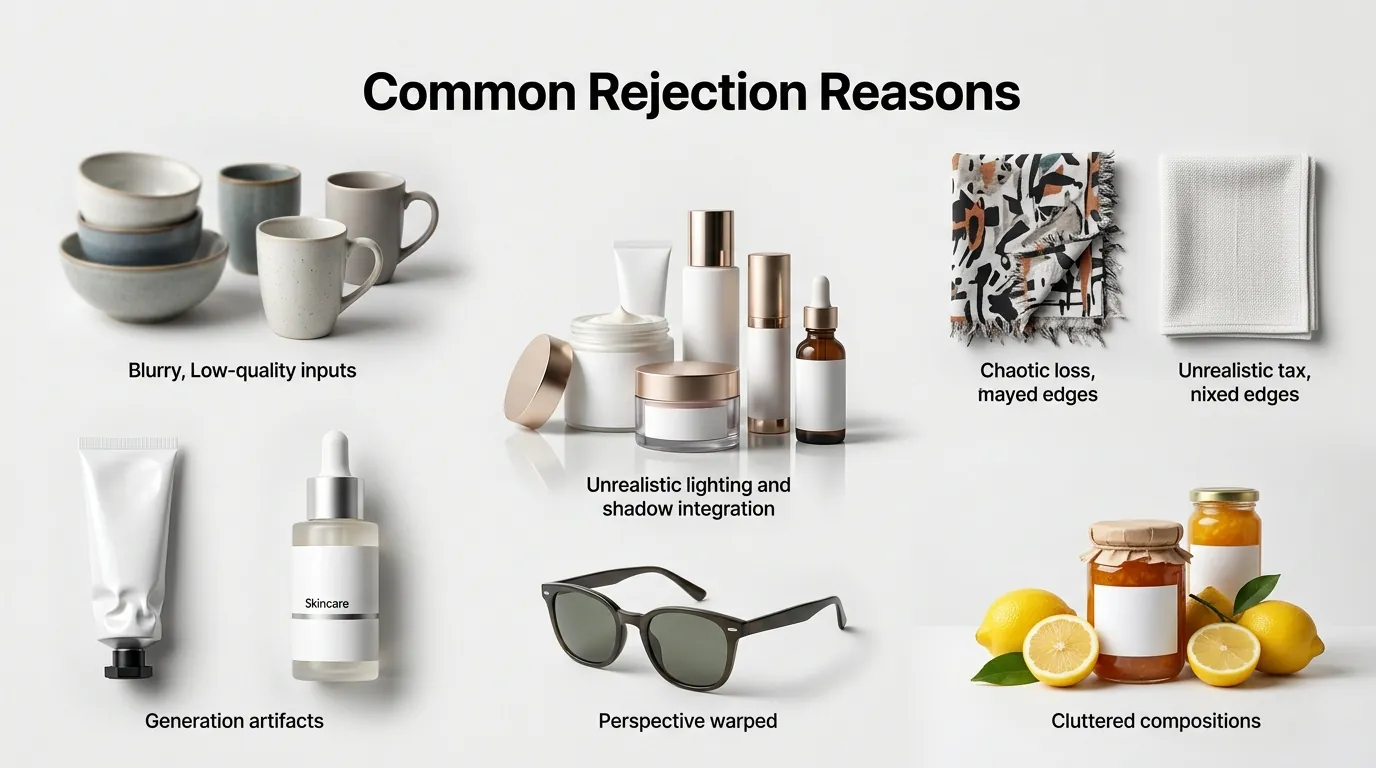
The most common reason for “soft” or blurry images is the 1-megapixel limit. On high-resolution monitors, a 1024 x 1024 px image stretched to fill a product gallery will look noticeably less sharp than a native 2048 px file. This leads to a higher bounce rate, as customers associate blurry photography with low-quality products or “dropshipping” scams.
Amazon sellers using Shopify as their home base face an even stricter reality. Amazon requires images to be at least 1,600 pixels on the longest side to enable zoom. If you use Shopify Sidekick to generate your main images, you will likely find them rejected by Amazon’s system or suppressed in search results because they fail the minimum zoom threshold.
Lighting and Artifact Issues
AI often struggles with the laws of physics, particularly regarding light and shadow. Common artifacts include:
- Floating Products: The product appears to “hover” because the AI failed to generate a contact shadow on the new background.
- Reflective Surfaces: If you sell jewelry or glassware, the AI may fail to update the reflections on the product to match the new background, creating a visual “uncanny valley” effect.
- Ghost Mannequin Errors: Sidekick may struggle to fill in the gaps where a mannequin was removed, leading to jagged edges or “melting” textures.
How to Fix Each Issue
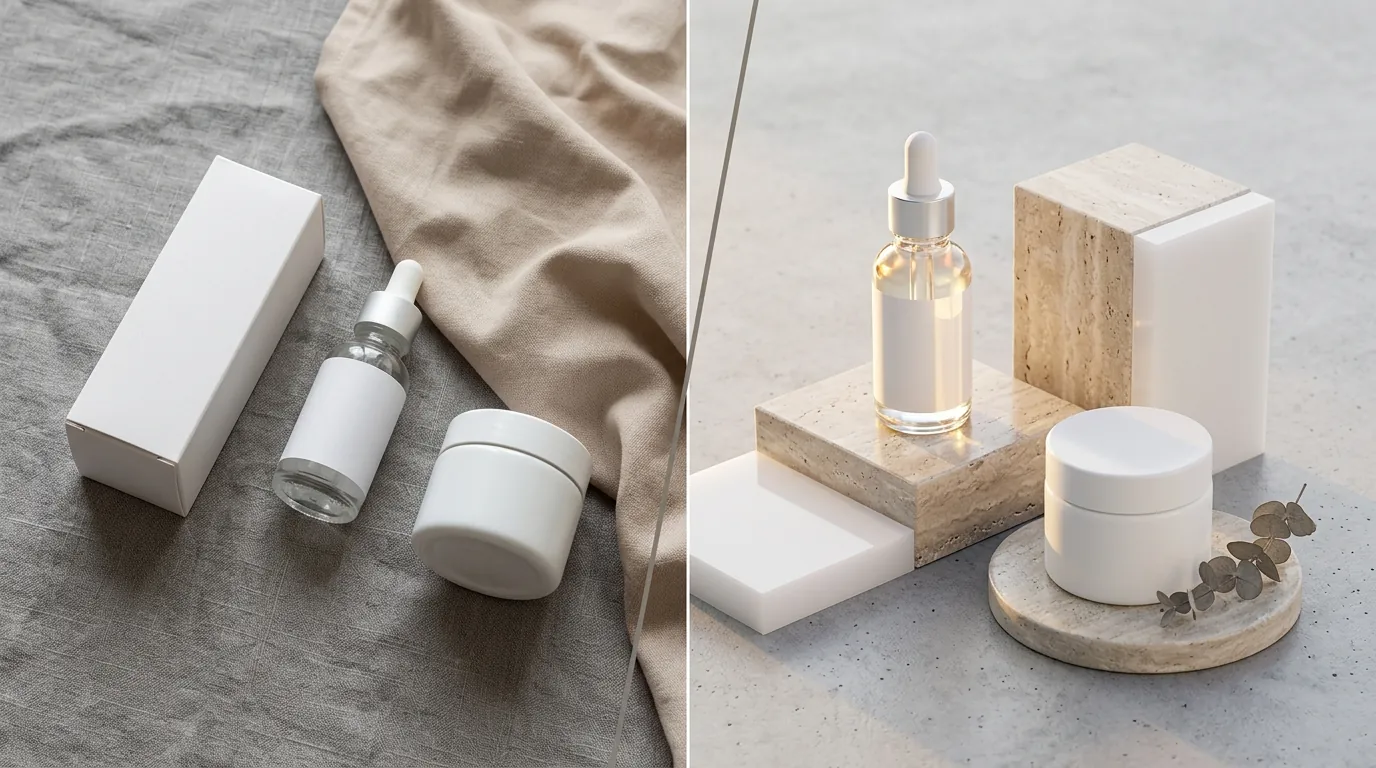
Update your prompts with specific lighting descriptors like “soft rim lighting” or “natural morning sunlight” to reduce the frequency of AI artifacts. The more specific your prompt, the less likely the AI is to make “guesses” that result in visual glitches.
Upscaling and Bypassing the 1 MP Limit
If you have already generated a background you love in Shopify but need it at a higher resolution, you cannot simply “upscale” it within the Shopify editor. You have two primary options:
- Use PixelMatch for Batch Generation: Instead of generating images one by one and accepting the 1 MP limit, upload your product photos to PixelMatch. This allows you to generate high-resolution 2048 x 2048 px images that meet both Shopify and Amazon standards in a single batch.
- Manual Upscaling Tools: You can use third-party AI upscalers like Adobe Express or Photoroom, though these often require a paid subscription to export high-res files without watermarks. Adobe Express Premium is $9.99/mo, while Photoroom Pro is approximately $12.99/mo.
Prompt Engineering for Better Lighting
To fix “floating” products or unnatural shadows, move away from one-word prompts like “kitchen” or “park.” Use a structured prompt formula: [Product] + [Environment] + [Lighting Style] + [Depth of Field].
- Bad Prompt: “Product on a wooden table.”
- Better Prompt: “Product on a rustic oak table, soft morning sunlight coming from the left, blurred garden background, realistic contact shadows.”
By specifying the direction of the light, you force the AI to calculate shadows more accurately, reducing the “cut-and-paste” look that triggers customer distrust.
Ensuring Copyright Compliance
To avoid DMCA takedowns, never use another brand’s name in your prompt (e.g., “Product in a Starbucks cafe”). Instead, describe the vibe of the location (“Product in a modern, minimalist coffee shop with concrete walls and warm Edison bulbs”).
If you are a multi-platform seller, you should also be aware of the “AI-generated content” disclosure policies. While Shopify does not currently mandate a visible “AI-generated” tag on images, platforms like TikTok Shop and Google Merchant Center have strict guidelines about disclosing AI-manipulated media in advertising. Using AI for the background is generally accepted as “editing,” but using AI to generate the product itself is a violation of most marketplace “Item as Described” policies.
Official Source Links

- Shopify Help Center: Media generation in the file editor
- Shopify Help Center: Product media types, sizes, and limits
- Shopify Legal: Copyright and Trademark Reporting
- Amazon Seller Central: Product image requirements
- Shopify Pricing and Plans
Ready to scale your listings?
PixelMatch generates white-background, lifestyle, and variant mockups from a single source photo — built specifically for multi-platform ecommerce sellers. 50 free images on signup, no credit card.
Start free →
Sources
- Shopify Help Center. “Media generation with Shopify Magic.” https://help.shopify.com/en/manual/shopify-magic/media-generation
- Shopify Help Center. “Product media types, sizes, and resolutions.” https://help.shopify.com/en/manual/products/product-media/product-media-types
- Amazon Seller Central. “Product image requirements.” https://sellercentral.amazon.com/help/hub/reference/external/G1881
- Adobe Express. “Pricing and Plans.” https://www.adobe.com/express/pricing
- Photoroom. “Pricing.” https://www.photoroom.com/pricing
- Pebblely. “Pricing.” https://pebblely.com/pricing/
- TikTok Shop Academy. “AI-generated Content Policy.”