Stable Diffusion 3 Product Text Rendering Guide for Sellers
Stop wasting hours in Photoshop manually correcting the “AI gibberish” on your product labels. Master the specific prompt structures and platform-specific resolution requirements needed to turn Stable Diffusion 3 (SD3) into a high-precision labeling tool for your multi-platform store.
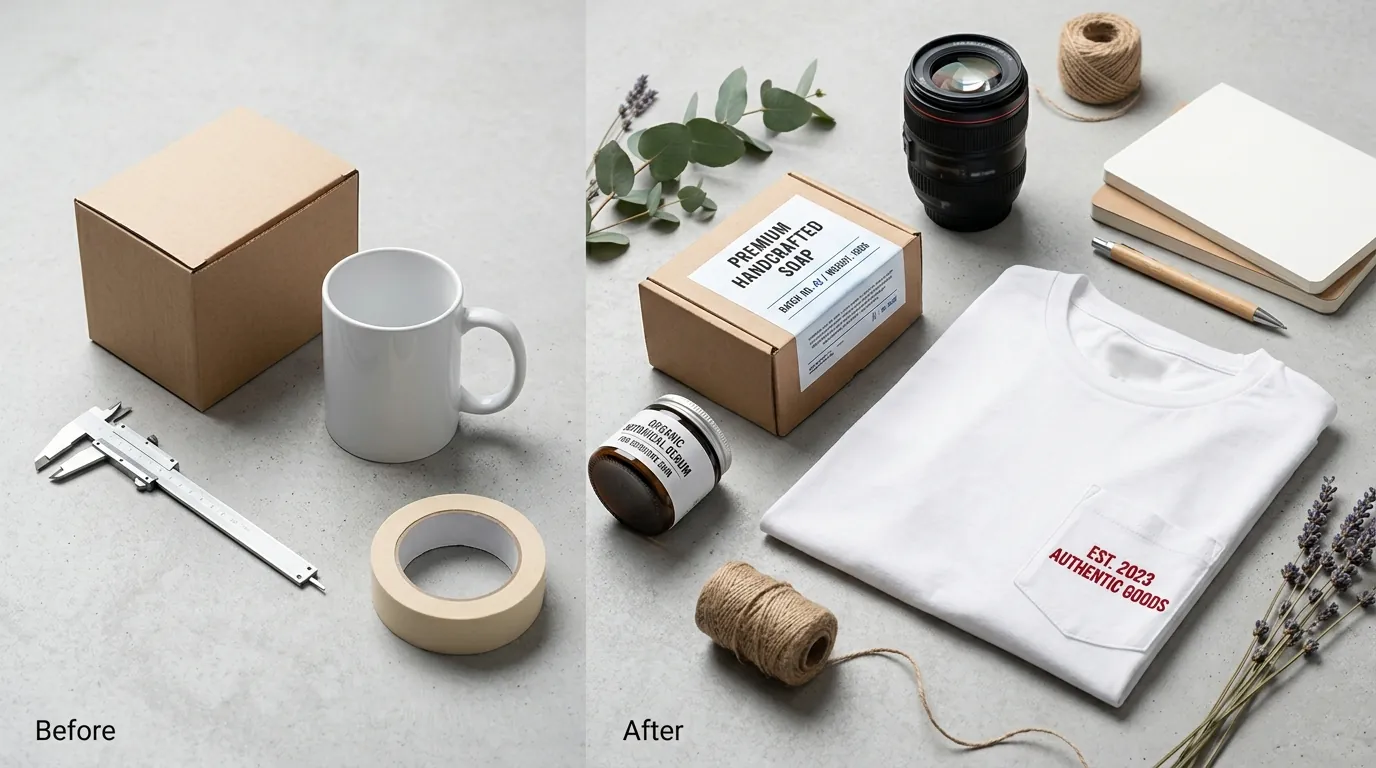
Stable Diffusion 3 uses MMDiT architecture to accurately render text on product images. For ecommerce, keep prompts under 150 words and use quotes for exact label text.
Quick Reference Table
Related: TikTok Shop Symphony Digital Human Image Specs (2026) · TikTok Shop Image Specs for Video Shopping Ads (2026) · Midjourney v7 Leak Product Photography Prompts & 2026 Rules
Audit your current image generation pipeline against these hard technical requirements for 2026. While SD3 offers the most advanced text-rendering capabilities of any open-weights model, your outputs must still align with the rigid ingestion specs of your target marketplaces.
| Platform | Min Dimensions | Recommended Size | Background Rule | SD3 Text Strategy |
|---|---|---|---|---|
| Amazon | 500 x 500 px | 1600 px (longest side) | Pure White (RGB 255, 255, 255) | Use for secondary lifestyle images only; avoid text on hero images. |
| Shopify | None | 2048 x 2048 px | Flexible | Perfect for hero images with branded packaging. Supports up to 20 MB. |
| TikTok Shop | 600 x 600 px | 1200 x 1200 px | No watermarks | Use for infographic-style lifestyle shots. Recommends at least 5 images. |
| Etsy | None | 2000 px (shortest side) | Flexible | Ideal for personalized items and custom label mockups. |
Run a local hardware check before attempting high-resolution text generation. SD3 Medium requires at least 9.9GB VRAM for local generation, but cloud-based tools like PixelMatch bypass these hardware limits, allowing you to generate 2K and 4K product photos without a dedicated GPU workstation.
Detailed Requirements
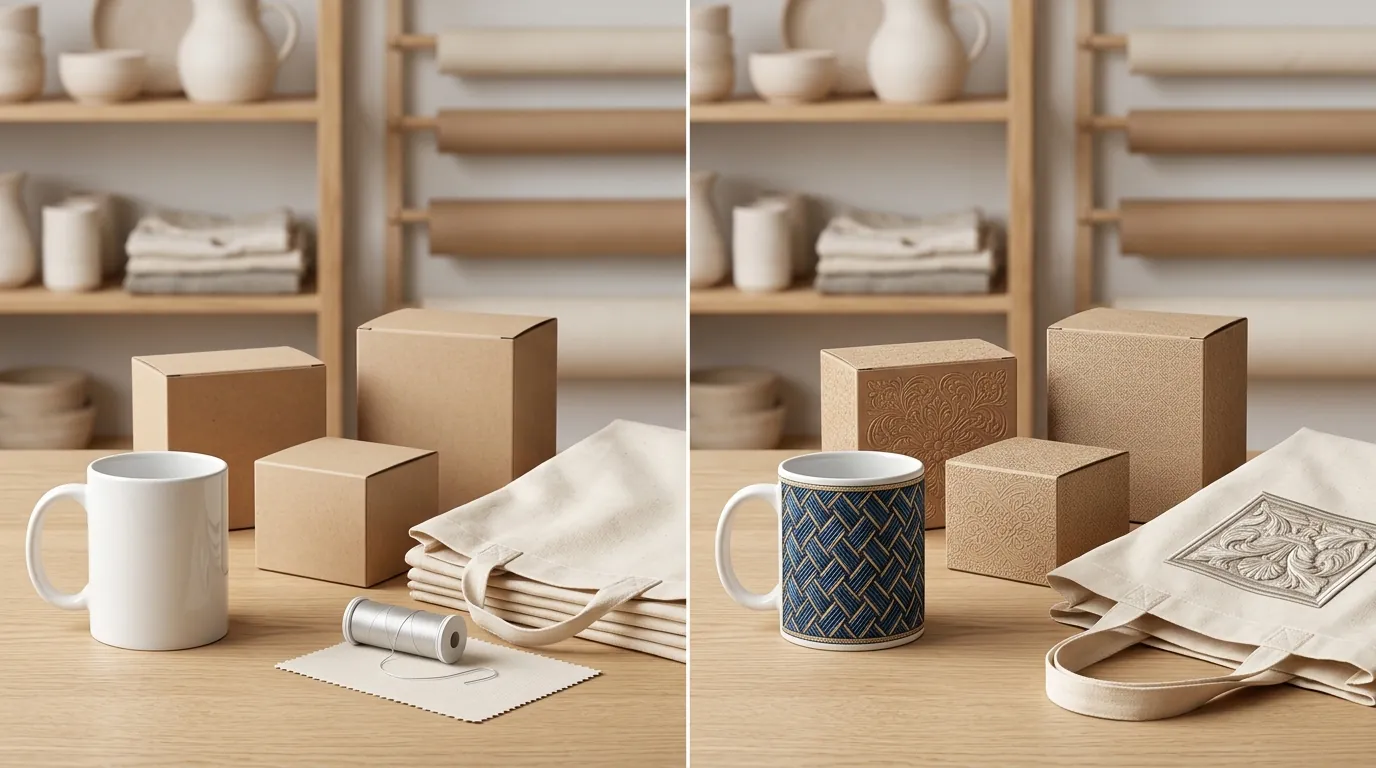
Stable Diffusion 3 represents a fundamental shift in how AI handles typography. Unlike previous iterations that often treated text as “texture”—resulting in the dreaded “AI spaghetti” letters—SD3 utilizes a Multimodal Diffusion Transformer (MMDiT). This architecture uses separate weight sets for image and language representations, allowing the model to spell words correctly on packaging and labels by better understanding the relationship between tokens and visual character forms.
Prompting for Perfect Typography
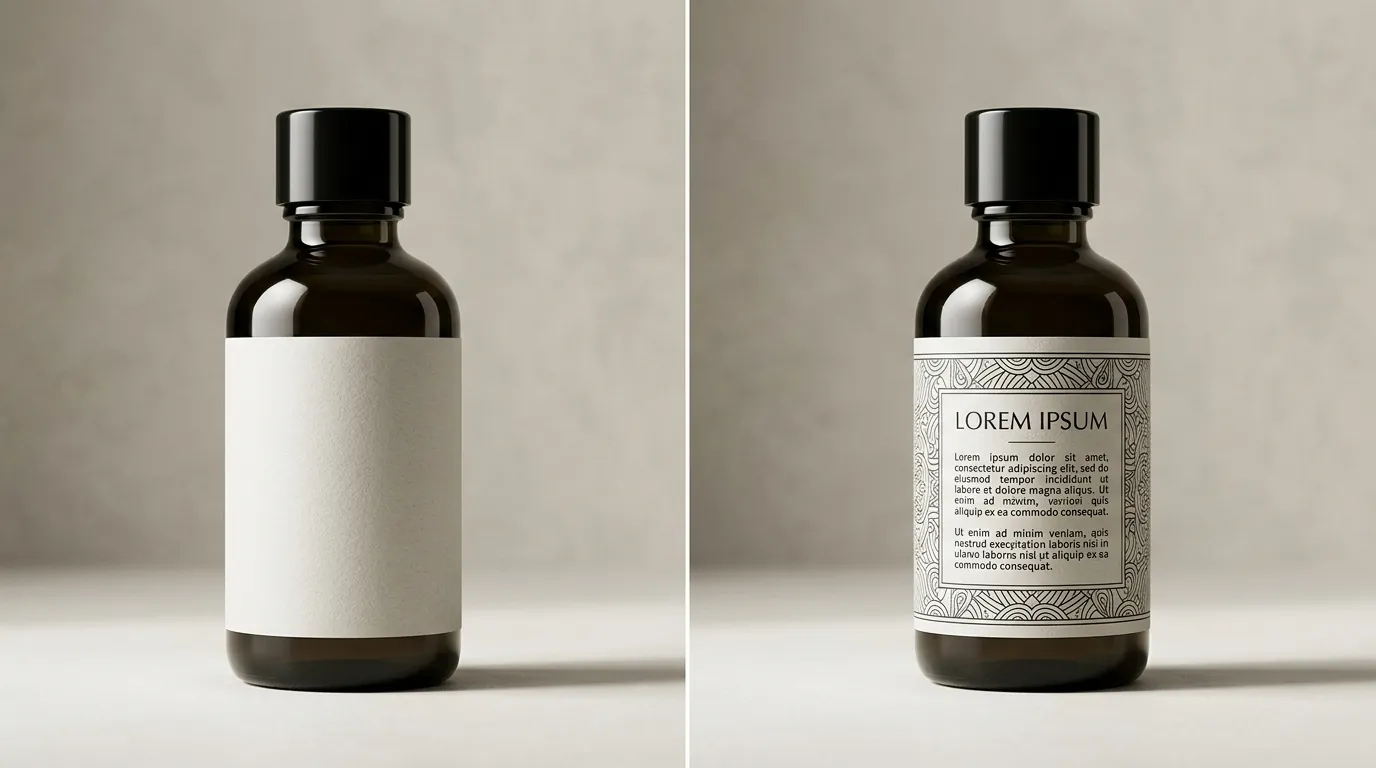
Configure your prompts with “text-first” logic to maximize the accuracy of the MMDiT engine. To render text perfectly, enclose the desired words in quotes within your prompt. For example, a high-converting prompt for a skincare product would look like: “A high-end glass cosmetic bottle on a marble countertop, labeled ‘GLOW SERUM’ in clean sans-serif typography, soft studio lighting.”
Follow these three rules for text-heavy product generation:
- Use Double Quotes: Place your target text inside
" "or' 'to signal to the model that these specific characters must be rendered literally. - Specify Placement: Explicitly state where the text should appear (e.g., “on the front label,” “engraved on the wood,” “printed on the cardboard box”).
- Define the Font Style: Describe the typeface style (e.g., “bold serif,” “minimalist modern,” “vintage script”) to prevent the model from defaulting to generic or distorted character shapes.
Platform-Specific Sizing Rules
Scale your outputs to match the highest common denominator among your sales channels. While you can generate a single image for all platforms, you must ensure it meets the strictest requirement: Etsy’s 2000-pixel minimum on the shortest side.
If you are selling on Shopify, you have more breathing room, as the platform supports images up to 5000 x 5000 px and 20 MB, though they recommend 2048 x 2048 px for a balance of speed and quality.
Managing these variations manually is a significant overhead for multi-platform sellers. While general-purpose AI tools like Photoroom offer a Pro tier at $12.99/mo and Pebblely provides a Basic plan at $19/mo, PixelMatch offers dedicated SD3 text-rendering workflows specifically designed for sellers who need to batch-generate compliant images for Amazon, Shopify, and TikTok simultaneously.
Common Rejection Reasons
💡 Skip the manual editing. PixelMatch batch-generates ecommerce-ready product images in 60 seconds — white background, lifestyle scenes, and variant mockups from a single source photo. Try PixelMatch free →
Listing suppression is the primary risk when using AI-generated text. Marketplaces have become increasingly sophisticated at detecting “low-quality” or “misleading” imagery. Even if SD3 renders the text perfectly, you can still face a ban if the content of that text violates platform policies.
Promotional Text Violations
Amazon is the most aggressive platform regarding text on images. They strictly reject main images if SD3 generates text that floats off the product or includes promotional claims like “Best Seller,” “Top Rated,” or “Free Shipping”. Amazon’s “Hero” image policy requires the product to be the only thing in the frame, with no extra text that isn’t physically part of the product packaging.
TikTok Shop follows a similar path but focuses on “cleanliness.” TikTok will suppress listings if images contain watermarks, borders, or heavy filters—all of which are common artifacts in raw AI outputs if not properly managed via negative prompting.
Hallucinated Background Text
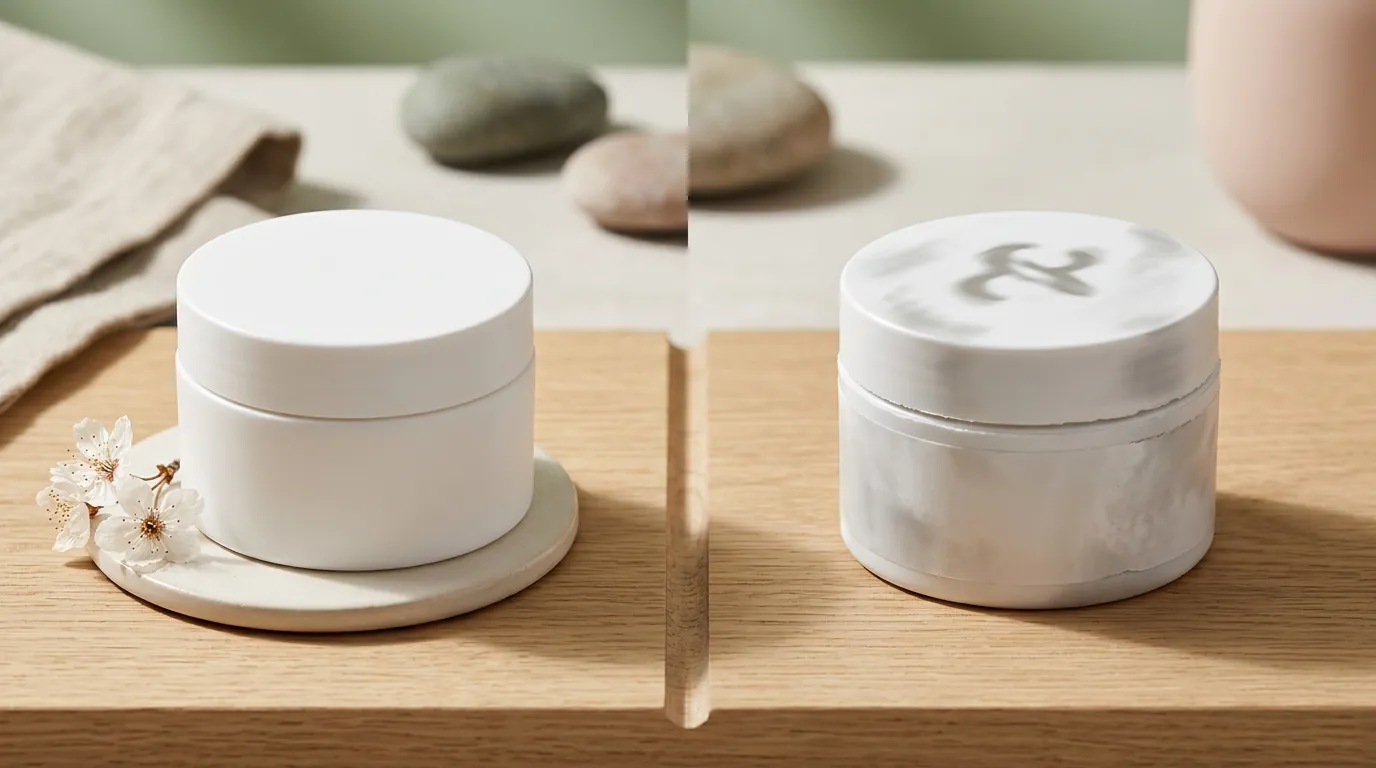
A common issue with SD3 is “background leakage,” where the model renders the label correctly but then adds gibberish text to the background (e.g., fake newspapers, blurred store signs, or nonsensical posters). If SD3 hallucinates background text, platforms may flag it as misleading product information or simply as a low-quality image.
TikTok Shop’s algorithm specifically looks for “heavy filters” or “unclear backgrounds”, and garbled text in the environment is a primary trigger for an automatic listing shadowban. Always audit the “negative space” around your product to ensure no stray characters have appeared.
How to Fix Each Issue
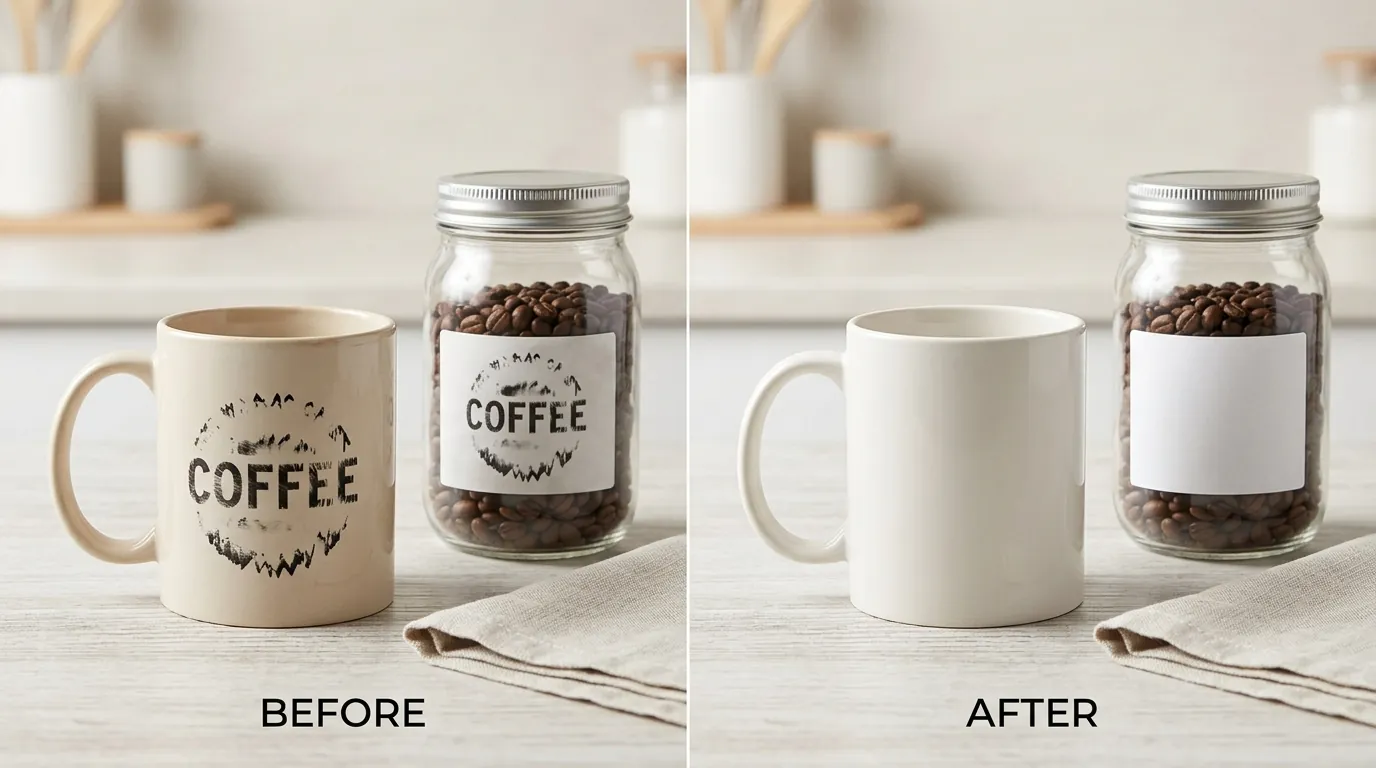
Correcting SD3 errors is faster than regenerating the entire image from scratch. By using targeted correction workflows, you maintain the “seed” of the image you like while fixing only the non-compliant elements.
Inpainting Misspelled Labels
If SD3 misspells a word or distorts a character, do not delete the image. Use an inpainting workflow to mask the text area and regenerate just the label.
- Upload the image to an inpainting-capable editor.
- Paint a mask over the incorrect text.
- Use the same prompt as before but emphasize the text: “The label clearly says ‘YOUR BRAND NAME’ in sharp, high-resolution text.”
- Set the “Denoising Strength” to approximately 0.4 to 0.6 to ensure the new text blends with the existing lighting and shadows of the bottle or box.
Batch Processing for Compliance
Use negative prompts like “floating text, watermarks, promotional badges, blurry letters, distorted typography” to keep SD3 outputs compliant with TikTok and Amazon rules from the start. This prevents the model from adding the promotional “noise” that leads to rejections.
To handle large-scale listing updates, use PixelMatch’s batch editor to automatically strip non-compliant backgrounds and replace them with pure white (RGB 255, 255, 255) for Amazon hero images. This allows you to generate a beautiful lifestyle image with SD3 text, then instantly convert it into a compliant Amazon Main Image by removing the environment while keeping the crisp product label intact.
Finally, always upscale your final renders. To meet Shopify’s 2048 x 2048 px recommendation and Etsy’s 2000 px minimum without losing text sharpness, use a 2x or 4x AI upscaler. This “hardens” the edges of the letters, making them look like professional photography rather than a soft AI generation.
Official Source Links

| Resource | Link |
|---|---|
| Amazon Product Image Requirements | Seller Central Guide |
| Shopify Product Media Types | Shopify Help Center |
| TikTok Shop Listing Guidelines | TikTok Seller Academy |
| Etsy Image Requirements | Etsy Help Center |
| Stable Diffusion 3 Technical Release | Stability AI News |
Frequently Asked Questions
Can I use Stable Diffusion 3 to generate Amazon Main Images?
Yes, but you must ensure the final output has a pure white background (RGB 255, 255, 255). While SD3 can generate the product and its label text, you should use a background removal tool or PixelMatch’s batch editor to ensure the background is 100% white, as raw AI-generated white backgrounds often contain subtle grey gradients that Amazon’s automated validators will reject.
Why does the text on my AI images still look blurry?
Blurry text is usually a result of low output resolution or “token confusion” in the prompt. Ensure you are generating at a minimum of 1024x1024 px and then upscaling to at least 2000 px on the shortest side to meet marketplace standards. If the text is still garbled, try shortening your prompt to focus more heavily on the quoted text.
Does TikTok Shop allow AI-generated product images?
TikTok Shop allows AI-generated images as long as they do not contain watermarks, heavy filters, or misleading information. TikTok’s algorithm prioritizes “authentic” looking content, so use SD3 to create realistic lifestyle settings rather than overly “perfect” or CGI-looking renders.
What is the best aspect ratio for TikTok Shop images?
TikTok Shop requires images to be in a 1:1, 3:4, or 4:3 aspect ratio. Do not use the 9:16 vertical ratio commonly used for videos; this is reserved for TikTok ads and organic video content. For product listings, stick to square (1:1) for maximum compatibility across all devices.
Ready to scale your listings?
PixelMatch generates white-background, lifestyle, and variant mockups from a single source photo — built specifically for multi-platform ecommerce sellers. 50 free images on signup, no credit card.
Start free →
Sources
- https://stability.ai/news/stable-diffusion-3
- https://sellercentral.amazon.com/help/hub/reference/external/G1811
- https://help.shopify.com/en/manual/products/product-media/product-media-types
- https://help.etsy.com/hc/en-us/articles/115015663347
- https://www.photoroom.com/pricing
- https://pebblely.com/pricing/