TikTok Shop Symphony Avatar Lighting Mismatch Fix (2026)
Stop wasting your ad spend on Symphony videos where your product looks like a poorly cropped sticker floating in front of an avatar. If your TikTok Shop Symphony Avatar videos show a visible “halo” or inconsistent shadows, your source image is fighting the AI’s environmental blending.
Quick Answer: To fix a Symphony Product Avatar lighting mismatch, ensure your uploaded product image uses flat, neutral, and diffused lighting. TikTok’s AI attempts to apply its own shadows to match the avatar’s studio; if your image has hard, “baked-in” directional shadows, the composite will fail. Additionally, clothing accessories like shoes, hats, and bracelets are currently unsupported and will cause generation errors regardless of lighting.
Quick Reference Table
Related: TikTok Shop Image Style Inconsistency Rejection Fix · Google Merchant Center AI Image Metadata Requirements 2026 · Amazon Rufus SEO for Product Listings: 2026 Image Guide
Run a quick audit of your product assets against these requirements before starting your next Symphony campaign.
| Requirement | Specification | Actionable Step |
|---|---|---|
| Lighting Style | Flat, neutral, diffused | Eliminate hard shadows using a light tent or AI relighting tool. |
| Minimum Resolution | 800 x 800 pixels | Upscale low-res mobile photos before uploading. |
| Background | Transparent PNG or Solid White | Use a clean cutout to ensure the avatar “grips” the product correctly. |
| Supported Items | Bottles, boxes, handheld electronics | Avoid shoes, hats, sunglasses, and watches. |
| File Format | .png, .jpg, .jpeg | Use PNG for transparency to avoid white-edge artifacts. |
| Aspect Ratio | 1:1 (Square) preferred | Crop assets to a square to prevent stretching during the “hand-off” animation. |
Detailed Requirements
Audit your existing image library to identify which assets will trigger a “pasted-on” look in Symphony Creative Studio. TikTok’s Product Avatar module is a generative AI tool that takes a 2D image and maps it into a 3D-simulated space where a digital human “holds” the item. For this to look realistic, the AI must perform “relighting,” which involves calculating where shadows should fall based on the avatar’s position.
Lighting Neutrality
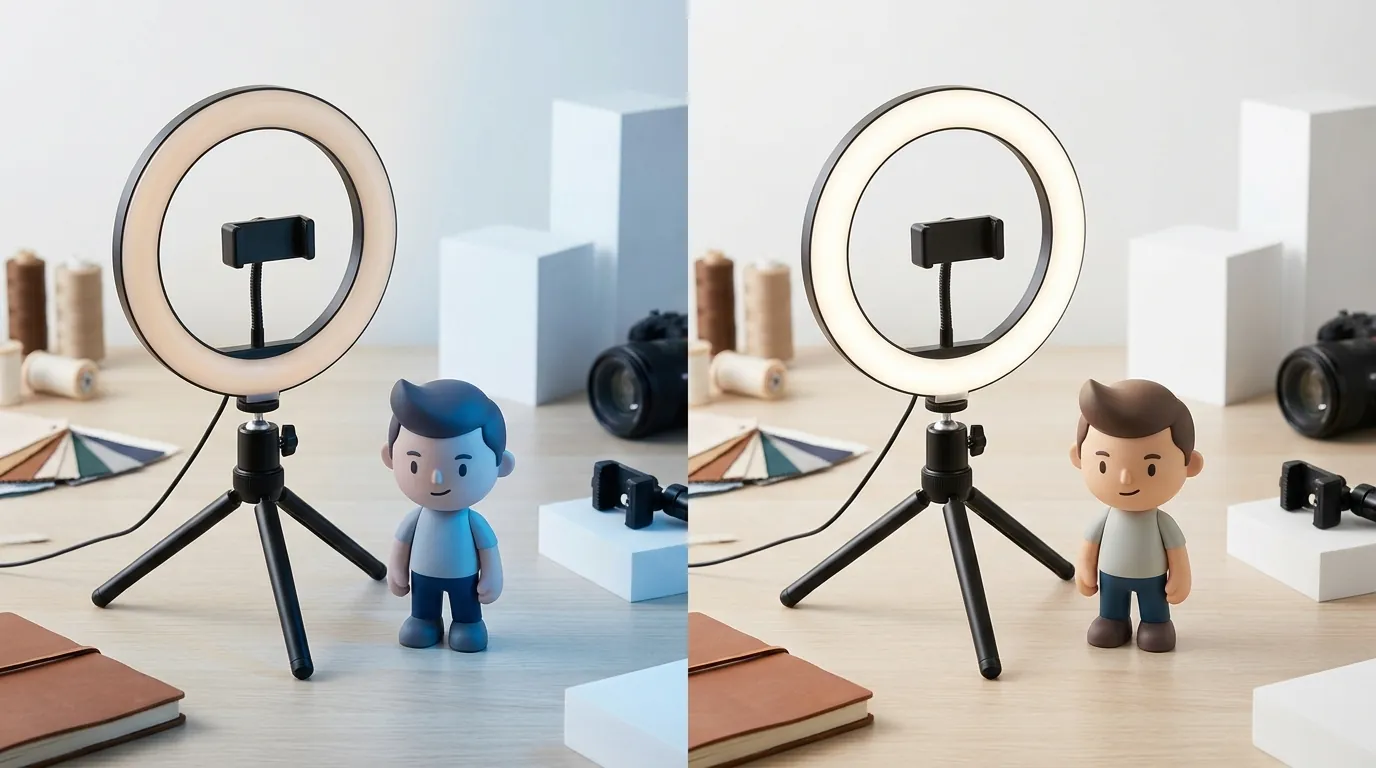
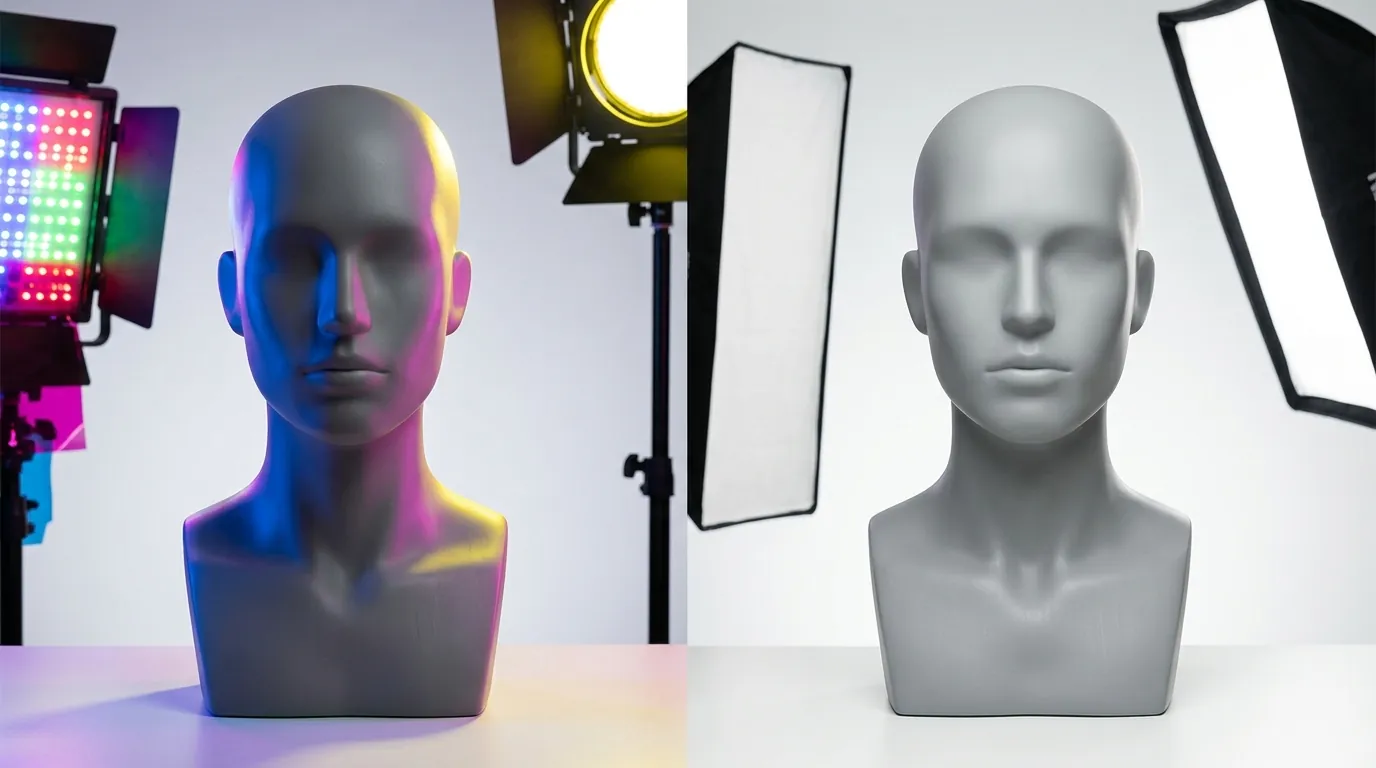
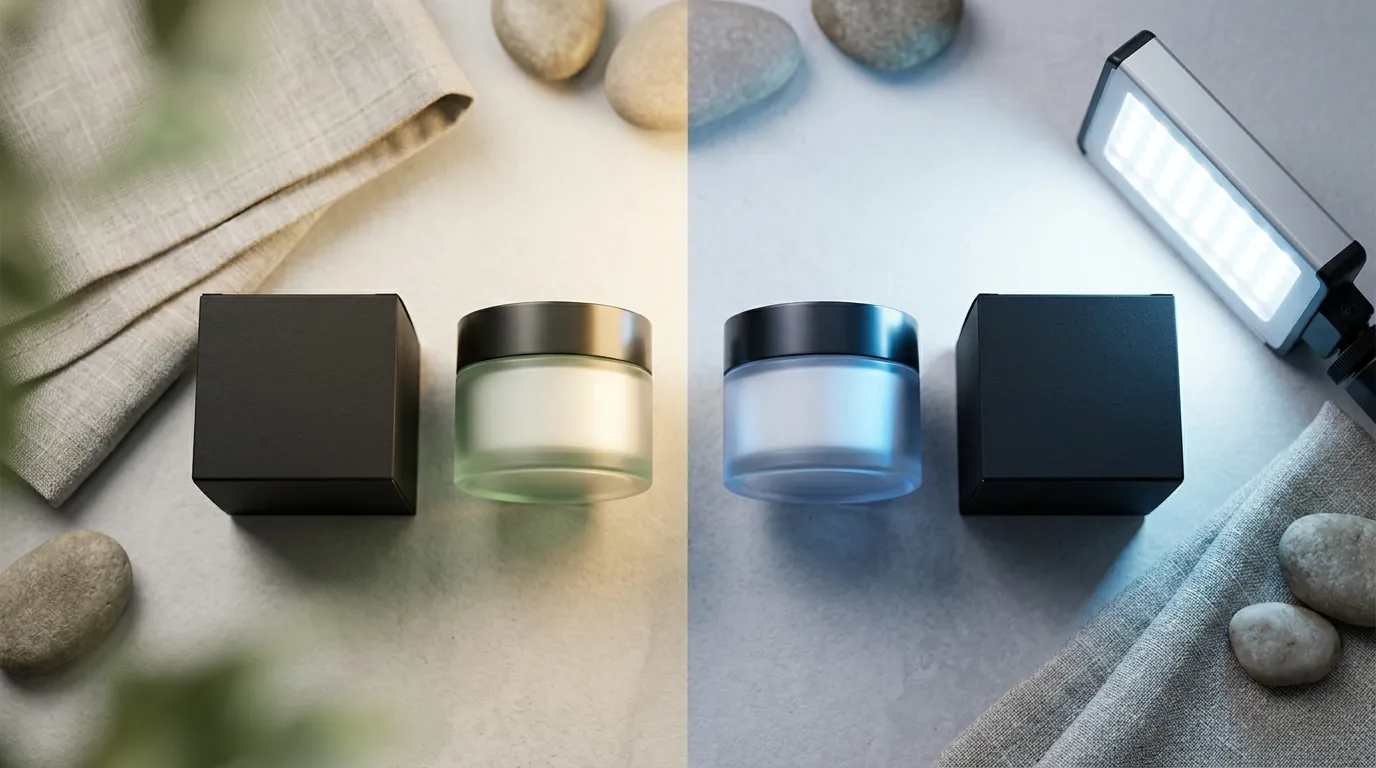
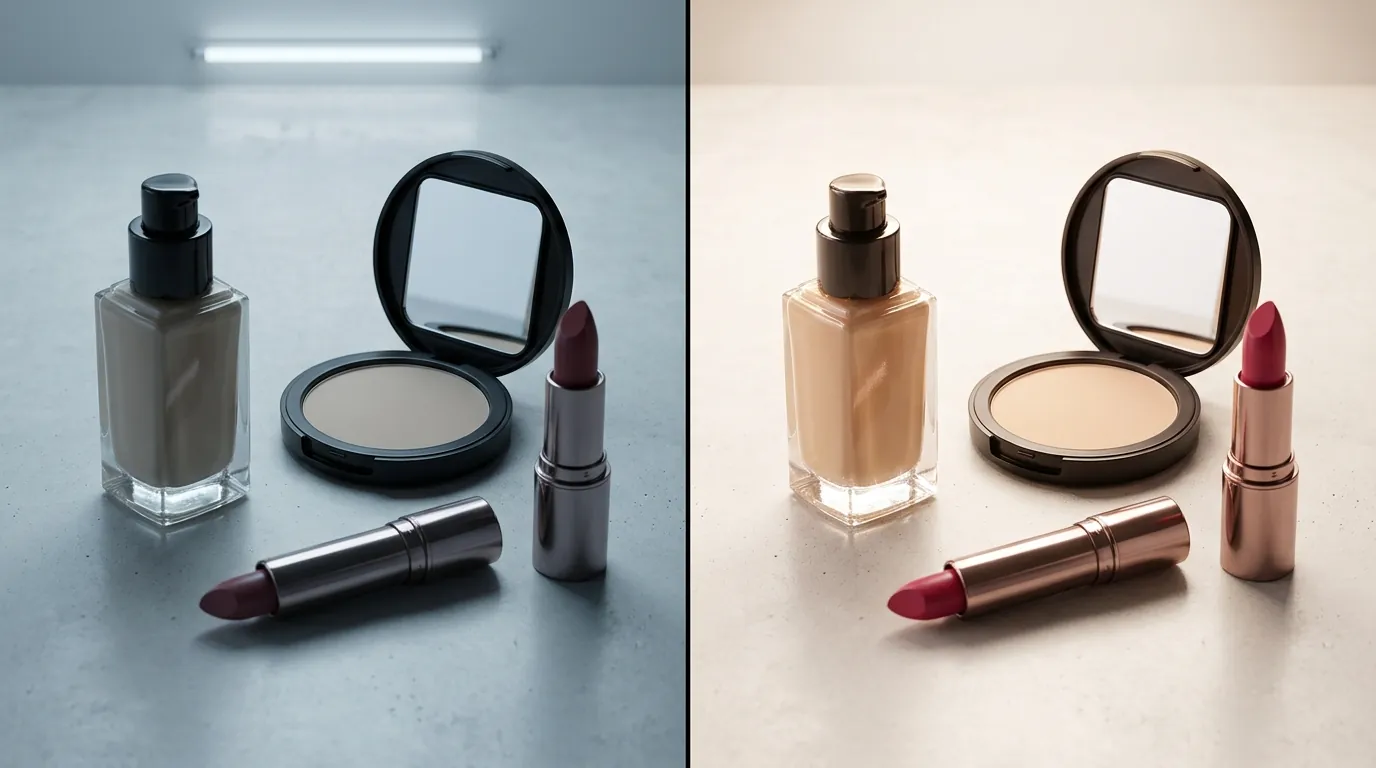
When you take a photo with a single strong light source from the left, your product has “baked-in” lighting. If the Symphony Avatar is standing in a virtual studio where the primary light is from the right, the AI cannot “undo” your original shadows. This results in a lighting mismatch where the product has shadows on the right while the avatar has shadows on the left.
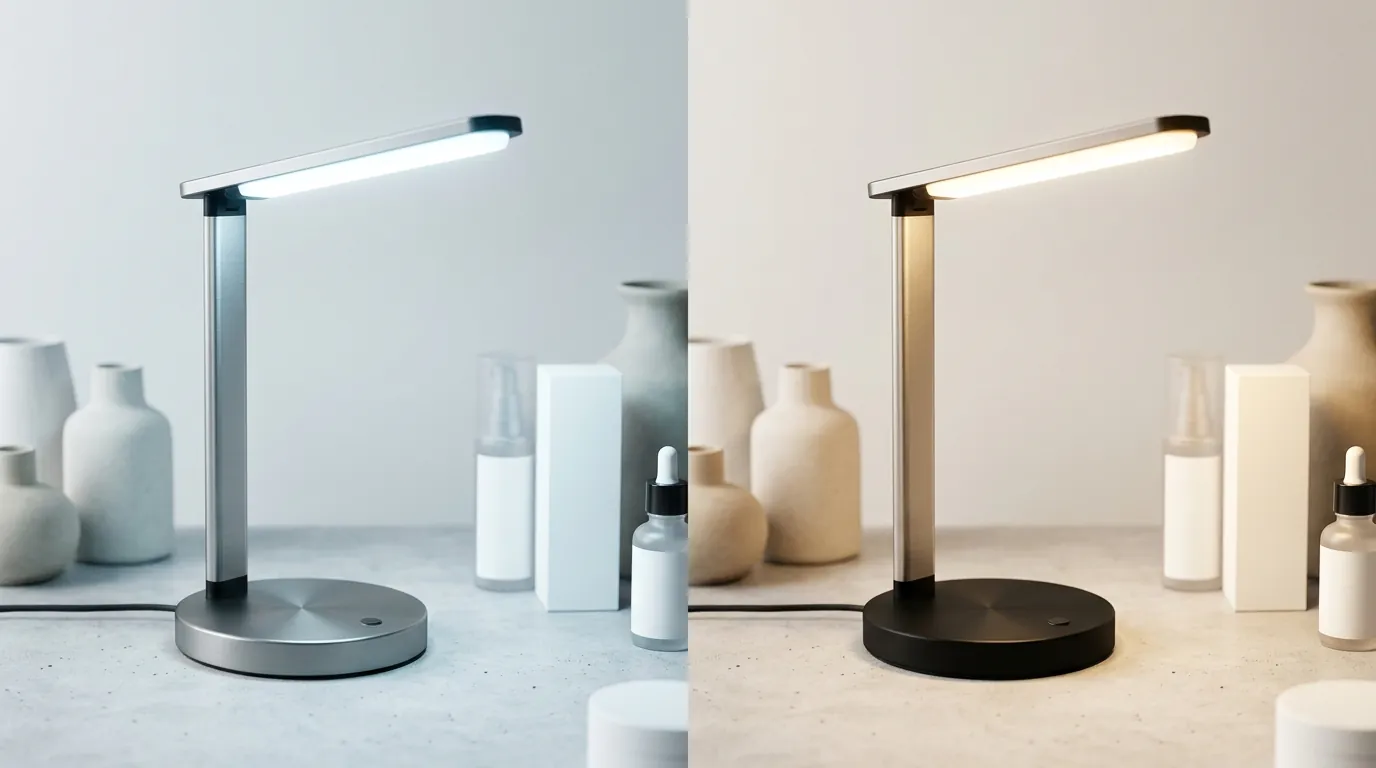
To prevent this, you must provide assets with “flat” lighting. In photography terms, this means using multiple light sources to fill in all shadows, or using a light box to create an omnidirectional glow. If you are using existing catalog images, you must use a tool like PixelMatch to neutralize these highlights and shadows before the AI processes the video.
Background and Edge Clarity
The Symphony AI uses the edges of your product to determine where the avatar’s fingers should overlap the image. If your background removal is “fuzzy” or contains “feathered” edges from a messy cutout, the AI will struggle to create a clean grip.
While Adobe Express offers a free background remover for individual images, batch-processing your entire TikTok Shop catalog requires a more automated approach. Ensure your final export is a clean PNG with a transparent background. Any remaining pixels from the original background will appear as “noise” or “fringe” around the product in the final video.
Common Rejection Reasons
💡 Skip the manual editing. PixelMatch batch-generates ecommerce-ready product images in 60 seconds — white background, lifestyle scenes, and variant mockups from a single source photo. Try PixelMatch free →
Check your TikTok Ads Manager “Asset Status” if your videos are failing to generate or looking distorted. Most Symphony errors are not policy violations but technical failures in the AI’s “Product Avatar” mapping logic.
1. Lighting Mismatch and “Sticker” Effect
The most common visual failure occurs when the product’s internal shadows conflict with the avatar’s environment. If your product looks like a 2D sticker, the AI has failed to map the depth of the object. This usually happens because the source image is too “busy” with its own light and shadow data, preventing the Symphony engine from applying its own environmental layers.
2. Category Non-Compliance
Sellers frequently attempt to use the Product Avatar tool for apparel. TikTok is explicit: clothing accessories such as shoes, hats, and sunglasses are not supported. If you upload a hat, the AI will often fail to generate the video, or the avatar will “hold” the hat in a physically impossible way. For these items, use the “Stock Avatar” or “Custom Avatar” (available to managed accounts) without the specific “Product Avatar” holding-interaction.
3. Resolution and Mapping Errors
TikTok Shop product images must be at least 800 x 800 pixels. If you upload a low-resolution thumbnail (e.g., 400x400), the Symphony AI cannot identify the fine details of the product’s edges. This leads to “hand-clipping,” where the avatar’s fingers disappear into the product or appear to be floating behind it.
4. Background Artifacts
If you use a basic background remover that leaves a 1-pixel white border around your product, that border will glow when placed in the Symphony studio. This is a common issue with standard mobile apps. Professional-grade cutouts are required to ensure the “blending” phase of the Symphony workflow doesn’t pick up stray pixels.
How to Fix Each Issue
Follow these steps to normalize your product catalog for high-performance TikTok Symphony ads.
Fixing Shadows with PixelMatch
Instead of re-shooting your entire inventory in a professional studio, use a relighting workflow. While Photoroom’s Pro tier at $12.99/mo allows for individual lighting adjustments, PixelMatch is designed for the multi-platform seller who needs to fix hundreds of images at once.
- Upload your catalog: Import your existing Amazon or Shopify product photos into PixelMatch.
- Select “Neutralize Lighting”: This setting identifies directional shadows and flattens them, creating the “blank canvas” lighting that Symphony requires.
- Batch Export as Transparent PNG: Ensure all images are exported with identical dimensions (e.g., 1080x1080) to maintain consistency across different Symphony avatar templates.
- Verify in Symphony: Upload the neutralized image to the Product Avatar module. You will notice the AI now applies a consistent shadow that moves in sync with the avatar’s hands.
Handling Unsupported Categories
If you sell shoes, hats, or jewelry, you cannot use the “Product Avatar” (holding) feature. To fix this:
- Use the “Green Screen” Method: Instead of having the avatar hold the product, use a standard Symphony Avatar and place your product image in the background or as a “Picture-in-Picture” (PiP) overlay.
- Custom Avatars: If you have a managed account or a specific invite, you can request Custom Avatars where a digital twin of your own spokesperson can be filmed holding the specific accessory. This bypasses the generative “holding” logic entirely.
- Video-to-Video: Use the Symphony “Refinement” tools to overlay text and stickers on raw footage of a real human holding the product, rather than relying on the AI avatar to hold a static image.
Standardizing Your Assets
For sellers running “hook” tests—where you test 10 different avatars with the same product—consistency is vital. If your product image changes lighting or size between videos, TikTok’s algorithm may struggle to optimize the creative. Use a single, perfectly neutralized source image for all Symphony variations to ensure that the only variable you are testing is the avatar’s performance.
Official Source Links
Refer to these official TikTok documentation pages to stay updated on feature changes as of 2026:
- How to create avatar videos with Symphony Creative Studio – Official guide on the Product Avatar module.
- About Symphony Creative Studio – Overview of the AI creative suite.
- TikTok Shop Image Specifications – Technical requirements for product listings.
- TikTok Ads Image Specs – Standard dimensions for ad creatives (1200x628 and 1080x1080).
Frequently Asked Questions
Why does my product look like it’s floating in the TikTok Avatar’s hand?
This is typically caused by a lighting mismatch or a “dirty” background cutout. If the product image has shadows that don’t match the avatar’s environment, the human eye perceives it as “floating.” To fix this, use a neutralized PNG with a transparent background so the Symphony AI can apply its own environmental shadows.
Can I use TikTok Symphony for clothing like t-shirts or dresses?
Symphony’s “Product Avatar” feature is not currently designed for wearable apparel. It is optimized for handheld objects like skincare bottles, electronics, or boxed goods. For clothing, it is better to use a standard avatar as a “presenter” while showing the clothing in a separate video overlay or using a static image alongside the avatar.
What is the best image size for TikTok Symphony Product Avatars?
While TikTok Shop requires 800 x 800 pixels, for high-quality ad creatives in Symphony, you should use a 1080 x 1080 pixel square PNG. This provides enough data for the AI to handle the “hand-off” animation without the product looking pixelated when the avatar moves it closer to the camera.
Is TikTok Symphony Creative Studio free to use?
As of 2026, Symphony Creative Studio is available to users with a TikTok for Business account. While the standard AI generation tools are currently accessible without a separate subscription fee, “Custom Avatars” (creating a digital twin of a specific person) are generally restricted to managed accounts or available via specific request/application within the platform.
Ready to scale your listings?
PixelMatch generates white-background, lifestyle, and variant mockups from a single source photo — built specifically for multi-platform ecommerce sellers. 50 free images on signup, no credit card.
Start free →
Sources
- TikTok Ads Help Center: Create Avatar Videos with Symphony Creative Studio
- TikTok Ads Help Center: About Symphony Creative Studio
- TikTok Shop Academy: Product Image Specifications
- TikTok Ads Help Center: Image Ad Specifications
- Photoroom: Pricing and Pro Features
- Adobe Express: Free Image Background Remover