TikTok Shop Symphony Digital Human Image Specs (2026)
Scaling your TikTok Shop presence often hits a bottleneck when you realize you cannot film 50 high-converting videos a day with a human model. TikTok Symphony Creative Studio solves this by using digital humans to “wear” your products, but if your source images are off by even a few pixels, the AI mapping engine will distort your items or reject the upload entirely.
Quick Reference Table
Related: TikTok Shop Image Specs for Video Shopping Ads (2026) · Midjourney v7 Leak Product Photography Prompts & 2026 Rules · Amazon Shop by Style AI Search Guide: 2026 Image Rules
Run your current product library against these technical benchmarks before attempting a batch upload to Symphony Creative Studio. TikTok’s AI mapping engine requires high-contrast, high-resolution source files to accurately “drape” digital clothing or place items in the hands of a digital human.
| Specification | Requirement | Official Recommendation |
|---|---|---|
| Minimum Resolution | 600 x 600 pixels | 800 x 800 pixels or higher |
| Aspect Ratio | 1:1 (Square) | Fixed 1:1 ratio only |
| File Format | JPG or PNG | PNG (for better edge transparency) |
| Maximum File Size | 5MB | Keep under 2MB for faster processing |
| Product Framing | Minimum 60% of frame | 70-80% for best AI mapping |
| Background Style | Solid color | Pure white (#FFFFFF) |
| Unsupported Items | Clothing accessories | Shoes, hats, sunglasses, bracelets |
Detailed Requirements
TikTok Symphony Creative Studio requires high-quality product inputs to generate realistic digital humans (avatars) showcasing your items. To ensure your digital human looks like a professional spokesperson rather than a glitchy rendering, you must standardize your raw photography to meet the platform’s 2026 processing standards.
Image Quality & Framing
Audit your product photos for visual clarity before they enter the Symphony pipeline. The AI engine uses “Product Avatar” technology to identify the edges of your garment or item and wrap them around a moving 3D skeleton. If your image contains watermarks, digital renderings, or placeholder text, the AI will attempt to map those elements onto the digital human’s body, leading to an immediate policy rejection.
When uploading your base image, ensure it is a front view of the physical product without any distracting elements. The product must take up at least 60% of the frame; if the product is too small, the AI lacks the pixel data to recreate textures like fabric grain or metallic reflections. PixelMatch can batch-process your raw product photos to meet the exact 1:1 square format and solid background requirements before you upload them to Symphony, ensuring that the AI engine sees a clean silhouette every time.
Policy Compliance for AI Content
Transparency is a cornerstone of TikTok’s 2026 commerce environment. Any video generated using Symphony Creative Studio will automatically include an ‘AI-generated’ label to comply with TikTok’s transparency policies. You cannot remove this label through third-party editing without risking a permanent shadowban of your TikTok Shop.
Furthermore, ensure that the digital human’s movements do not overlap with restricted content. While the AI generates the movement, the “Product Avatar” module does not support clothing accessories like shoes, hats, sunglasses, or bracelets. If you attempt to “force” these items onto a digital human, the system will flag the content as deceptive or low-quality. Stick to apparel (shirts, pants, dresses) or handheld items for the highest approval rates.
Common Rejection Reasons
💡 Skip the manual editing. PixelMatch batch-generates ecommerce-ready product images in 60 seconds — white background, lifestyle scenes, and variant mockups from a single source photo. Try PixelMatch free →
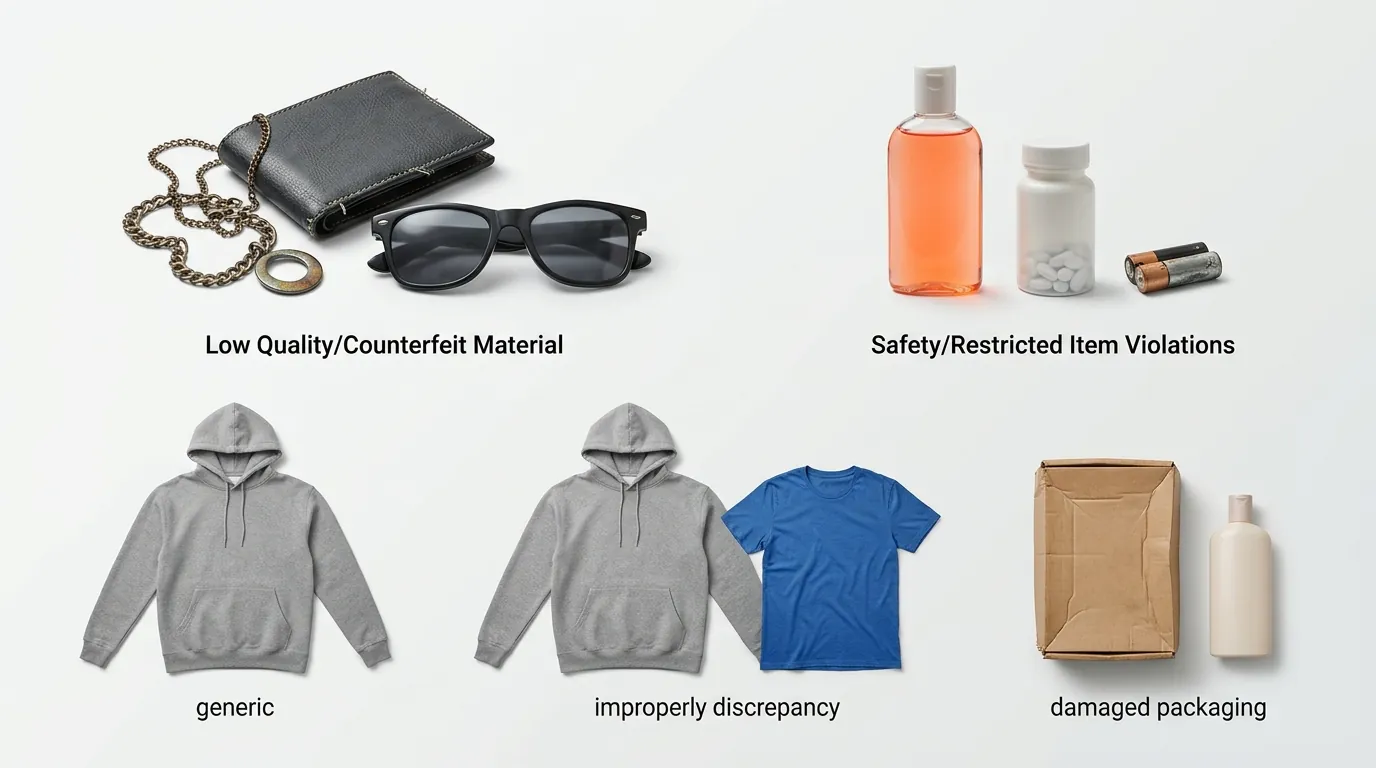
Identify the specific error codes in your TikTok Shop Seller Center to determine why your Symphony videos are failing to generate. Most rejections are not due to the AI itself, but rather the source data provided by the seller.
Unsupported Categories and Framing
The most frequent point of failure is uploading unsupported product categories. Attempting to generate an avatar for shoes, hats, sunglasses, or bracelets will fail because the current Symphony skeleton does not have the tracking points required for extremities or headwear. If you are a multi-platform seller moving inventory from Amazon or Etsy to TikTok Shop, you must filter these categories out of your Symphony automation.
Cluttered backgrounds also trigger rejections. If your product photo was taken in a lifestyle setting (e.g., a shirt hanging on a wooden door), the AI mapping tool may confuse the background texture with the product itself. The system requires a high-contrast boundary between the item and the background to “cut out” the product for the digital human to wear.
Technical and Placement Violations
File size and dimension errors are the “silent killers” of batch uploads. Images under 600 x 600 pixels or over 5MB are automatically rejected by the system. While 600 pixels is the minimum, using such low resolution often results in a “blurry content” flag during the final human review.
Perhaps the most critical 2026 update involves placement. TikTok Shop bans AI-generated voices and static-image content from live promotional commerce sessions (livestreams). If you export a Symphony digital human video and attempt to loop it as a “live” host, your shop faces immediate suspension. Symphony is designed for in-feed ads and shoppable short-form videos, not as a substitute for a human seller in a live environment.
How to Fix Each Issue
Standardizing your workflow is the only way to maintain a high volume of TikTok Shop listings without manual intervention for every image. Follow these steps to resolve spec-related rejections.
Resolve Dimension and Background Errors
For dimension and background rejections, use PixelMatch to automatically resize images to the recommended 800 x 800 pixels and apply a pure white background. This ensures that the AI mapping engine has a “clean slate” to work with. If your original photos are in 4:3 or 16:9 ratios, do not simply stretch them to 1:1; this will distort the product and cause the digital human to look misshapen. Instead, use a batch-processing tool to add padding to the edges to reach a square format.
Pivot for Unsupported Accessories
If your product is an unsupported accessory like footwear or jewelry, use standard TikTok Shop shoppable videos instead of the Symphony Product Avatar feature. You can still use AI to generate backgrounds or enhance the lighting of these items using tools like PixelMatch, but you must skip the “Digital Human” mapping step. Upload these as standard video assets to the TikTok Shop Seller Center to avoid the “Unsupported Category” error.
Comply with Livestream Regulations
Ensure your exported Symphony videos are used for standard in-feed ads or shoppable videos, and never as a substitute for a human seller in a TikTok Shop livestream. To stay safe, dedicate your Symphony content to the “Video” tab of your product showcase. For livestreams, stick to real human presenters or “hands-only” product demonstrations.
Finally, check your file compression settings. You must compress your JPG or PNG files to stay well under the 5MB limit without losing visual clarity. A target of 1.5MB per image is the “sweet spot” for 2026 upload speeds, providing enough detail for the AI to map textures while remaining light enough for the TikTok servers to process in bulk.
Frequently Asked Questions
Can I use my own voice for the Symphony Digital Human?
Yes, TikTok Symphony allows you to upload a voice sample to create a “Voice Clone,” but this is subject to strict verification. You must provide a recording of yourself reading a specific consent script. Note that even with a cloned voice, the AI-generated label must remain visible on the video.
Why does my product look “warped” on the digital human?
Warping usually occurs when the source image is not a direct front-facing shot or if the aspect ratio was forced from a rectangle to a square. For the best results, use a 1:1 aspect ratio and ensure the product is centered. If the product takes up less than 60% of the original image, the AI may struggle to fill in the gaps, leading to a stretched or warped appearance.
Is Symphony Creative Studio free for all TikTok Shop sellers?
As of June 2026, Symphony Creative Studio is available to sellers and advertisers within the TikTok Ads Manager and Seller Center. While the basic generation features are currently free to use for those with active ad accounts, TikTok may implement a credit-based system for high-volume batch generations in the future. Always check the latest billing updates in your dashboard.
Can I use AI avatars to sell supplements or health products?
TikTok has stricter policies for “Sensitive Categories” like supplements and health products. While you can use Symphony for these items, the scripts and visual claims are subject to intense scrutiny. Any medical claim made by an AI avatar must be backed by documented evidence in your Seller Center, or the video will be flagged for “Misleading Content.”
Official Source Links
- How to create avatar videos with Symphony Creative Studio
- TikTok Shop Product Listing Guidelines
- Announcing Symphony Creative Studio
- TikTok Shop Policy on AI-Generated Content and Voices
Ready to scale your listings?
PixelMatch generates white-background, lifestyle, and variant mockups from a single source photo — built specifically for multi-platform ecommerce sellers. 50 free images on signup, no credit card.
Start free →
Sources
- TikTok Ads Help Center: https://ads.tiktok.com/help/article/create-avatar-videos-with-symphony-creative-studio
- TikTok Shop Seller Academy:
- TikTok Business Blog: https://www.tiktok.com/business/en/blog/announcing-symphony-creative-studio
- PYMNTS Retail News (2026 Livestream Policy): https://www.pymnts.com/news/retail/2026/tiktok-shop-bans-ai-voices-from-livestreams/