TikTok Shop Video to Product Image Workflow: 2026 Policy Guide
Stop losing sales to “Listing Suppressed” notifications because your video screenshots don’t meet TikTok Shop’s increasingly strict 2026 image standards. Converting a viral video moment into a high-converting product listing requires more than a simple screen grab; it requires a technical workflow that satisfies both the TikTok algorithm and the platform’s rigorous manual review process.
Quick Reference Table: TikTok Shop 2026 Image Specifications
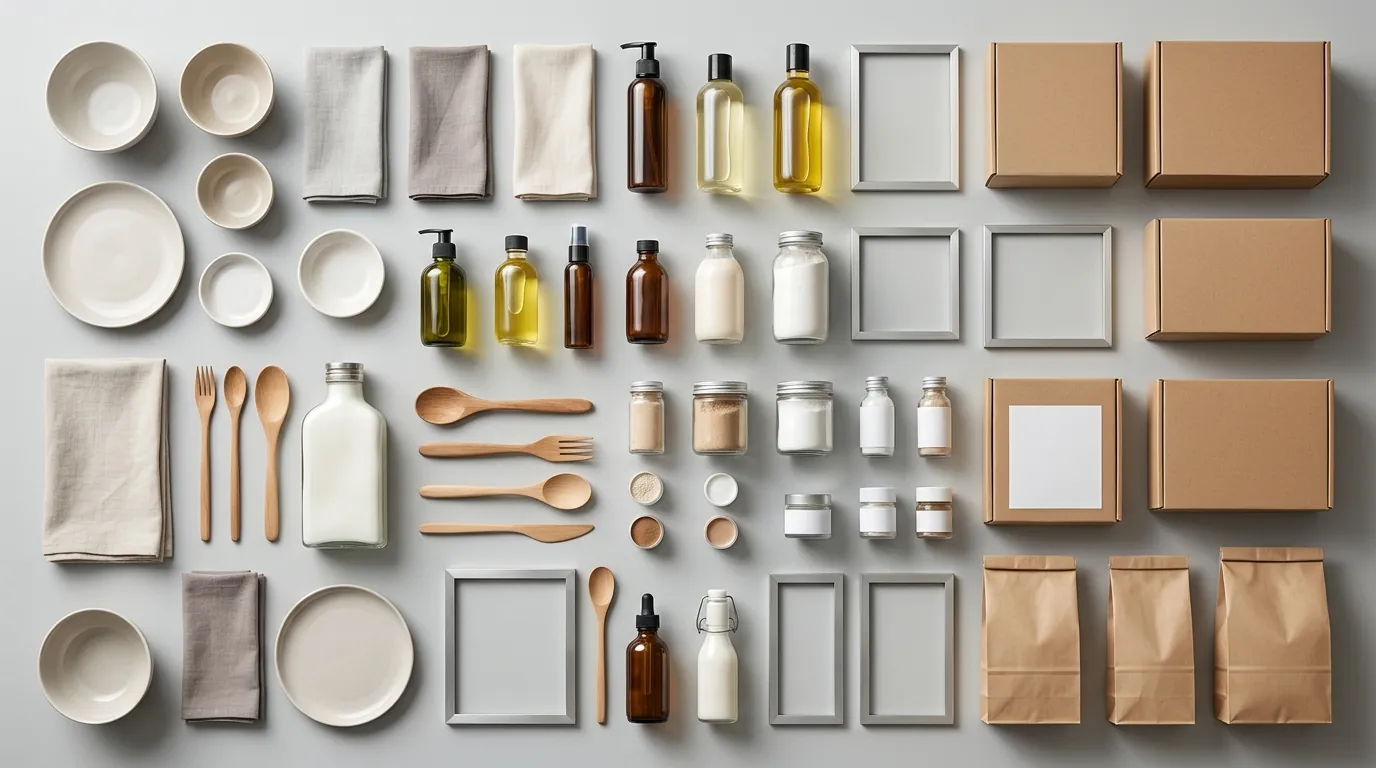
Audit your existing catalog against this 2026 Spec Table to ensure every asset in your TikTok Shop Manager is currently compliant. If your images fall below the 600 x 600 pixel minimum, TikTok may throttle your organic reach or reject new listings during the “Product Review” phase.
| Feature | Requirement | Source |
|---|---|---|
| Minimum Resolution | 600 x 600 pixels | TikTok Ads Help |
| Recommended Resolution | 800 x 800 pixels | TikTok Seller Center |
| Aspect Ratio | 1:1 Square | TikTok Ads Help |
| File Format | JPG, JPEG, or PNG | TikTok Ads Help |
| Max File Size | 5MB per image | TikTok Ads Help |
| Listing Image Count | 1 to 9 images | TikTok Ads Help |
| Background (Main) | White or neutral (highly recommended) | TikTok Seller Center |
Detailed Requirements: Optimize Your Listing Health Score
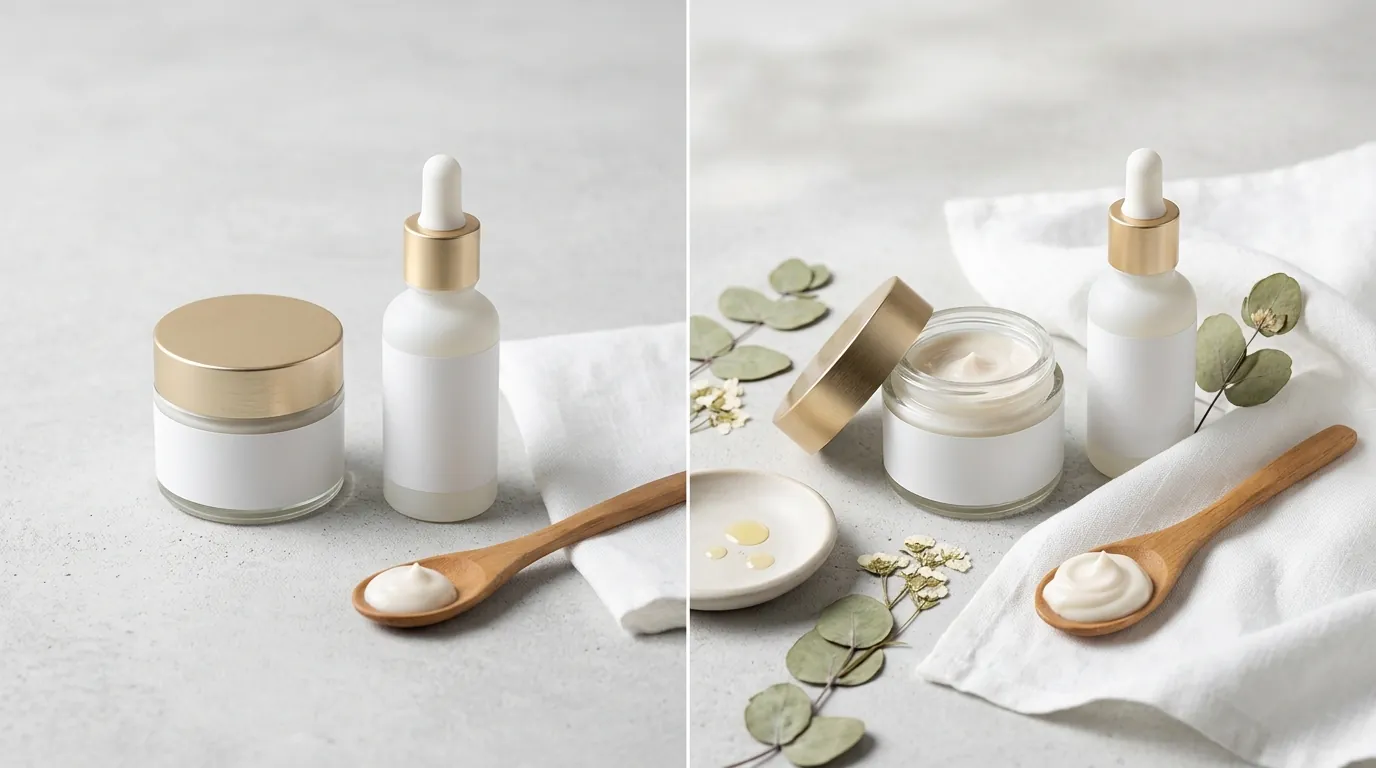
Upload at least 5 high-resolution images to unlock the “Good” listing tier in your TikTok Shop Seller Center. TikTok’s internal “Listing Health” metric directly impacts how the algorithm distributes your product in the “Shop” tab and “For You” feed (FYP). A listing with only one or two images is often flagged as “Incomplete,” which limits your visibility during peak shopping periods.
Main Image vs. Secondary Images
The main image (the first photo shoppers see) is the most scrutinized asset. TikTok’s Product Listing Policy dictates that the main image must show the physical product clearly from a front-facing view. While lifestyle imagery is permitted for secondary slots, your primary image should ideally feature a clean, white background to reduce cognitive load and pass the automated technical review.
Secondary images should provide the “context” that a video often provides but in a static, digestible format. This includes:
- The “6-View” Rule: TikTok recommends showing the front, back, top, bottom, and both sides of the product to reduce returns and “Item Not As Described” disputes.
- Scale and Dimensions: Use one secondary image to show the product in use or next to a common object to establish size.
- Packaging: Including a shot of the retail packaging helps verify the authenticity of the product for the review team.
Video Frame Extraction Rules
When you extract a still from a TikTok video to use as a listing photo, you are often starting with a 1080x1920 (9:16) vertical file. Because TikTok Shop requires a 1:1 square ratio, you cannot simply crop the center of the video and upload it.
Standard video frames often suffer from motion blur. TikTok’s review system will reject images that are “pixelated, blurry, or otherwise low-quality.” To pass, you must select “I-frames” (Intra-coded frames) from your video—these are the frames that contain the full image data rather than just the changes from the previous frame. If the extracted frame looks grainy, it will fail the 5MB technical check or the visual clarity review.
Common Rejection Reasons: Conduct a “6-View” Check
💡 Skip the manual editing. PixelMatch batch-generates ecommerce-ready product images in 60 seconds — white background, lifestyle scenes, and variant mockups from a single source photo. Try PixelMatch free →
Prevent trademark and authenticity rejections by conducting a manual “6-View” check before submitting your listing. TikTok has significantly ramped up its automated image recognition to catch unauthorized stock photos and trademark infringements.
Unqualified Image of Product
A common reason for rejection is providing an “Unqualified Image.” This occurs when the image does not show the actual physical product you are shipping. For example, if you sell a beauty cream but only upload an image of the box, the listing may be rejected. You must show the actual packaging and the product itself. Furthermore, if the image is too small or doesn’t meet the 600x600 px requirement, the system will auto-reject it before a human even sees it.
Trademark and IP Infringement
TikTok Shop is aggressive about protecting intellectual property. Using stock photos from a manufacturer that you do not have explicit permission to use—or photos that include other branded items in the background—can lead to a “Trademark Infringement” strike. This is why extracting original frames from your own TikTok videos is a safer strategy than searching for “official” product photos online. However, ensure that no third-party logos (like a laptop logo in the background of a lifestyle shot) are visible.
Video-to-Listing Mismatch
TikTok’s moderation team checks for consistency between your promotional videos and your static listing images. If your video shows a product in “Midnight Blue” but your listing image looks like “Royal Blue” due to poor lighting or filters, you risk a rejection for “Inconsistent Product Information.” When pulling stills from video, you must normalize the color to ensure it matches the physical item the customer will receive.
Technical Failures
Even a perfect photo will be rejected if it fails the technical handshake. Common failures include:
- File Size: Exceeding the 5MB limit.
- Format: Uploading as a WEBP or HEIC file (TikTok requires JPG or PNG).
- Text Overlay: While some text is allowed in secondary images, putting excessive promotional text (e.g., “50% OFF TODAY”) on the main image is a violation of the TikTok Shop image guidelines.
How to Fix Each Issue: Execute the PixelMatch Batch Workflow
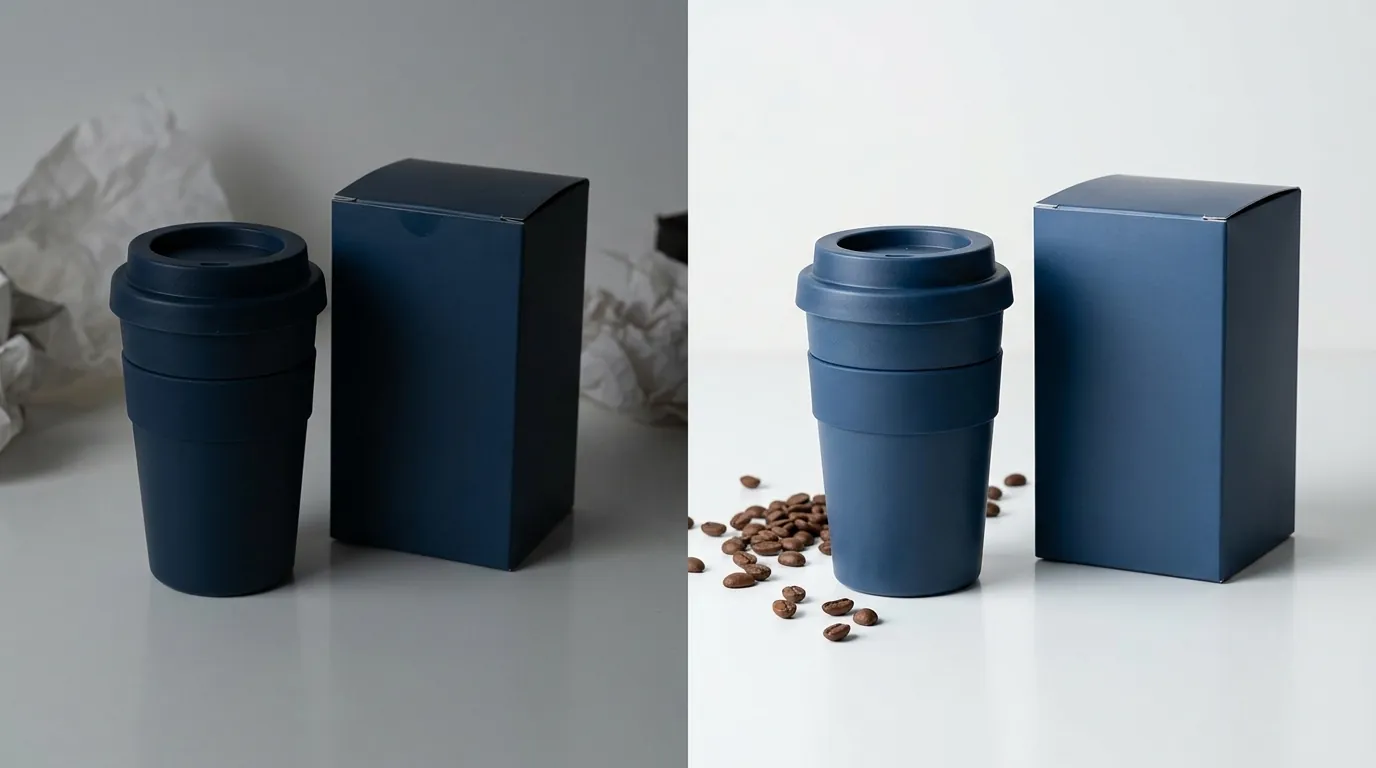
Fixing a suppressed listing or a rejected image doesn’t require a professional photography studio. You can use a batch-generate AI product image workflow to turn low-resolution video frames into high-converting, compliant assets.
Fixing Blurry Video Stills
Most TikTok videos are shot in 1080p, but once you crop a 1:1 square from a vertical 9:16 frame, your effective resolution drops significantly. This often results in an image that looks “soft” or pixelated on high-resolution mobile screens.
While tools like Photoroom offer a Pro tier at $12.99/mo and Pebblely offers a Pro plan at $39/mo—both of which include batch processing features—PixelMatch is specifically optimized for the “video-to-listing” pipeline. Instead of just removing a background, PixelMatch uses AI upscaling to take a 400px video crop and reconstruct it into a crisp 2000x2000 px asset, ensuring you far exceed the minimum requirements.
Fixing Backgrounds for Compliance
TikTok’s algorithm favors the “clean” look of a white background for the main carousel slot. If your video was shot in a messy warehouse or a dimly lit bedroom, you cannot use that frame as your main image without editing.
PixelMatch allows you to batch-generate AI product images by taking those raw video stills, stripping the cluttered background, and placing the product on a studio-quality white backdrop. This ensures that every product in your catalog has a uniform, professional appearance that passes the TikTok “Main Image” review on the first try.
Step-by-Step PixelMatch Workflow
Follow this workflow to move from a TikTok video to a fully compliant, 9-image listing in under five minutes:
- Extract the “Hero” Frames: Scour your TikTok video for the clearest frames. Look for moments where the product is held steady and the lighting is even. Aim for at least 6 different angles.
- Batch Upload to PixelMatch: Upload your raw 1080x1920 screenshots.
- Apply the “TikTok Shop White” Template: Select the batch-processing template that automatically crops to a 1:1 ratio, removes the background, and centers the product.
- Upscale for Clarity: Enable the AI upscaler to move from video resolution to the 800x800 px recommended size (or higher).
- Generate Lifestyle Variations: For your secondary images (slots 2 through 9), use PixelMatch to place the product in “neutral lifestyle” settings that match the aesthetic of your TikTok brand without violating the “clutter” rules.
- Export and Sync: Download the JPG/PNG files and upload them directly to TikTok Shop Seller Center.
Ensuring Consistency Across Platforms
If you are a multi-platform seller, your TikTok Shop assets need to be consistent with your Shopify or Amazon listings. Using a batch-generation tool ensures that the “Midnight Blue” in your TikTok video doesn’t look like “Navy” on your website. By using the same AI-generated lighting and background settings across your entire batch, you maintain brand integrity across every touchpoint.
Official Source Links
To stay updated on policy changes as they happen throughout 2026, bookmark these official TikTok resources:
- TikTok Shop Seller Center: Product Listing Policy & Image Guidelines - The definitive guide for listing health and image requirements.
- TikTok For Business: Best Practices for Catalog - Technical specs for images used in the Shop tab and Shopping Ads.
- TikTok Ads Manager Help: Rejection Reasons and Suggestions - A checklist of why images and videos are rejected during the review process.
- Photoroom Pricing: Official Pricing Page - Reference for competitor Pro tier features and costs.
- Pebblely Pricing: Official Pricing Page - Reference for competitor Pro plan features and costs.
Ready to scale your listings?
PixelMatch generates white-background, lifestyle, and variant mockups from a single source photo — built specifically for multi-platform ecommerce sellers. 50 free images on signup, no credit card.
Start free →