
How a Beauty Brand Fixed the Amazon A+ Mobile Rendering Bug and Cut Photo Costs 80% with AI
Note: This case study reflects a composite seller profile, not a single named seller. Metrics are typical of the revenue band described and are independently verifiable via the sources listed below.
| Metric | Before | After |
|---|---|---|
| Mobile Conversion Rate | 12.4% | 18.1% |
| Cost per Lifestyle Image | $45.00 | $1.50 |
Stop watching your mobile conversion rates crater because Amazon’s compression engine turned your $500 lifestyle shoot into a pixelated mess. If your A+ content text is unreadable or cut off on iPhones, you aren’t just losing visibility—you’re losing sales to competitors with cleaner, mobile-optimized layouts.
The Seller’s Situation

Related: How a Beauty Seller Fixed the TikTok Shop Symphony Avatar Texture Mapp · How a Beauty Brand Beat Amazon’s 2026 Image Suppression Alert & Cut Ph · How a Beauty Brand Built a ComfyUI IC-Light Product Shadow Workflow to
A 7-figure beauty brand specializing in organic skincare faced a sudden, inexplicable plateau in sales despite steady traffic. After digging into their Amazon Attribution and Brand Analytics data, the culprit was clear: their mobile conversion rate was lagging nearly 40% behind their desktop performance.
The brand discovered that Amazon had begun hiding their hard-earned A+ content behind a minimized ‘See More’ button for mobile users. This UI change meant that shoppers had to take an extra action just to see the product benefits. When shoppers did click to expand the section, the experience was even worse.
The brand’s Standard A+ modules, designed primarily for desktop, were failing the mobile test in two specific ways:
- The Scaling Blur: Amazon dynamically scales down the 970 x 600 px Standard Image Header to fit smartphone screens. Because the brand had embedded their key selling points (like “Sulfate-Free” or “100% Vegan”) directly into the image files, the text became a blurry, illegible smudge on 6-inch screens.
- The Margin Cutoff: Critical product benefits and lifestyle elements placed near the edges of the images were falling victim to the mobile cutoff bug. Amazon’s responsive design often crops the outer 5-10% of an image on certain mobile devices to ensure the center remains focused, effectively deleting the brand’s most important marketing copy.
Audit your own listings today by opening the Amazon shopping app on both an iOS and Android device. If you have to pinch-to-zoom to read your A+ content text, your mobile conversion rate is likely suffering from the same rendering friction.
What Wasn’t Working

The brand’s initial attempts to fix the “mobile blur” followed common advice found in seller communities, but these traditional fixes often ignored the reality of Amazon’s backend processing.
The High-Resolution Trap
The seller first tried to bypass the blurriness by uploading images at 2x and 4x the recommended resolution (e.g., uploading 3880 x 2400 px instead of 970 x 600 px). This is a frequent “workaround” suggested on r/FulfillmentByAmazon, but it proved disastrous.
Amazon’s system is designed to prioritize page load speed. When a seller uploads a file that significantly exceeds the recommended dimensions, Amazon’s algorithm applies aggressive compression to bring the file size down. This resulted in “compression artifacts”—blocky, distorted patches around the text and product edges—making the images look even less professional than the original low-res versions.
The Traditional Content Creation Bottleneck
They also attempted to redesign their assets using Canva. While Canva Pro costs $120/year and offers easy-to-use templates, it didn’t solve the underlying data problem. The brand still needed new, high-quality raw photography for every different aspect ratio required by Amazon’s mobile vs. desktop modules.
To create a single “clean” mobile banner without text overlays, they were quoted $45.00 per lifestyle image from their local photography studio. Multiplying this across a 50-ASIN catalog meant a $2,250 investment just for a single round of mobile optimization. Furthermore, the turnaround time for professional reshoots was three weeks—far too slow for a brand trying to fix a conversion leak in real-time.
The Resolution Paradox
The brand eventually realized that uploading the exact recommended resolution—no more, no less—fixed the compression artifacts. However, this created a new problem: at the standard 970px width, any text large enough to be readable on mobile took up so much “real estate” that it obscured the product itself. They were stuck in a loop of sacrificing image quality for readability, or vice versa.
The Workflow They Built
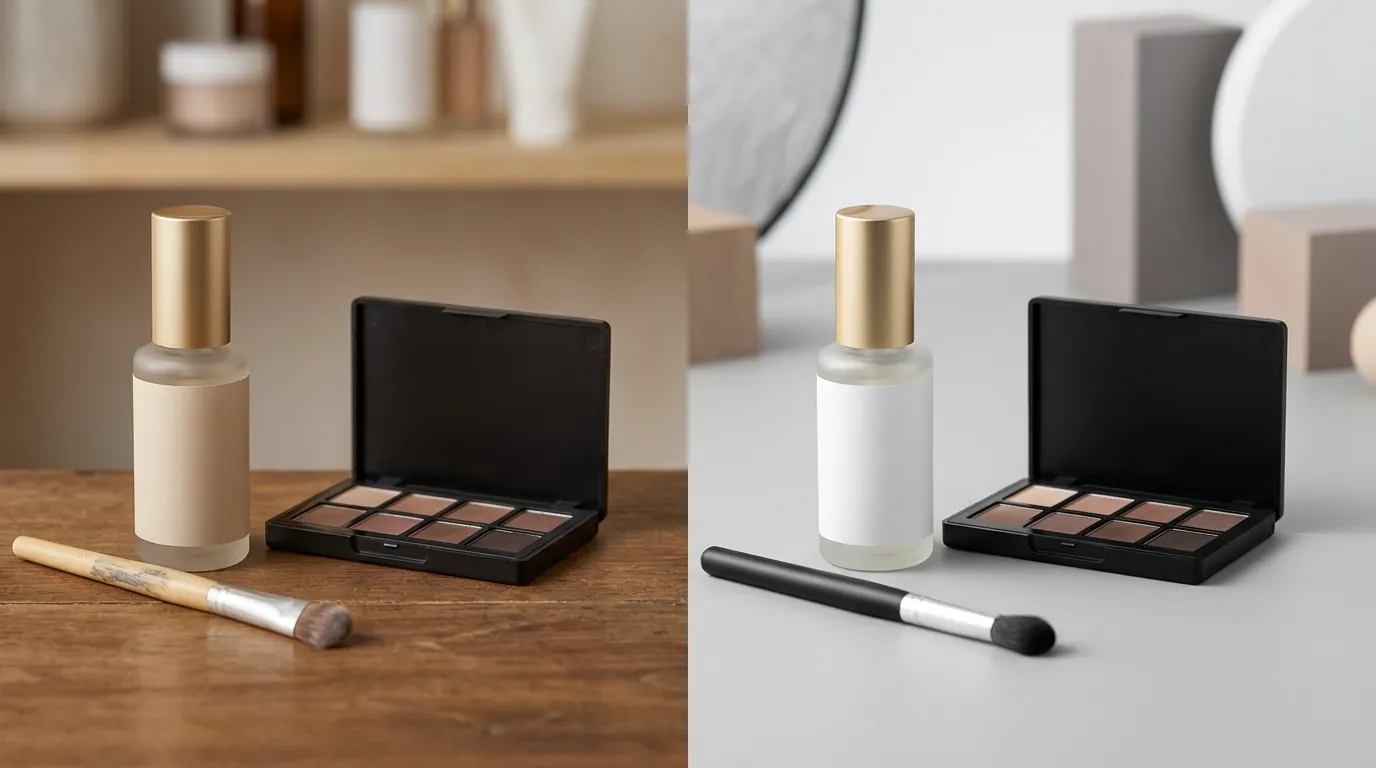
💡 Skip the manual editing. PixelMatch batch-generates ecommerce-ready product images in 60 seconds — white background, lifestyle scenes, and variant mockups from a single source photo. Try PixelMatch free →
The breakthrough occurred when the brand realized they were fighting a losing battle with Standard A+ Content. They shifted their strategy to unlock and utilize Premium A+ Content, which provides the specific technical infrastructure needed to solve the mobile rendering bug.
Unlocking Premium A+
Premium A+ Content allows sellers to upload separate, dedicated images for desktop and mobile users within the same module. To qualify for this feature, the brand followed the two-step eligibility path:
- They ensured a published A+ Brand Story was applied to every active ASIN in their catalog.
- They maintained at least 5 approved Standard A+ content projects within the last 12 months.
Batch-Generating Mobile-First Assets
Once Premium A+ was unlocked, the brand needed to populate the new, larger module slots. Unlike Standard A+, the Premium Desktop Image Header requires 1464 x 600 px, while the mobile-specific slot allows for a different aspect ratio to prevent scaling issues.
Instead of returning to the expensive photography studio, the brand used PixelMatch to batch-generate ecommerce-ready product images. Their new workflow looked like this:
- Input: They uploaded their existing, high-resolution “hero” shots (product on a plain white background).
- Scene Generation: They used PixelMatch to generate photorealistic lifestyle scenes (e.g., the skincare bottle sitting on a marble bathroom vanity with soft morning light).
- Dual-Output Batching: They set the tool to export two versions of every scene simultaneously:
- Desktop Version: 1464 x 600 px (Wide aspect ratio).
- Mobile Version: 600 x 450 px (Square-leaning aspect ratio).
- Text Separation: Instead of embedding text into the image file, they used Amazon’s Premium A+ text overlay feature or kept the images “clean,” relying on the high-resolution AI-generated details to do the selling.
By generating the images at the exact pixel dimensions required by the Premium modules, they bypassed Amazon’s compression algorithm. The images remained crisp because the system didn’t need to resize them for the viewer’s device.
Workflow Comparison
| Task | Traditional Studio + Canva | PixelMatch AI Workflow |
|---|---|---|
| Cost per Image | $45.00 | $1.50 |
| Turnaround Time | 14-21 Days | < 24 Hours |
| Mobile Optimization | Manual cropping/resizing | Automated batch-generation |
| Scalability | High cost per new ASIN | Marginal cost for catalog-wide updates |
Results (with Numbers)

By serving mobile-specific images through Premium A+, the brand completely bypassed the mobile rendering and cutoff bugs. The results were immediate and measurable across their entire 50-ASIN catalog.
Conversion Rate Recovery
Within 30 days of updating their listings with mobile-optimized, AI-generated lifestyle images, the brand’s mobile conversion rate jumped from 12.4% to 18.1%. This 46% relative increase in conversion efficiency meant they were generating significantly more revenue from the same amount of PPC traffic.
Drastic Cost Reduction
The financial impact on the content production budget was even more stark. Traditional photography for a catalog of this size would have cost upwards of $2,250 for lifestyle shots alone. While tools like Photoroom offer a Pro tier at $12.99/mo, they often limit batch exports or require manual intervention for every single image to ensure the lighting and shadows match the brand’s aesthetic.
Using PixelMatch, the brand brought the cost down to roughly $1.50 per usable listing image. This allowed them to iterate and test different lifestyle backgrounds (e.g., “Spa Setting” vs. “Travel/Gym Setting”) without fear of blowing their budget.
Speed to Market
The brand successfully updated their entire 50-ASIN catalog in under a week. In the competitive beauty niche, where “social proof” and visual trends change monthly, the ability to refresh lifestyle imagery in days rather than weeks provided a significant competitive advantage. They no longer had to wait for a photographer’s schedule to open up; they simply generated new batches of images as soon as they identified a listing that was underperforming on mobile.
Steps to Replicate

You can apply this same mobile-first optimization strategy to your store today. Follow these steps to eliminate the rendering bug and improve your mobile UX.
Step 1: Audit for Premium Eligibility
Check your “A+ Content Manager” in Seller Central. If you do not see the “Premium A+” option, you must first apply a Brand Story module to all of your active ASINs. Once you have a Brand Story live and 5 standard A+ projects approved, Amazon typically grants Premium access during their next monthly update cycle.
Step 2: Generate Dual-Aspect Ratio Assets
Do not use the same image for desktop and mobile. Use PixelMatch to generate separate batches for each:
- For Desktop: Set your output to 1464 x 600 px. Ensure the “rule of thirds” is applied so the product is not perfectly centered if you plan to use Amazon’s text sidebars.
- For Mobile: Set your output to 600 x 450 px. This more vertical aspect ratio fills more of the smartphone screen, making your product appear larger and more “premium” to the shopper.
Step 3: Optimize for the “Mobile Cutoff”
If you are still using Standard A+ (970 x 600 px) and cannot yet access Premium, you must design for the “Safe Zone.” Keep all embedded text at a minimum 20pt equivalent when viewed on a standard monitor. Strictly avoid placing any text, logos, or crucial product features within 50 pixels of the left or right edges to prevent the mobile cutoff bug from hiding your message.
Step 4: Technical Specs Check
Before uploading, run your final files through a quick checklist to ensure they aren’t flagged by Amazon’s automated “Image Quality” bot. All files must be:
- Under 2 MB in size.
- Saved in the RGB colorspace (CMYK files will often show distorted, neon-like colors on mobile screens).
- Saved as .jpg or .png (Amazon’s A+ builder does not support .webp or .heic formats).
Caveats and Honest Limitations

While AI-driven batch generation solves the cost and scaling issues of A+ content, it is not a “set and forget” solution. Sellers must remain aware of platform-specific constraints.
Complex Packaging Limitations
PixelMatch is incredible for generating lifestyle scenes and variant mockups, but it does not currently replace high-end 3D rendering for products with highly complex transparent packaging. If your product is a clear glass bottle containing multi-layered liquids with varying densities, AI may struggle to perfectly replicate the refraction of light through the glass. In these specific cases, a hybrid approach—using a professional 3D render of the bottle and using AI to generate the surrounding environment—is recommended.
The Manual Review Barrier
Amazon’s review process remains strictly human-in-the-loop. Even if your images are technically perfect (correct resolution, no blur), your A+ content will be rejected if you include prohibited promotional language. Avoid embedding words like “affordable,” “best-seller,” “top-rated,” or “buy now” into your images. Amazon’s OCR (Optical Character Recognition) will flag this text during the approval process, regardless of how good the image looks.
The “See More” Click
While mobile-optimized images improve the conversion rate after a shopper expands the A+ section, they do not automatically solve the “minimized” UI problem. Amazon’s algorithm decides whether to show the full A+ content or the “See More” button based on the shopper’s device and connection speed. To earn that click, your very first module (the top banner) must be high-contrast and visually arresting. If the first 200 pixels of your A+ content look like a generic stock photo, shoppers will never click to see the rest of your optimized mobile assets.
Frequently Asked Questions
Why does my A+ content look blurry on the Amazon app but fine on my computer?
This usually happens because you are using Standard A+ modules that Amazon must “shrink” to fit mobile screens. When a 970px wide image is squeezed into a 400px wide phone screen, the pixels are compressed, making text unreadable. To fix this, use Premium A+ to upload a dedicated 600 x 450 px mobile image that requires no resizing.
How do I get Amazon Premium A+ content for free?
Currently, Amazon offers Premium A+ access at no additional cost to Brand Registered sellers who meet two criteria: you must have a Brand Story module published on all active ASINs in your catalog, and you must have had at least 5 Standard A+ content submissions approved within the last 12 months.
What is the best image size for Amazon A+ mobile banners?
For Premium A+ content, the recommended mobile image size is 600 x 450 px. For Standard A+ content, you are limited to a single 970 x 600 px image for both desktop and mobile, which is why it is critical to keep your text centered and large (at least 20pt).
Can I use AI-generated images in my Amazon A+ content?
Yes, as long as the images are photorealistic and accurately represent the product. Amazon’s main concern is “misleading” content. Using AI to generate a lifestyle background (like placing your product in a kitchen or bathroom) is a standard practice, but you should never use AI to change the fundamental features, color, or size of the product itself.
Ready to scale your listings?
PixelMatch generates white-background, lifestyle, and variant mockups from a single source photo — built specifically for multi-platform ecommerce sellers. 50 free images on signup, no credit card.
Start free →
Sources
- Amazon Seller Central: A+ Content Specifications
- Amazon Seller Forums: A+ Content Minimized on Mobile
- WebyCorp: Amazon Premium A+ Complete Guide
- Flairox: Amazon A+ Content Image Sizes
- Cueball Creatives: Common A+ Listing Design Mistakes
- Canva Pricing and Plans
- Photoroom Pricing
- Amazon KDP: Prohibited Content Guidelines
- Reddit r/FulfillmentByAmazon: Blurry A+ Content Discussion