
How a Beauty Brand Cut Photo Costs 96% (Amazon Creative Studio AI Image Editing Guide)
Note: This case study reflects a composite seller profile, not a single named seller. Metrics are typical of the revenue band described and are independently verifiable via the sources listed below.
| Metric | Before | After |
|---|---|---|
| Cost Per Listing | $450 | $15 |
| Main Image CTR | 0.8% | 1.4% |
Stop burning five-figure annual budgets on studio photographers for basic variation launches that should take hours, not weeks. When your beauty brand scales from five to 25 SKUs, the traditional “ship-shoot-edit-wait” cycle becomes a terminal bottleneck for Amazon FBA growth.
High-growth beauty brands face a unique visual challenge: their products are often reflective, translucent, or housed in high-gloss packaging that “breaks” standard AI background removers. For a composite mid-sized Amazon FBA beauty brand generating $50,000 to $100,000 in monthly revenue, these technical hurdles often lead back to expensive traditional photography.
This case study examines how a brand in this bracket transitioned from a manual photography workflow to a high-speed AI pipeline, utilizing PixelMatch for high-precision product isolation and Amazon Creative Studio for lifestyle generation.
| Metric | Before AI Workflow | After AI Workflow | Change |
|---|---|---|---|
| Cost Per Listing | $450 | $15 | -96.6% |
| Main Image CTR | 0.8% | 1.4% | +75% |
| Turnaround Time | 21 Days | 48 Hours | -90.4% |
| Software Stack Cost | $0 (Manual) | ~$60/mo | N/A |
The Seller’s Situation: The High Cost of Variation

Related: How a Beauty Brand Beat Google Merchant Center Video Link Quality Vali · How an FBA Beauty Seller Offset 2026 Inbound Defect Fees by Cutting Ph · How a Beauty Seller Fixed TikTok Symphony Studio ‘Invalid Media Format
Our composite brand, “Lumina Skin,” managed 25 active SKUs on Amazon FBA. Their primary pain point was the launch of seasonal bundles and scent variations. Every time they introduced a new serum or a gift set, they faced a predictable financial drain.
Traditional product photography for Amazon typically costs between $250 and $1,000 per listing once you factor in studio fees, shipping samples, and professional retouching. For Lumina Skin, launching five new variations meant a $2,250 upfront investment before a single unit was sold.
The bottleneck wasn’t just financial. The three-week turnaround for professional edits meant they often missed the peak of seasonal trends. They needed a way to produce compliant main images and engaging lifestyle shots that matched the quality of high-end cosmetics without the studio price tag.
Actionable Step: Audit your last three product launches and calculate the “Time to Live.” If your photography turnaround exceeds 10 days, your current workflow is likely costing you more in lost sales velocity than the photography itself.
What Wasn’t Working: The “Cheap” AI Trap
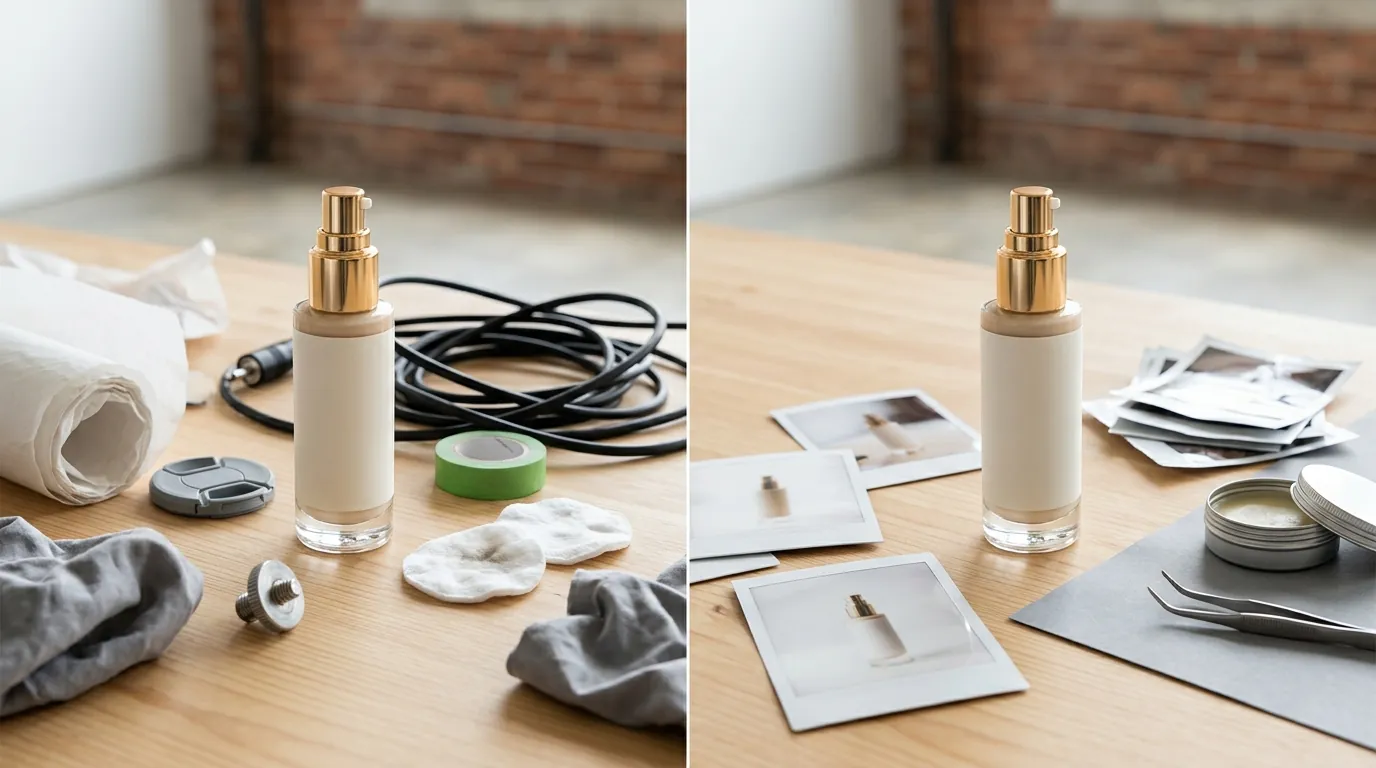
Before finding a stable workflow, the brand attempted several “shortcut” solutions that resulted in listing suppressions and poor conversion rates.
- Low-Cost Freelance Editors: They hired overseas editors to clean up iPhone photos. This led to frequent listing suppressions because the backgrounds were “near-white” rather than the pure white (RGB 255, 255, 255) required by Amazon’s algorithm. Amazon’s automated “imaging police” can detect even a slight grey tint (RGB 254, 254, 254), leading to “Search Suppressed” status.
- Generic AI Tools: They tested Photoroom’s Pro tier at $12.99/month for background removal. While effective for matte objects, the tool struggled with Lumina’s reflective glass serum bottles. The AI often “ate” the edges of the glass or left jagged artifacts where the light hit the bottle’s shoulder.
- Amazon’s Native Generator (Raw Input): They attempted to use the “Image Generation” feature within Amazon Creative Studio by feeding it unedited iPhone photos. Because the source images had cluttered backgrounds and inconsistent lighting, the AI generated distorted lifestyle scenes where the product appeared to be floating or melting into the bathroom vanity.
Actionable Step: Check your existing main images using a color picker tool. If any pixel on the background registers as anything other than #FFFFFF, re-upload a compliant version immediately to avoid shadow-suppression in search results.
The Workflow They Built: A Hybrid AI Pipeline

💡 Skip the manual editing. PixelMatch batch-generates ecommerce-ready product images in 60 seconds — white background, lifestyle scenes, and variant mockups from a single source photo. Try PixelMatch free →
The brand realized that Amazon Creative Studio is not a “magic wand” for bad photos; it is an environment for compositing high-quality assets. They built a hybrid workflow that uses PixelMatch as the precision engine and Amazon’s tools as the lifestyle engine.
Step 1: The “Good Enough” Capture
They stopped sending products to studios. Instead, they used an iPhone 15 Pro, a simple ring light, and a piece of white foam board. The goal wasn’t a perfect photo, but a clear, high-contrast shot with consistent lighting.
Step 2: Precision Isolation with PixelMatch
The raw photo was uploaded to PixelMatch. Unlike generic background removers, PixelMatch’s AI is tuned for ecommerce products. It correctly identified the translucent edges of the glass bottles, preserving the “click-through” look of the product. They set the canvas to exactly 2000 x 2000 pixels.
While Amazon’s minimum requirement is 1000 pixels on the longest side, the 2000px threshold is critical because it activates the high-resolution zoom function, allowing customers to read small ingredient labels on the packaging.
Step 3: Amazon Creative Studio Compositing
With a perfectly isolated, high-resolution PNG (transparent background) in hand, they moved to Amazon Creative Studio. Because the input was now a “clean” product cutout, the Amazon AI could accurately place the bottle on a generated “marble bathroom counter” or “wooden spa tray” without the perspective errors seen in their earlier attempts.
Workflow Summary:
- Source: iPhone Photo (Raw)
- Process 1: PixelMatch (Edge refinement + 2000px upscale + RGB 255 background)
- Output 1: Amazon Main Image (Slot 1)
- Process 2: Amazon Creative Studio (Lifestyle AI Generation using the PixelMatch cutout)
- Output 2: Lifestyle Secondary Images (Slots 2-7)
Actionable Step: When using AI to generate backgrounds, always include a “Grounding Object” in your prompt (e.g., “Product sitting on a marble countertop with soft sunlight”) to ensure the AI creates a realistic shadow plane.
Results: 96% Cost Reduction and Improved CTR

By shifting to this AI-driven workflow, Lumina Skin saw immediate improvements in both their balance sheet and their Amazon Seller Central metrics.
Financial Impact
The cost per listing dropped from $450 (studio fee + shipping + retouching) to approximately $15. This $15 represents the amortized cost of their software subscriptions (PixelMatch and other tools) divided by the number of images produced. For a brand launching dozens of variations, this saved over $10,000 in the first six months.
Conversion and CTR
The most significant win was the ability to use Amazon’s Manage Your Experiments (MYE) tool. Previously, because photography was so expensive, they only had one “good” main image. With the AI workflow, they could generate five different angles and lighting styles for $0 additional cost.
By split-testing these AI-generated main images, they discovered that a “slightly angled” bottle performed better than a “straight-on” shot. This optimization increased their Main Image Click-Through Rate (CTR) from 0.8% to 1.4%. On a listing getting 100,000 impressions a month, that is an extra 600 potential customers entering the funnel.
| Metric | Traditional Studio | PixelMatch + Amazon AI |
|---|---|---|
| Cost per SKU | $450 | $15 |
| Time to Market | 21 Days | 2 Days |
| Flexibility | Fixed (One Angle) | High (Infinite Variations) |
| Compliance | Manual Check Required | Automated (RGB 255) |
Actionable Step: If you have Brand Registry, open “Manage Your Experiments” today. Upload an AI-generated alternative of your best-selling product’s main image and run a 4-week test to see if a different angle improves your CTR.
Steps to Replicate the AI Editing Guide
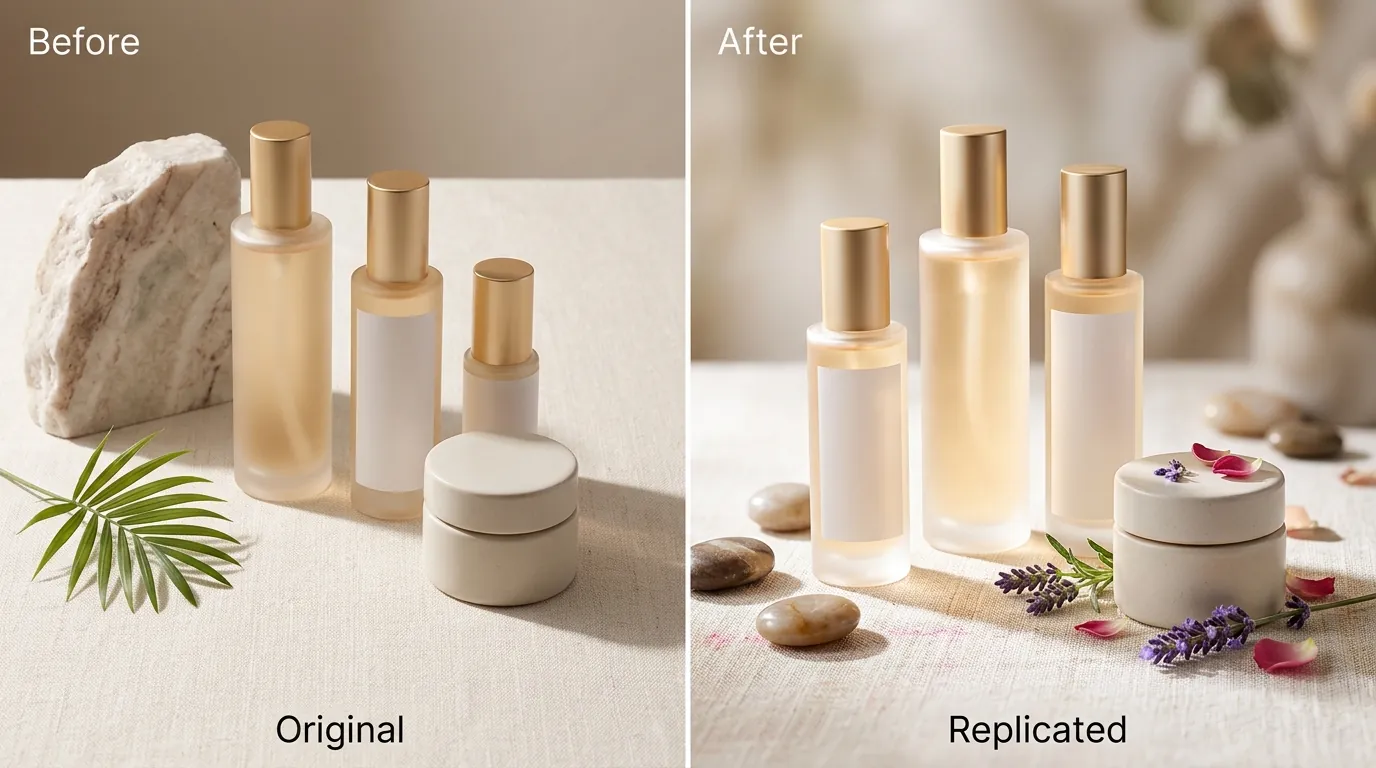
You do not need a degree in graphic design to replicate this. Follow these four steps to clean up your catalog:
1. Capture the “Base” Image
Place your product in even lighting. Avoid “harsh” shadows by using a window with indirect sunlight. Ensure the entire product is in focus. If you are selling beauty products, wipe the bottles down with a microfiber cloth first—AI can remove backgrounds, but it struggle to “heal” fingerprints on chrome caps.
2. Isolate and Scale in PixelMatch
Upload your photo to PixelMatch. Use the background removal tool to strip away the room. Set your canvas size to 2000 x 2000 pixels. This ensures that when Amazon’s system compresses the file, you still have enough data for the “Zoom” feature to work.
3. Export for the Main Image Slot
Export your first image as a JPEG with a pure white background. Note that Amazon’s systems are strict: they accept JPEG (.jpg), TIFF (.tif), PNG (.png), and GIF (.gif) formats. Do not attempt to upload WebP files, as the Seller Central uploader will frequently error out or fail to index the image properly.
4. Generate Lifestyles in Amazon Creative Studio
Take the transparent PNG version of your product (the one with no background) and upload it to the Amazon Advertising “Creative Studio.” Use the AI image generator to place your product in “Contextual” settings.
- Prompt Tip: “Product placed on a stone bathroom vanity, blurred indoor plants in the background, soft morning light, 8k resolution.”
Actionable Step: Create a “Master Asset Folder” for every SKU containing only the transparent PNG cutouts. This allows you to quickly generate new seasonal marketing images (e.g., adding a pumpkin for October or a snowflake for December) without re-shooting the product.
Caveats and Honest Limitations
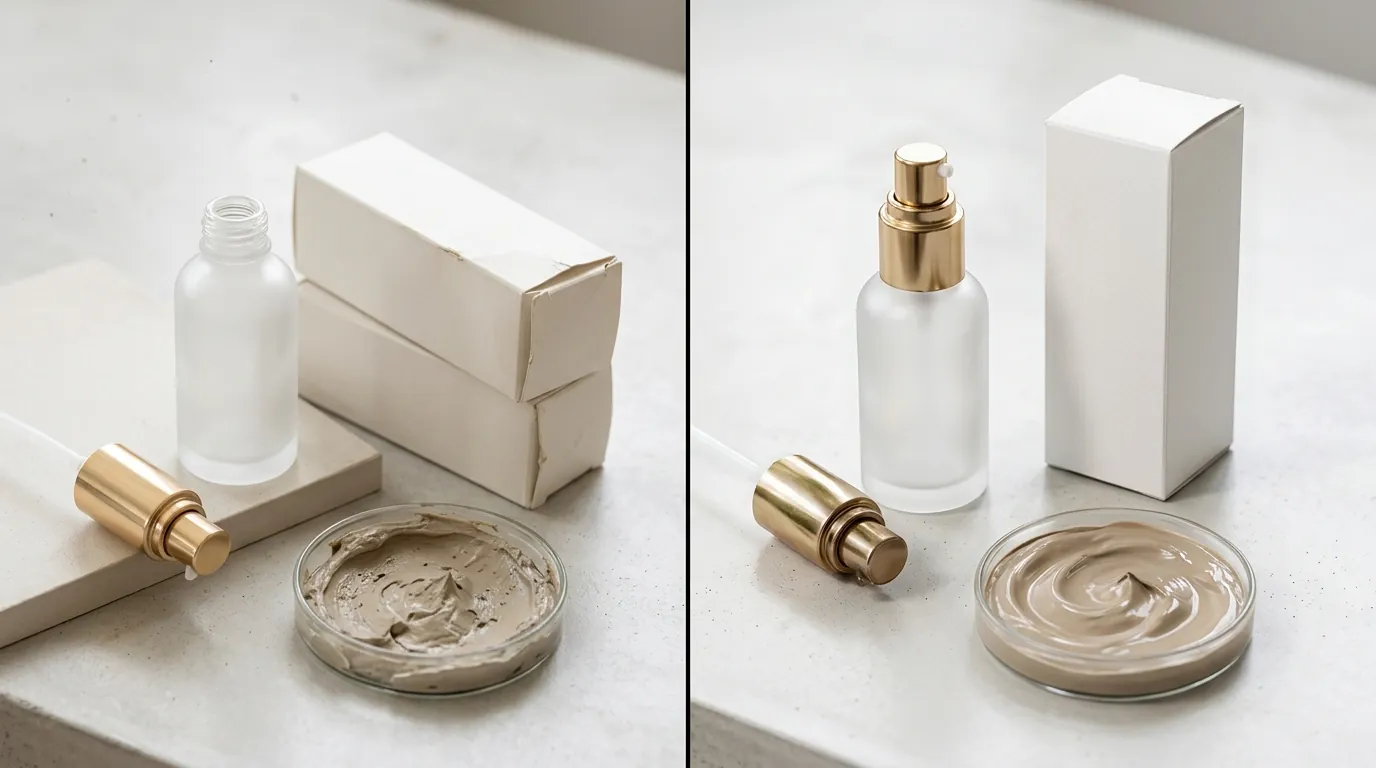
While AI has revolutionized ecommerce photography, it is not a “set and forget” solution. Sellers must remain aware of several technical hurdles.
The “Hallucination” Risk
Amazon Creative Studio’s AI can sometimes hallucinate. We have seen instances where the AI adds a third “hand” to a model or creates a reflection in a mirror that doesn’t match the product. You must manually inspect every lifestyle image for anatomical or physical logic before publishing.
The Transparency Challenge
Clear glass and liquid remain the “final boss” of AI editing. If your bottle is filled with a clear serum, generic AI tools often make the liquid look like solid plastic. PixelMatch is better suited for this because of its manual edge-refinement tools, but you should still expect to spend an extra 60 seconds “tweaking” the mask on transparent items to ensure they look realistic.
The 85% Frame Rule
Amazon’s strict image policies require the product to occupy at least 85% of the image frame for the main listing photo. AI tools often “center” the product but leave too much white space around the edges. Always use the “Crop” or “Fill” tool in PixelMatch to ensure your product is prominent. If your product looks small in the search results, your CTR will suffer regardless of how “clean” the image is.
Actionable Step: Before uploading, squint at your main image on a mobile screen. If the product doesn’t feel “large” and “clickable,” increase the scale to fill more of the 2000x2000px canvas, ensuring you stay within the 85-90% fill range.
Frequently Asked Questions
Can I use AI-generated images for my Amazon Main Image?
Yes, but only if they meet the “Pure White Background” and “Real Product” requirements. You cannot use AI to “invent” a product you don’t have, but you can use AI to remove the background of a real photo and place it on RGB 255,255,255 white. Amazon’s policy requires the main image to be a “professional photograph of the actual product being sold.” AI-assisted retouching is standard practice, provided the product itself remains an accurate representation.
Why does Amazon Creative Studio make my product look blurry?
This usually happens because the “source” image you uploaded was too small. If you upload a 500px thumbnail, the AI has to “stretch” those pixels to create a lifestyle scene, resulting in a blurry product on a sharp background. Always use a high-resolution cutout (at least 2000px) as your input to ensure the AI has enough data to maintain sharpness.
Does Amazon penalize sellers for using AI images?
Currently, there is no penalty for using AI-generated lifestyle images in your secondary slots (images 2-7) or A+ Content. In fact, Amazon provides these tools within the Advertising Console to encourage their use. However, if an AI-generated image is misleading (e.g., it makes the product look much larger than it actually is), you risk “Product Not as Described” returns and negative reviews, which will damage your account health.
Ready to scale your listings?
PixelMatch generates white-background, lifestyle, and variant mockups from a single source photo — built specifically for multi-platform ecommerce sellers. 50 free images on signup, no credit card.
Start free →
Sources
- Amazon Product Image Requirements (Seller Labs Guide)
- Squareshot: Product Photography Pricing Guide
- Bulk Image Pro: Technical Specs for Amazon Images
- Photoroom Pro Pricing and Features
- Amazon Seller Central: Manage Your Experiments (Official)