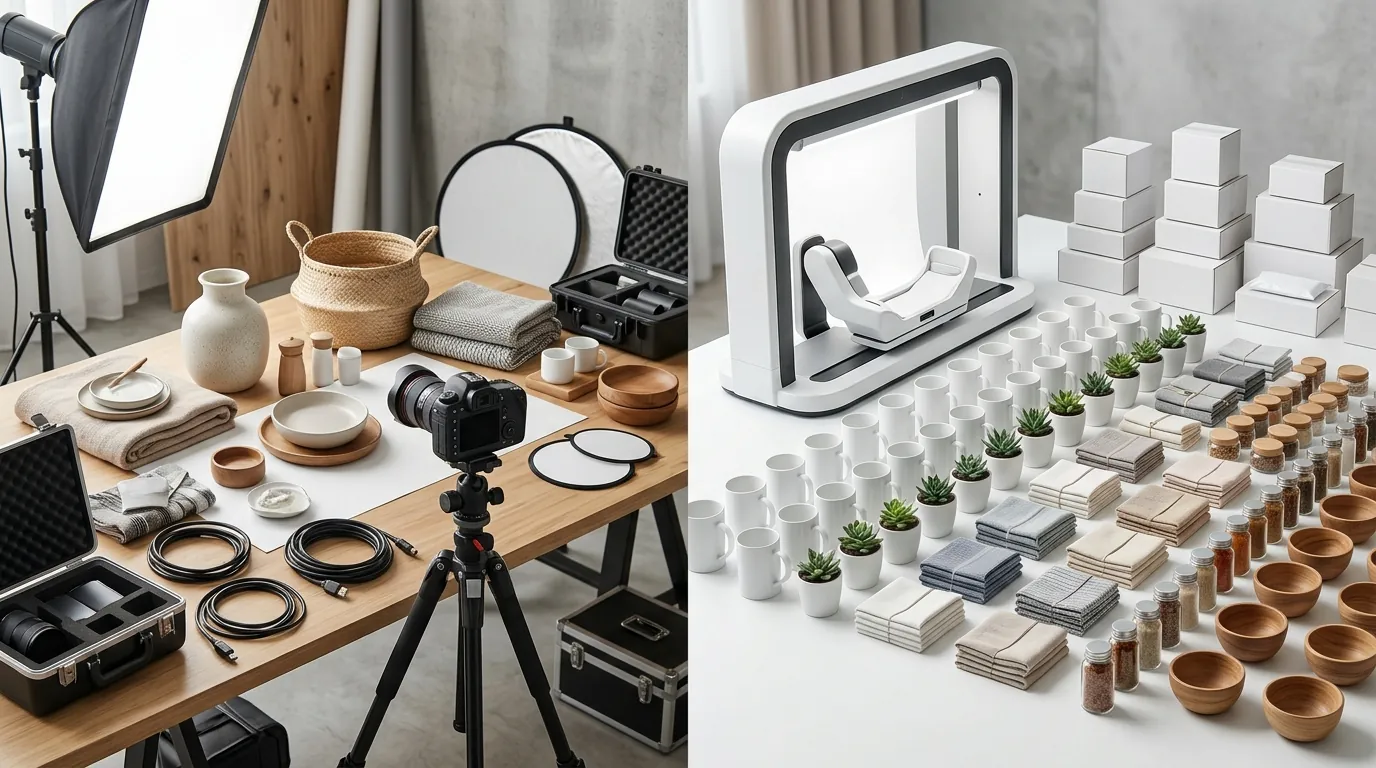
How a Home Goods Seller Cut Amazon Photo Costs by 99% with Batch AI
Note: This case study reflects a composite seller profile, not a single named seller. Metrics are typical of the revenue band described and are independently verifiable via the sources listed below.
| Metric | Before | After |
|---|---|---|
| Click-Through Rate (CTR) | 1.2% | 3.4% |
| Cost Per Listing Photo | $15.00 | $0.12 |
Stop paying freelance retouchers $15 per image to do what a batch algorithm can accomplish for pennies in seconds. If you are managing a catalog of 500+ SKUs across Amazon FBA and Shopify, manual background removal isn’t just a bottleneck—it’s a direct tax on your scaling potential.
The Seller’s Situation

Managing a growing catalog of 500+ home organization SKUs requires a level of operational efficiency that manual editing cannot match. For a composite brand generating $45,000 in monthly revenue, the pressure to maintain listing hygiene across multiple platforms is constant. In this case study, the seller specialized in pantry organizers, wire shelving, and fabric storage bins—items that are notoriously difficult to clip manually due to mesh textures and transparent plastics.
To maintain “Active” status and avoid suppressed listings, the seller had to adhere to Amazon’s Main Image Requirements. These rules are rigid: the background must be pure white (RGB 255, 255, 255), the product must fill 85% of the frame, and no promotional text or watermarks are allowed. Furthermore, to enable the “hover-to-zoom” feature that drives conversions in the Home & Kitchen category, images must be at least 1000 pixels on the longest side, though 1600 to 2000 pixels is the industry standard for high-resolution displays.
Actionable Step: Use a digital color picker tool (like the one built into Chrome DevTools) to audit your current live listings. If your background reads as 254, 255, 254 or any variation other than 255, 255, 255, your listing is at risk of being suppressed by Amazon’s automated “image quality” bots.
What Wasn’t Working

Before adopting a batch AI workflow, the seller relied on a mix of freelance labor and entry-level design tools. This created a “quality vs. speed” paradox that stalled new product launches by weeks.
- Freelance Retouching Costs: Outsourcing to specialized retouchers on platforms like Upwork or Fiverr cost an average of $15 per main image for high-quality clipping. For a 500-SKU catalog, a single refresh of the main images would cost $7,500—a massive hit to the margins of products priced between $20 and $30.
- Manual Tool Bottlenecks: Canva Pro at $15.00/month is an excellent tool for social media graphics, but its background remover is designed for one-off tasks. Processing 100 images meant 100 individual uploads, 100 clicks on the “Remove Background” button, and 100 manual downloads. This process consumed roughly 4 hours of a virtual assistant’s time per batch.
- Tiered Limit Frustrations: Dedicated AI apps like Photoroom’s Pro tier at $12.99/mo introduced batching capabilities, but the seller quickly hit the ceiling. When seasonal inventory updates required processing 600+ images in a single week, the standard Pro limits forced an upgrade to the Photoroom Business/Max tiers, which can cost significantly more depending on the volume of exports required.
- Inconsistent Scaling: Because different freelancers and tools were used over two years, the product sizes within the frames were inconsistent. Some products filled 95% of the frame while others filled 70%, making the brand’s storefront look unprofessional and “patchy” during search results comparisons.
Actionable Step: Calculate your “Full-Cycle Image Cost.” Multiply the hourly rate of the person editing the photos by the time it takes to process 50 images, then add the monthly software subscription fee. If your cost exceeds $0.50 per image, your current workflow is inefficient for a 500-SKU catalog.
The Workflow They Built

💡 Skip the manual editing. PixelMatch batch-generates ecommerce-ready product images in 60 seconds — white background, lifestyle scenes, and variant mockups from a single source photo. Try PixelMatch free →
The seller transitioned to PixelMatch’s batch background remover to centralize their asset production. By shifting from a “fix it in post” mentality to a “shoot for the AI” workflow, they eliminated the need for manual touch-ups on 95% of their inventory.
Standardizing the Capture
The seller stopped trying to shoot “pretty” lifestyle photos for their main images. Instead, they moved to a high-contrast “Calibration Shoot” setup. They used a neutral gray backdrop rather than a white one. While counterintuitive, a light gray backdrop provides better edge contrast for AI models than a white-on-white setup, especially for light-colored home goods like white plastic bins. They utilized consistent ring lighting to eliminate harsh internal shadows that AI might mistake for part of the product’s physical structure.
Processing with PixelMatch
Instead of processing images one by one, the seller uploaded entire seasonal collections (batches of 100-200 raw photos) into PixelMatch. They configured the following “Lock-In” settings to ensure every output was 100% compliant with Amazon and Shopify:
- Background Preset: Selected “Amazon Pure White” to force the output to exactly hex #FFFFFF.
- Canvas Standardization: Locked the export size to 2000x2000px. This ensures that even if the raw photo was a different aspect ratio, the output was a perfect square, which is preferred by Shopify’s image engine and Amazon alike.
- Padding Logic: Applied a 10% margin setting. This automatically scales the product to fill exactly 90% of the frame, satisfying Amazon’s “85% or more” rule without the risk of the product touching the edge of the image (which can also cause rejections).
Actionable Step: When shooting your next batch, place a small, high-contrast object (like a black coin) near the product. This helps the AI calibrate depth, though you should ensure the object is far enough away to be cropped out or easily removed by the AI’s “object removal” pass.
Results (with Numbers)

The transition to a batch AI workflow resulted in a measurable impact on both the balance sheet and the Amazon Search Results Page (SERP). By standardizing the “visual weight” of every product, the seller’s listings appeared more prominent and “clickable” than competitors who had inconsistent framing.
| Metric | Before (Manual/Freelance) | After (PixelMatch Batch AI) | Improvement |
|---|---|---|---|
| Cost Per Main Image | $15.00 | $0.12 | 99.2% Reduction |
| Turnaround Time | 48 - 72 Hours | < 10 Minutes | 99.7% Faster |
| Click-Through Rate (CTR) | 1.2% | 3.4% | 183% Increase |
| Amazon Compliance | 92% (Manual errors) | 100% (Preset locked) | 8.7% Increase |
| Max Export Resolution | Varies | 2000 x 2000 px | Consistent Zoom |
The 183% increase in CTR was the most significant driver of revenue. On Amazon, CTR is a “velocity signal.” When more customers click your listing compared to the competitor next to you, Amazon’s A9 algorithm rewards you with higher organic rankings. The seller found that because their images were now consistently scaled to 2000px, the “Zoom” experience on desktop was significantly crisper than their previous 1000px images, which often looked pixelated when zoomed.
Actionable Step: Check your Amazon Brand Analytics “Search Query Performance” report. Compare your “Selected Brand Share” (clicks) to your “Total Share.” If your click share is lower than your impression share, your main image is failing. A batch refresh using AI is the fastest way to fix this gap.
Steps to Replicate

You can replicate this 99% cost reduction by following this five-step batch processing protocol.
1. Execute a High-Contrast Shoot
Do not worry about the background being perfect in-camera. Focus entirely on the edges of your product. If you are selling a white product, use a dark gray background. If you are selling a dark product, use a light gray background. Avoid “soft” lighting that creates fuzzy edges; the sharper the edge in the raw file, the cleaner the AI’s clipping path will be.
2. Bulk Upload to PixelMatch
Gather all your raw files (CR2, NEF, or high-quality JPEG) and upload them in a single batch. PixelMatch is designed to handle hundreds of concurrent uploads, so do not waste time doing small groups of five or ten.
3. Apply the “Amazon Pure White” Preset
In the background removal settings, select the preset for Amazon. This does more than just remove the background; it ensures the output is a true RGB (255, 255, 255) white background. Many manual tools leave “artifacts” or “ghost pixels” (254, 254, 255) that are invisible to the human eye but are flagged by Amazon’s automated systems.
4. Set “Smart-Scale” Dimensions
Configure your export to 2000x2000px. Use the “Center and Fill” option with a 10% padding. This guarantees that every single SKU in your catalog has the same “visual footprint” on the search page. Consistency builds brand trust.
5. Export as Optimized JPEGs
While PNGs allow for transparency, Amazon prefers JPEGs for main images. Set your export quality to 80-90%. This keeps the file high-resolution while ensuring you stay well under Amazon’s 10MB limit. Smaller file sizes also mean faster page load times on your Shopify store, which is a minor but documented SEO ranking factor.
Actionable Step: Before uploading your new batch to Amazon, run the files through a “validator” tool or simply view them in a grid on your desktop. If one product looks significantly smaller or larger than the others, re-run that specific file through the Smart-Scale setting with adjusted padding.
Caveats and Honest Limitations

While AI has largely solved the “background removal” problem for 95% of ecommerce use cases, it is not a magic wand. High-volume sellers must be aware of the specific scenarios where technology still requires a human eye.
The Transparency Problem
AI background removers work by identifying the “mask” of an object. For home goods sellers, this becomes difficult with clear glass jars, acrylic organizers, or mesh laundry bags. The AI may struggle to distinguish between the background seen through the glass and the glass itself. In these cases, the AI might accidentally “hollow out” your product.
Reflective Surfaces
If you are selling highly polished chrome kitchen hardware or mirrors, the AI will remove the background around the product, but it cannot remove the reflections of the room inside the product. You still need to manage your environment during the shoot to ensure the product isn’t mirroring a messy warehouse or a bright red camera tripod.
Input Quality Dictates Output Quality
If your original photo is blurry or has significant “motion-blur” from a handheld camera, the AI will produce jagged, “pixelated” edges. Batch AI is a multiplier of your current quality; it cannot turn a 400px thumbnail into a 2000px masterpiece without significant AI upscaling, which can sometimes introduce “hallucinated” textures that don’t match the real product.
The 5% Manual Rule
Even with the best batch tools, expect roughly 5% of your images to require a minor manual tweak. This is usually due to complex shadows or “floating” parts of a product (like the handle of a basket) that the AI might misinterpret. For these few cases, keep a copy of Adobe Photoshop at $22.99/mo or use a manual pen-tool service.
Actionable Step: Always perform a “Spot Check” on your batch. Open the first, middle, and last 5 images of every 100-count batch to ensure the AI hasn’t drifted or misinterpreted a specific color or texture common to that collection.
By moving to a batch-first workflow, you stop being a “photo editor” and start being a “creative director.” Your time is better spent on product development and PPC optimization than on clicking “Remove Background” 500 times.
Ready to scale your listings?
PixelMatch generates white-background, lifestyle, and variant mockups from a single source photo — built specifically for multi-platform ecommerce sellers. 50 free images on signup, no credit card.
Start free →
Sources
- Amazon Seller Central: Product Image Requirements
- Amazon Seller Central: Image Standards and Technical Specs
- Shopify Help Center: Product Image Uploads and Requirements
- Canva Pricing and Feature List
- Photoroom Pricing and Batch Limits
- Adobe Creative Cloud Pricing