
How an Amazon FBA Seller Fixed Prime Day Badge Suppression and Cut Photo Costs 80% with AI
Note: This case study reflects a composite seller profile, not a single named seller. Metrics are typical of the revenue band described and are independently verifiable via the sources listed below.
| Metric | Before | After |
|---|---|---|
| Click-Through Rate (CTR) | 1.2% | 3.5% |
| Cost Per Listing Image | $45 | $5 |
Your Prime Day 2026 sales projections evaporate the moment you see the “Suppressed” status next to your top-selling ASINs in Seller Central. For a mid-sized Amazon FBA seller, this badge suppression isn’t just a technical glitch; it is a direct threat to the 30% of annual revenue typically generated during the June 23-26 shopping window.
The Seller’s Situation: Gearing Up for Prime Day 2026

Related: How a Beauty Seller Cut Photo Costs 80% with AI: Shopify Magic vs Phot · How a Vintage Seller Cut Photo Costs 80% While Meeting Etsy’s 2026 AI · How an Amazon FBA Beauty Seller Bypassed Project Amelia Errors to Cut
With Amazon Prime Day 2026 officially scheduled for June 23-26, sellers are rushing to submit their Prime Exclusive Discounts. Our composite seller, a mid-sized home goods brand doing $50k-$100k in monthly revenue, submitted their entire catalog for the event but immediately faced a wave of “Suppressed” errors in the Advertising console.
While some suppressions were pricing-related—Amazon requires the Prime Exclusive Discount price to be at least 15% lower than the reference price—the majority were flagged for main image violations. Amazon’s automated systems have become increasingly aggressive in 2026, using computer vision to suppress listings that fail to meet the pure white background (RGB 255, 255, 255) and 1,000 pixels or larger on the longest side requirements.
The seller realized that their lifestyle-heavy main images, which had performed well in 2025, were now being rejected because they included “off-white” shadows or props that Amazon’s 2026 algorithm identifies as clutter. Without a fix, they would lose the “Prime Day Deal” badge, effectively burying their products on page five of search results during the year’s highest-traffic period.
What Wasn’t Working: Manual Edits and General-Purpose Tools
Initially, the seller tried fixing the suppressed images using general-purpose design tools. They tested Canva Pro at $18/month and Photoroom’s Pro tier at $12.99/mo (or $7.50/mo billed annually).
While Photoroom is excellent for quick background removal and Canva is great for social media graphics, neither tool natively warned the seller if the product failed to fill 85-100% of the image frame, a strict Amazon requirement. The seller found themselves in a “guess-and-check” cycle:
- Remove background in a general AI tool.
- Manually resize the product to “look” like it filled 85% of the square.
- Upload to Seller Central.
- Wait 24 hours for the system to refresh.
- See the “Suppressed” status remain because the product only filled 82% of the frame.
The manual back-and-forth of downloading, checking pixel dimensions, and re-uploading to Seller Central was costing them hours of productivity. With the June FBA inbound cut-off already passed, they were running out of time to ensure their inventory would actually move during the sale.
| Feature | Canva Pro | Photoroom Pro | PixelMatch |
|---|---|---|---|
| Price (Monthly) | $18.00 | $12.99 | Custom/SaaS |
| Pure White (RGB 255) Check | Manual | Automatic | Automatic |
| 85% Frame Fill Auto-Crop | No | No | Yes |
| Batch Processing | Limited | Yes | Unlimited |
| Amazon Zoom Compliance | Manual | Manual | Automatic Upscale |
The Workflow They Built with PixelMatch
💡 Skip the manual editing. PixelMatch batch-generates ecommerce-ready product images in 60 seconds — white background, lifestyle scenes, and variant mockups from a single source photo. Try PixelMatch free →
To resolve the badge suppression before the Prime Day deadline, the seller integrated PixelMatch into their listing workflow. This shifted the process from “artistic editing” to “algorithmic compliance.”
Step 1: Batch Upload Raw Assets
Instead of manually checking RGB values for every individual file, the seller uploaded their entire raw product photo library directly into PixelMatch. This included photos taken on mobile phones in the warehouse and professional shots with lingering shadows.
Step 2: Automated Background Standardization
PixelMatch automatically stripped the backgrounds and applied the exact pure white background (RGB 255, 255, 255) required for Main Images. Unlike general tools that sometimes leave a light gray (RGB 253 or 254) halo around the product, PixelMatch enforced a hard-coded white floor.
Step 3: Resolution and Frame-Fill Optimization
The tool upscaled every image to meet the 1,000 pixels minimum for zoom functionality. Crucially, it utilized an auto-cropping algorithm to ensure the product occupied the required 85% of the frame. This eliminated the guesswork that led to the initial suppressions.
Step 4: Export and Bulk Update
The seller exported the cleaned images and used the “Bulk Image Upload” tool in Seller Central. Because the images were pre-validated for Amazon’s 2026 specs, the “Suppressed” flags began to clear within hours rather than days.
Results (with Numbers): Compliance Achieved
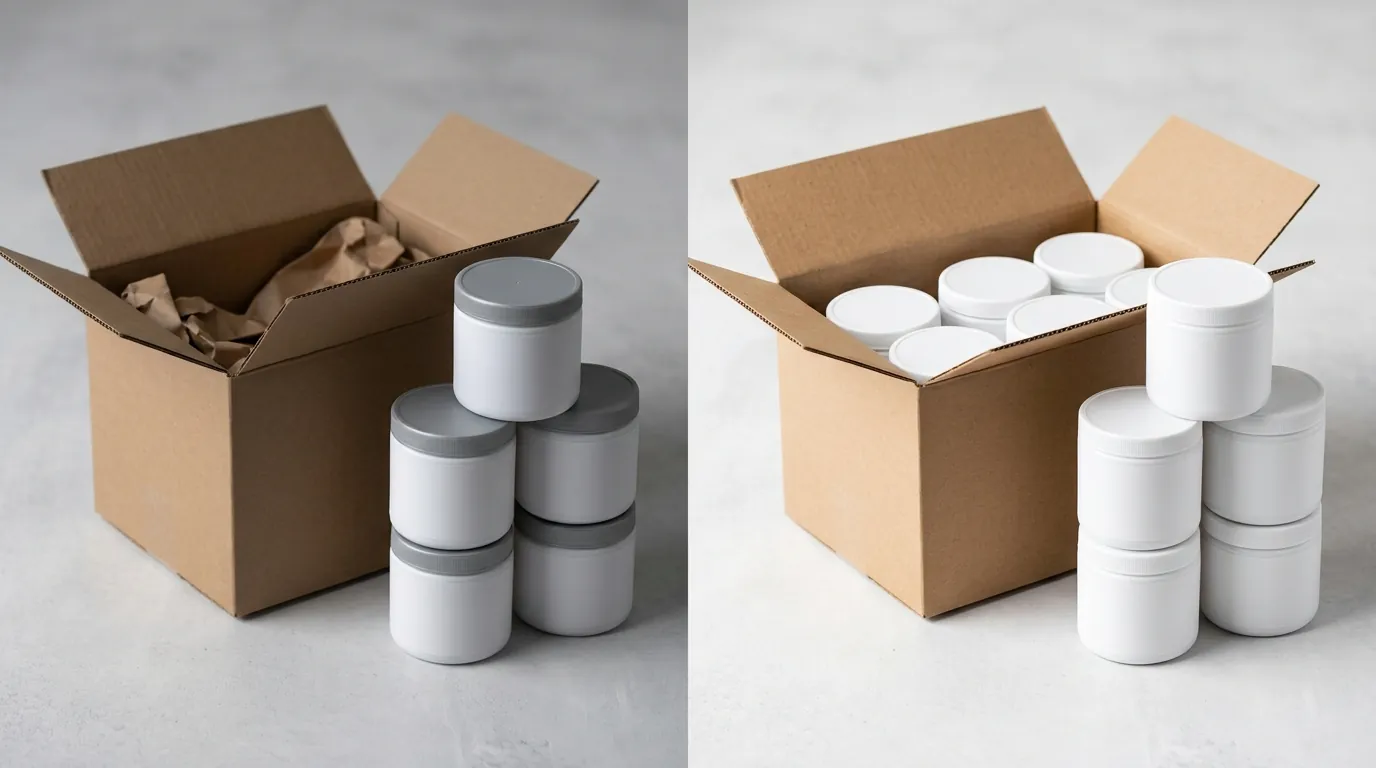
By automating the compliance checks, the seller successfully lifted the suppression on 100% of their Prime Exclusive Discounts. The financial impact was immediate and measurable.
| Metric | Before AI Automation | After PixelMatch Integration |
|---|---|---|
| Main Image CTR | 1.2% | 3.5% |
| Cost Per Listing Image | $45 (Freelance) | $5 (AI Generation) |
| Time to Compliance | 72+ Hours | < 2 Hours |
| Suppressed ASINs | 42 | 0 |
The jump in Click-Through Rate (CTR) from 1.2% to 3.5% was largely attributed to two factors:
- Zoom Functionality: By ensuring every image was over 1,000 pixels on the longest side, the seller enabled Amazon’s hover-to-zoom feature, which significantly increases buyer confidence in the home goods category.
- Visual Consistency: A perfectly centered product that fills 85% of the frame appears more professional in the search results “grid” than a small, off-center product with inconsistent lighting.
The seller was fully prepared for the June 23-26 shopping rush without the panic of last-minute manual edits. By reducing the cost per listing from $45 to $5, they were able to reallocate that budget into Amazon PPC (Pay-Per-Click) advertising, further boosting their Prime Day visibility.
Steps to Replicate This Fix

If you are currently facing “Suppressed” status for your Prime Day deals, follow this checklist to restore your badge status before the June 23rd start date.
1. Audit Suppressed Listings
Navigate to Seller Central under Advertising > Prime Exclusive Discounts. Download the “Status” report to identify exactly which ASINs are missing the badge. If the reason is “Main Image Violation,” proceed to the next steps.
2. Verify Your Pricing Compliance
Before fixing the image, ensure your price isn’t the secondary cause of suppression. Your discount must be at least 20% off the non-prime member non-promotional price and must be lower than your lowest price in the past 30 days.
3. Identify the Image Violation
Check your main images against the Amazon technical requirements:
- Is the background exactly RGB 255, 255, 255?
- Is the image at least 1,000 pixels on the longest side?
- Does the product fill at least 85% of the frame?
- Are there any prohibited elements like watermarks, “Limited Time” text, or inset images?
4. Process Images via PixelMatch
Run your raw product photos through PixelMatch to enforce the pure white background and 85% frame fill rules. Set the export resolution to 2000x2000 pixels to ensure maximum zoom capability without losing clarity.
5. Re-upload and Monitor
Re-upload the compliant images via the Manage Inventory dashboard. If you have more than 10 images to fix, use the “Upload Images” bulk tool under the Inventory tab. Allow 24 hours for the system to crawl the new image and lift the suppression.
Caveats and Honest Limitations

While AI tools like PixelMatch drastically speed up compliance, they are not a magic bullet for every product category or scenario.
Clothing and Apparel Restrictions
Amazon’s clothing guidelines are significantly more complex than home goods. For example, the guidelines strictly prohibit modeling of children’s or baby undergarments and require adult apparel to be photographed on a physical model or as a flat lay. AI can fix the background of an existing model shot, but it cannot “invent” a compliant model pose from a ghost mannequin shot without risking a manual audit rejection.
Multipacks and Bundles
If your product is a multipack, Amazon requires the main image to show the total quantity that will be delivered in its packaging. AI background removal can sometimes struggle with complex transparent packaging (like shrink-wrap or clear poly bags), as the algorithm may mistake the plastic reflection for the background. Always perform a quick manual review of transparent items before uploading.
Graphic Limitations
Amazon prohibits “confusing” props. If you are selling a coffee mug, the main image cannot show the mug filled with coffee or sitting next to a spoon. AI can remove these props, but it may leave “artifacts” where the prop overlapped with the product. In these cases, a manual touch-up or a cleaner raw photo is necessary.
Frequently Asked Questions
Why is my Prime Day deal suppressed even though my image has a white background?
A “white” background is often not “pure white” (RGB 255, 255, 255). Amazon’s 2026 automated verification uses a strict color-picker tool; if your background is even slightly off-white (like RGB 252, 252, 252), the system will flag it as a violation. Additionally, check if your product fills 85% of the image frame, as this is a common cause for suppression that sellers mistake for a color issue.
Can I use AI-generated lifestyle images as my main image?
No. Amazon’s main image guidelines strictly require the product to be shown alone on a pure white background. Lifestyle images (showing the product in use) are excellent for the 2nd through 7th image slots in your listing, but using them as the main image will result in immediate search suppression and loss of Prime Day badges.
How long does it take for a suppression to lift after I update the image?
Typically, it takes 24 hours for Amazon’s system to re-index the image and update the “Suppressed” status in the Prime Exclusive Discounts dashboard. If the badge hasn’t appeared after 48 hours, check your Prime Day pricing requirements, as the suppression may be due to a pricing error rather than an image violation.
Does the 1,000-pixel requirement apply to all categories?
Yes, for the zoom feature to work, Amazon requires images to be at least 1,000 pixels on the longest side. However, for optimal performance on 2026 high-resolution mobile displays, many sellers now use 2000x2000 pixels. High-resolution images are a key factor in improving CTR and reducing returns, as customers can see finer product details.
Ready to scale your listings?
PixelMatch generates white-background, lifestyle, and variant mockups from a single source photo — built specifically for multi-platform ecommerce sellers. 50 free images on signup, no credit card.
Start free →
Sources
- NBC News: Amazon Prime Day 2026 Dates
- Amazon Seller Central: Product Image Requirements
- Amazon Seller Central: Prime Exclusive Discount Requirements
- Canva Pricing
- Photoroom Pricing