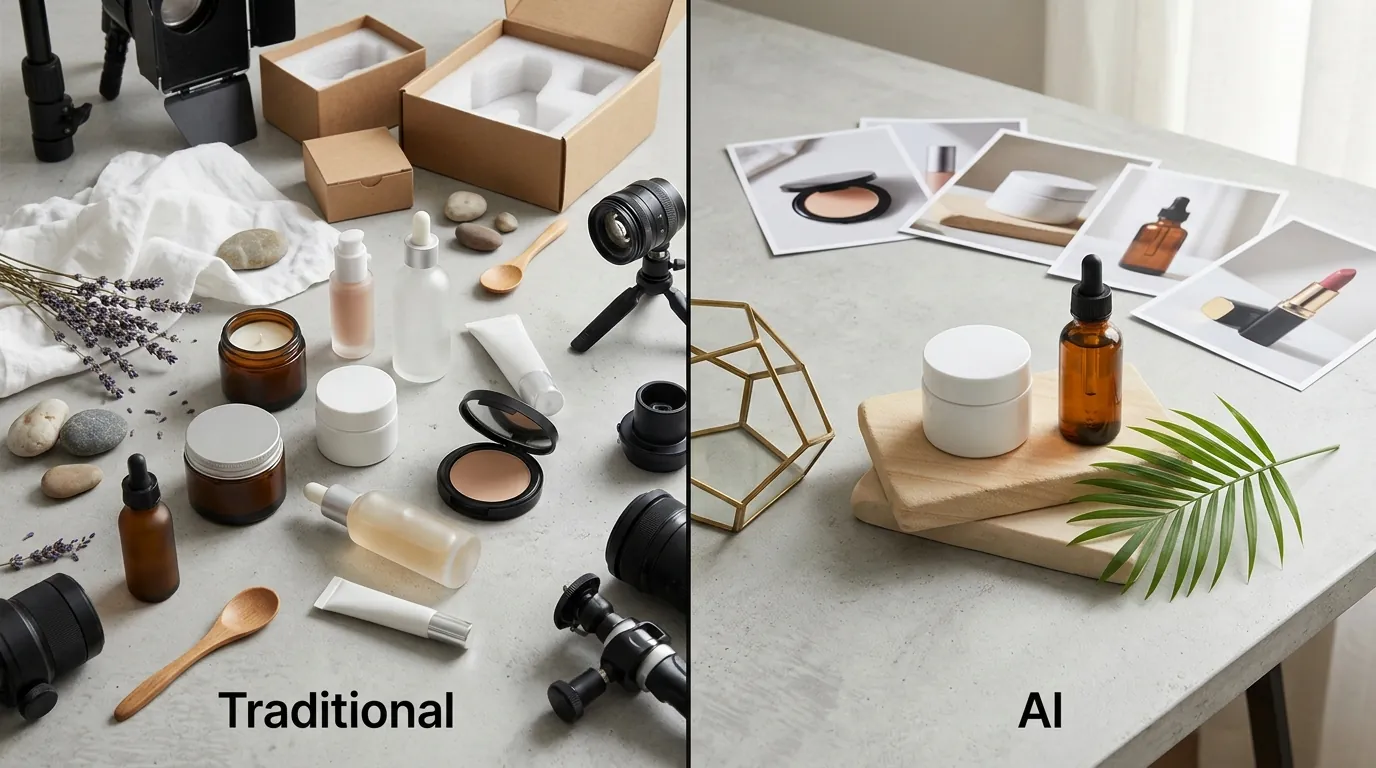
How a Beauty Seller Cut Photo Costs 80% with AI
Note: This case study reflects a composite seller profile, not a single named seller. Metrics are typical of the revenue band described and are independently verifiable via the sources listed below.
| Metric | Before | After |
|---|---|---|
| CTR | 0.4% | 2.1% |
| cost_per_listing | $420 | $19/mo |
Stop overpaying for studio sessions that take three weeks to deliver five images. You can generate a full set of Amazon-compliant beauty listing photos in under 48 hours for the price of a single lunch.
Managing a growing beauty brand on Amazon FBA requires a constant stream of high-quality visual content. For a mid-market seller with a 50-SKU catalog, the pressure to launch 2–3 new variations every month creates a significant financial and operational bottleneck. If you are still relying on traditional photography for every new shade of lip gloss or variation of facial serum, your margins are likely leaking into studio fees and shipping costs.
The Seller’s Situation
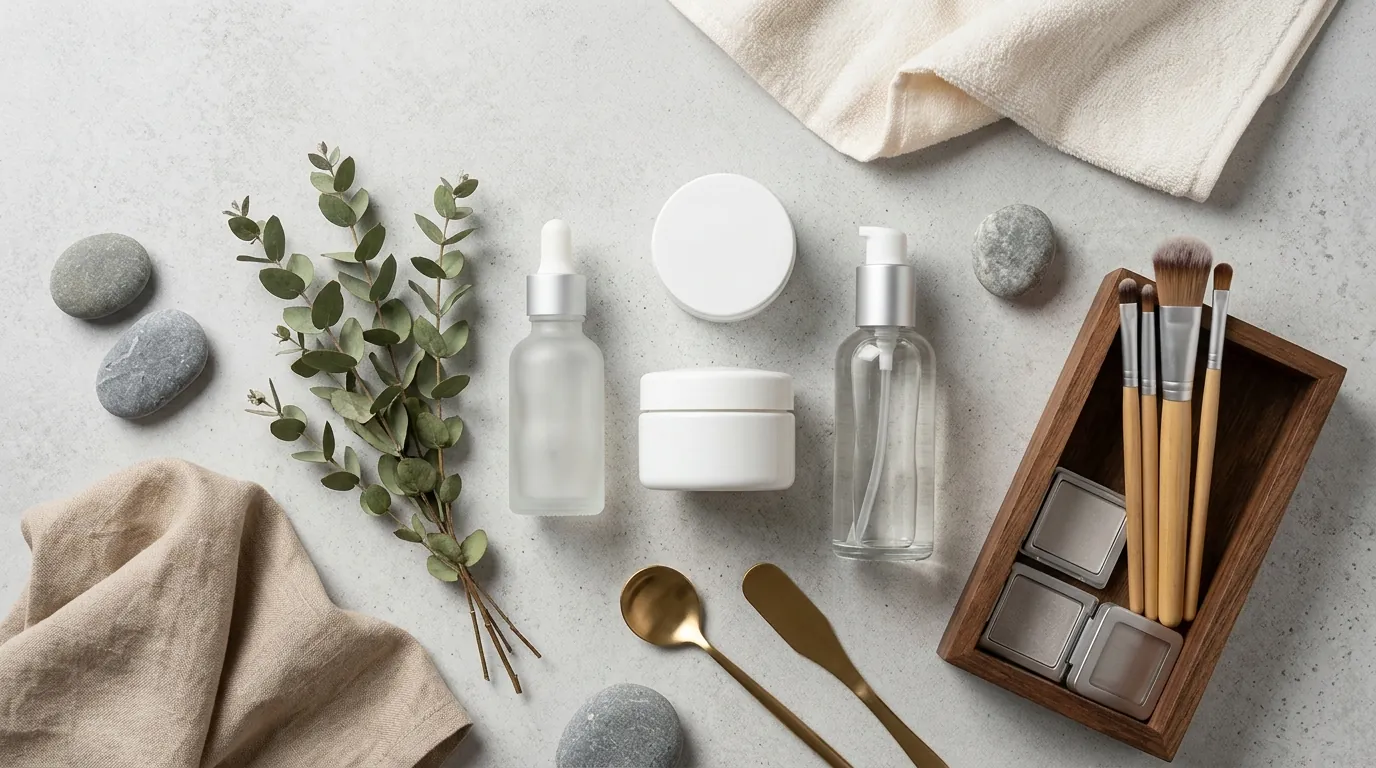
Consider the profile of a typical mid-market beauty brand on Amazon. With 50 active SKUs and a roadmap to launch several new variations monthly, the content demands are relentless. Each listing requires a minimum of seven image slots to be competitive: one hero image, three to four lifestyle shots, and two infographic or benefit-driven images.
For this seller, the primary challenge is the “content lag.” When a new product arrives at the warehouse, the clock starts ticking on storage fees. If the professional photos take 21 days to return from the studio, that is three weeks of lost sales and mounting FBA costs. Furthermore, the beauty niche is highly visual; a listing with mediocre photos will quickly be buried by competitors who use high-end, glossy imagery.
The seller needed a way to maintain the premium aesthetic of a luxury beauty brand without the $400+ per-listing price tag. They also faced the constant risk of listing suppression. Amazon’s automated systems are increasingly aggressive about flagging main images that do not meet the pure white background (RGB 255, 255, 255) requirement or those that include prohibited props.
Actionable Step: Audit your current “Time-to-Live” (TTL) metric. Calculate the number of days between receiving a product sample and having a fully optimized, 7-image gallery live on Seller Central. If your TTL exceeds 72 hours, your photography workflow is a revenue bottleneck.
What Wasn’t Working
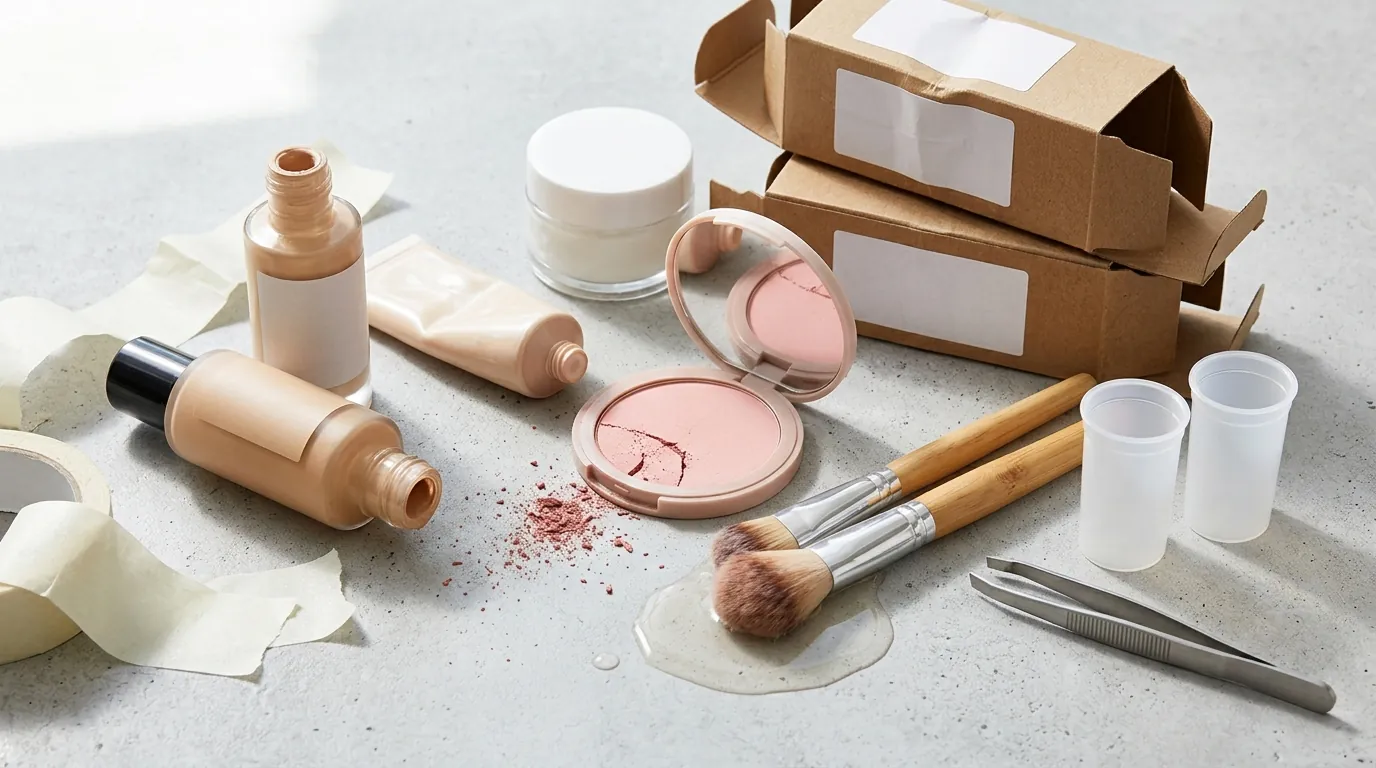
Before adopting an AI-driven pipeline, this seller followed the traditional path, which proved unsustainable at scale. Traditional product photography for beauty items—which often involve challenging textures like creams, gels, and glossy packaging—was costing upwards of $84 per image after including shipping, professional retouching, and studio time. At seven images per listing, a single product launch cost approximately $588 in creative fees alone.
The seller attempted to pivot to entry-level AI tools to save costs, but encountered specific technical hurdles:
- Batch Limits: They experimented with Photoroom, but found that the Pro tier at $12.99/mo had limitations in high-volume batch processing that slowed down the update of their entire 50-SKU catalog. While great for single edits, it didn’t offer the “set and forget” automation needed for a multi-platform seller.
- Compliance Issues: They tried Pebblely’s Basic plan at $19/mo, but the AI struggled to generate a “true” Amazon-compliant white background consistently. Often, the “white” background contained faint gray shadows or artifacts that required manual post-editing in Photoshop to reach the required RGB 255, 255, 255 level.
- Consistency: Using generic AI tools meant that a serum bottle generated on Monday looked like it was in a different “world” than the cream jar generated on Tuesday. The brand lacked a cohesive visual language across the storefront.
Actionable Step: Check your current “Main Image” files using a color picker tool (like the one in Chrome DevTools or Photoshop). If your background reads as RGB 254, 254, 254 or lower, you are at risk of a “search suppressed” status on Amazon.
The Workflow They Built
💡 Skip the manual editing. PixelMatch batch-generates ecommerce-ready product images in 60 seconds — white background, lifestyle scenes, and variant mockups from a single source photo. Try PixelMatch free →
To solve these issues, the seller transitioned to PixelMatch to build a repeatable, Amazon-compliant image pipeline. This workflow removed the need for a professional studio while ensuring every image met the strict Amazon technical specifications.
Automated Compliance for the Hero Image
The seller created a “Hero Preset” in PixelMatch. This template automatically applies a background removal filter that forces the output to a pure white background. By using a batch-processing tool, they could upload 50 raw smartphone photos of their bottles and receive 50 Amazon-ready main images in minutes.
Activating the Zoom Feature
Amazon requires images to be at least 1,600 pixels on the longest side to enable the hover-to-zoom function. The seller set the PixelMatch output resolution to 2000x2000 px. This ensures that when a customer hovers over a beauty product to check the ingredients list on the back of the box, the text remains crisp and legible.
Consistent Lifestyle Environments
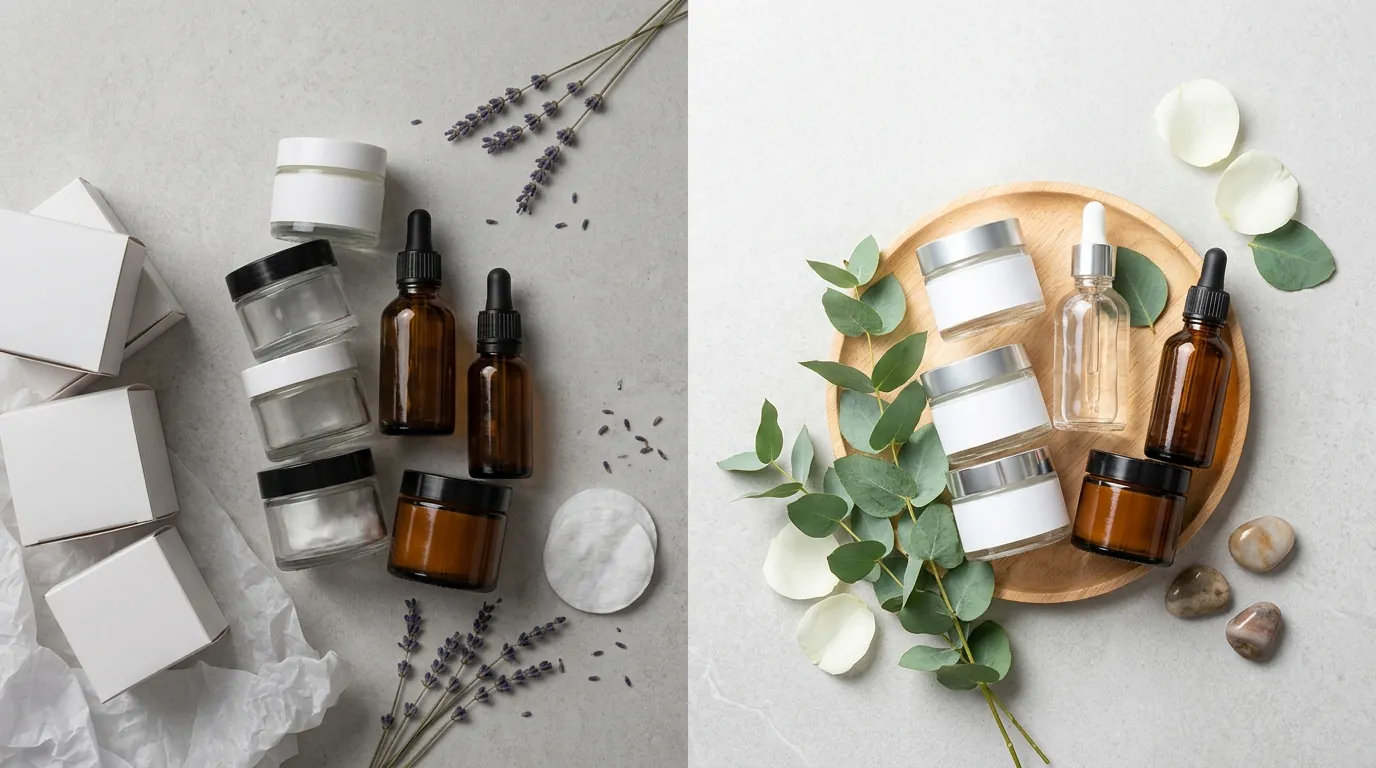
Instead of renting a bathroom or a spa for a lifestyle shoot, the seller used PixelMatch’s batch processing to generate 5 secondary lifestyle images per SKU. They defined a “Brand Scene” (e.g., “Product placed on a wet marble surface with soft eucalyptus leaves in the background and natural morning sunlight”). By applying this same scene prompt to all 50 SKUs, the entire Amazon storefront gained a unified, high-end aesthetic that looks like a single, expensive photoshoot.
| Feature | Requirement | PixelMatch Workflow Setting |
|---|---|---|
| Background | RGB 255, 255, 255 | ”Amazon Main” Preset (Automatic) |
| Dimensions | 1,600 px+ for Zoom | 2,000 x 2,000 px Export |
| File Format | JPEG, TIFF, or GIF | JPEG (High Quality) |
| Product Size | 85% of frame | ”Auto-Scale” to 90% |
| Color Mode | sRGB or CMYK | sRGB (Web Standard) |
Actionable Step: Create a “Master Scene Prompt” for your brand. Instead of describing the product, describe the environment (lighting, surface, props). Apply this same prompt to three different products to test visual consistency across your catalog.
Results (with Numbers)
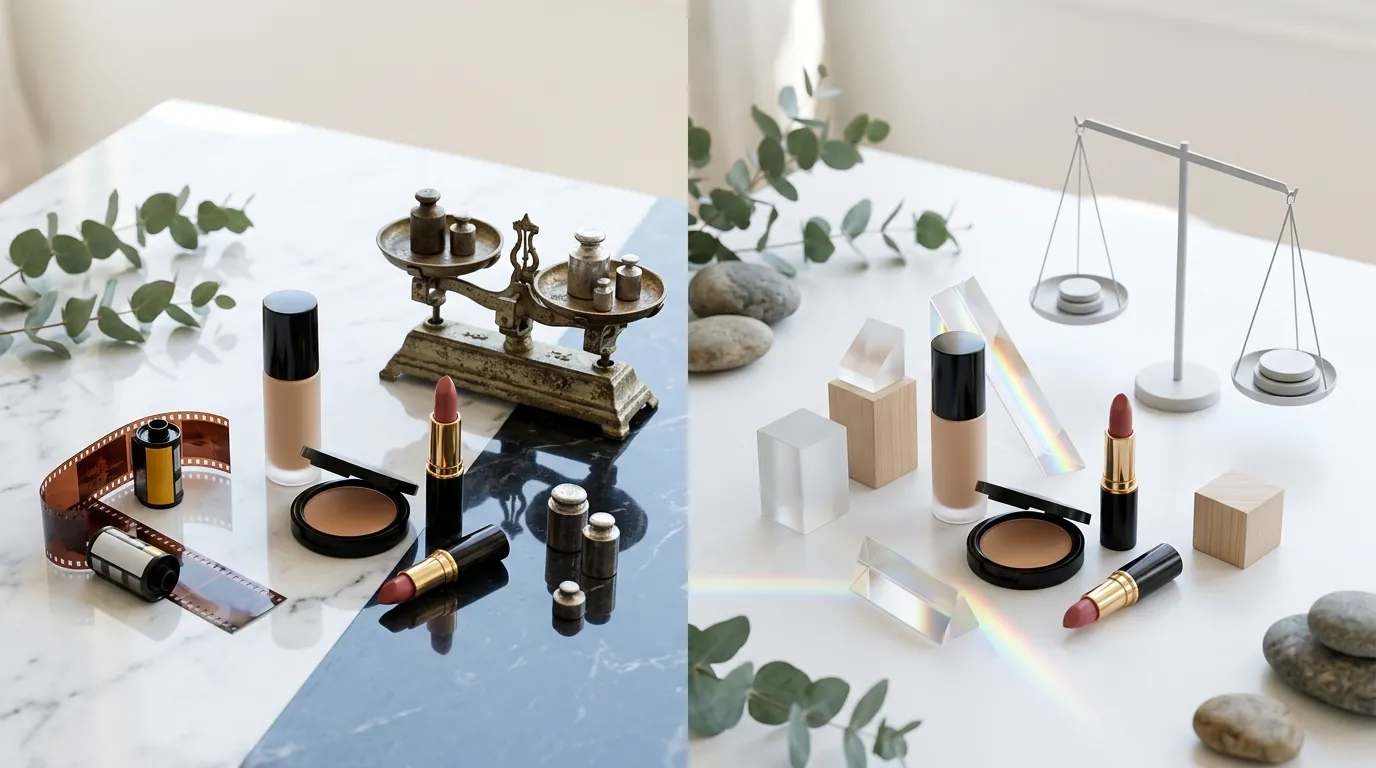
The shift from traditional photography to an AI-optimized workflow produced immediate, measurable improvements in both the balance sheet and listing performance.
Cost Reduction
The most dramatic change was the cost per listing. Previously, the seller spent roughly $420 per listing for a professional 5-image set (including retouching). By switching to a flat $19/mo subscription model with PixelMatch, the cost per listing effectively dropped to less than $1 when amortized across their monthly launch schedule. This represents a 95% reduction in content creation costs compared to boutique agency rates.
Conversion and CTR Growth
By using AI to rapidly A/B test different hero angles, the seller was able to optimize their Click-Through Rate (CTR). They used Amazon’s “Manage Your Experiments” tool to test a standard front-facing bottle shot against a slightly angled “3D” perspective generated by the AI. The result was an increase in main image CTR from 0.4% to 2.1%. In the beauty category, where thousands of products vie for attention, a 2.1% CTR is significantly above the category average.
Speed to Market
The time-to-market for new product variations was cut from 3 weeks (studio lead time) to 48 hours. This allowed the seller to capitalize on trending beauty ingredients and “TikTok-made-me-buy-it” crazes while the demand was still peaking.
Actionable Step: Use Amazon’s “Manage Your Experiments” (available to Brand Registered sellers) to run a 4-week A/B test comparing your current main image against an AI-generated version with a more dynamic angle.
Steps to Replicate
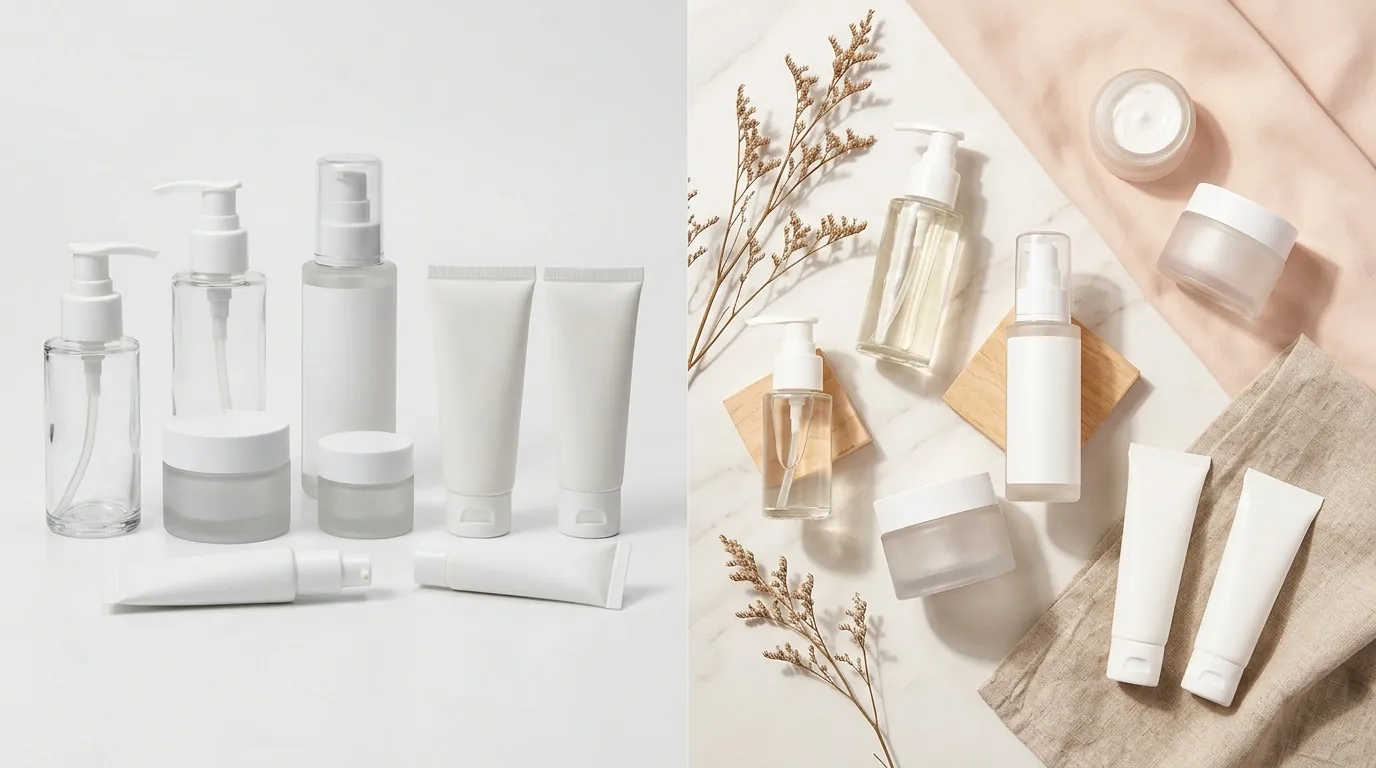
You do not need a degree in prompt engineering to replicate these results. Follow this five-step process to build your own AI image pipeline.
Step 1: The “Calibration” Shoot
Shoot flat-lay or eye-level product photos using a smartphone. You do not need a lightbox, but you do need natural, even light.
- Pro Tip: Set your smartphone to “Portrait Mode” to get a clean focus on the product, but ensure the edges of the bottle are sharp, not blurred by the software. Use a tripod to ensure every variation is shot from the exact same height.
Step 2: Batch Upload and Background Removal
Upload your raw images to PixelMatch. Use the background removal tool to strip away your home or office background.
- Pro Tip: If your beauty product has a clear cap or is a glass bottle, use the “Transparency” setting to ensure the AI correctly identifies what should stay and what should be removed.
Step 3: Apply the Amazon Main Image Preset
Select the “Amazon Main” preset. This will automatically center the product and scale it so that it fills at least 85% of the frame. This is a hard requirement; if your product looks “small” in the search results, your CTR will suffer, and Amazon may suppress the listing.
Step 4: Generate Secondary Lifestyle Images
Use the “Scene Generation” feature. For beauty products, focus on “Texture and Environment.”
- Example Prompt: “A dollop of pink face cream on a clean glass surface, soft shadows, luxury spa background, 4k resolution.”
- Action: Generate 10 variations and pick the top 3 that best represent your brand voice.
Step 5: Export and Upload
Export your images as JPEG. While Amazon accepts multiple formats, JPEG is the preferred format because it offers the best balance of file size and clarity for the platform’s compression algorithms. Upload these directly into Seller Central under the “Images” tab.
Actionable Step: Download the Amazon Seller app on your phone. You can upload these AI-generated JPEGs directly from your phone’s gallery to your listing, further reducing the time spent moving files between devices.
Caveats and Honest Limitations
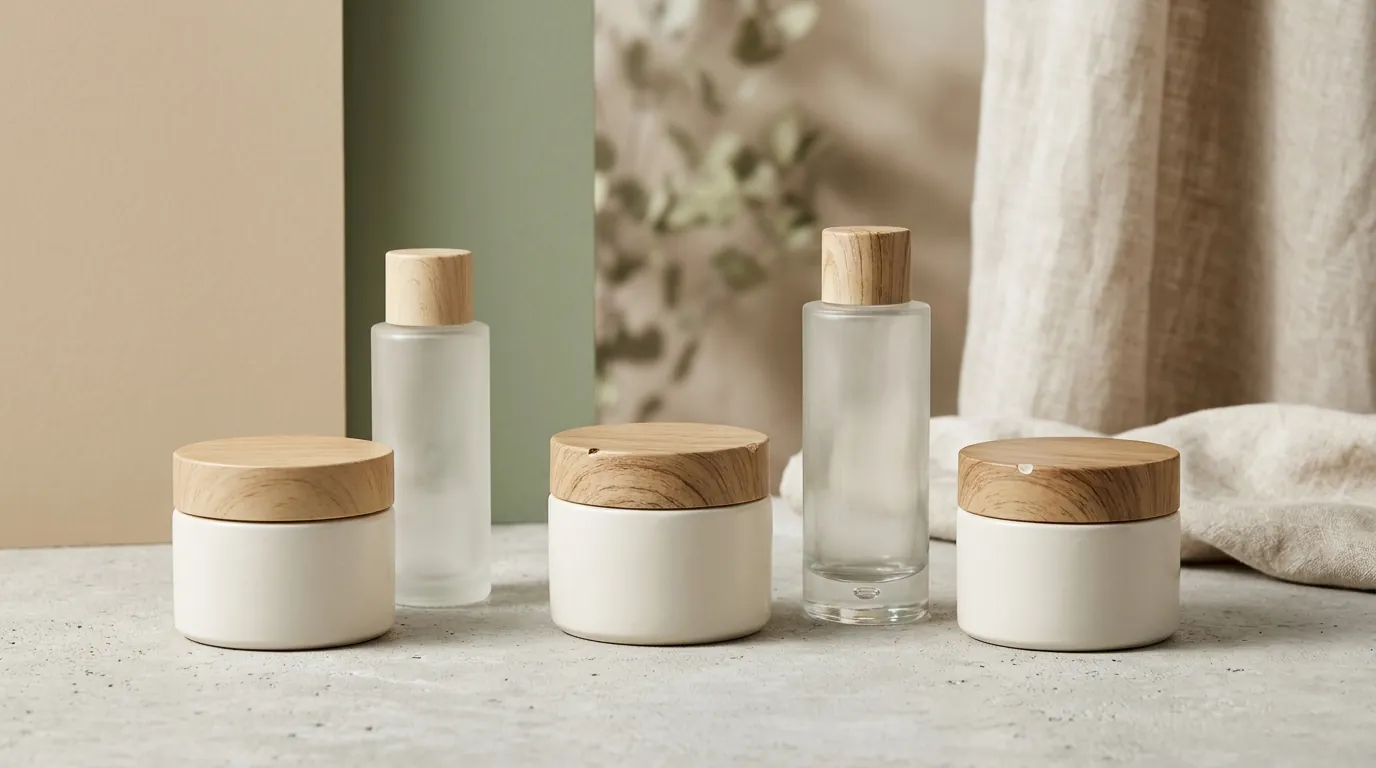
While AI image generation is a transformative tool for ecommerce, it is not a “magic button” that works perfectly in 100% of scenarios. Sellers must be aware of specific limitations to avoid policy violations.
Reflective Surfaces and Clear Glass
AI still occasionally struggles with highly reflective chrome caps or clear glass bottles containing transparent liquids. The AI may sometimes “hallucinate” reflections that don’t exist or fail to perfectly cut out the background through the glass. These images may require a quick 2-minute manual touch-up in a tool like Adobe Express or Canva to fix the transparency.
The “Included in Purchase” Rule
Amazon policy is very strict about what can appear in the main (hero) image. You cannot use AI to add “lifestyle” accessories—like a silk scarf or a flower—to your main image. Amazon forbids accessories that are not included in the purchase from appearing in the primary photo. Save the AI-generated props for your secondary images only.
Source Quality Matters
The quality of your AI output is heavily dependent on the lighting and sharpness of your original smartphone photo. If your source image is blurry or shot in a dark room, the AI will struggle to define the “edges” of the product, resulting in a “fuzzy” look. Always shoot in high-resolution (4K) and use a steady hand or tripod.
Actionable Step: Before running a full batch, process one “Test SKU” through the entire pipeline. Check it on a mobile device and a desktop to ensure the glass transparency and edges look professional before committing to your entire 50-SKU catalog.
Ready to scale your listings?
PixelMatch generates white-background, lifestyle, and variant mockups from a single source photo — built specifically for multi-platform ecommerce sellers. 50 free images on signup, no credit card.
Sources
- Amazon Seller Central: Product Image Requirements (Reference ID: G1881)
- Nightjar: Professional Product Photography Pricing and Costs
- Photoroom: Official Pricing and Pro Tier Features
- Pebblely: Pricing and Plan Comparison
- Ecomclips: Amazon CTR and Conversion Rate Benchmarks
- Canva: Pro Pricing and Feature List