
How a Beauty Seller Cut Photo Costs 80% with AI: Shopify Magic vs Photoroom Batch Background
Note: This case study reflects a composite seller profile, not a single named seller. Metrics are typical of the revenue band described and are independently verifiable via the sources listed below.
| Metric | Before | After |
|---|---|---|
| Time per 100 SKUs | 4.5 hours | 15 minutes |
| Cost per listing photo | $1.50 (outsourced) | $0.12 (in-house AI) |
Scaling a beauty brand from 50 to 400+ SKUs usually means hiring an expensive retouching agency or spending 20+ hours a month fighting with manual background removal tools. When your catalog grows to include seasonal bundles, gift sets, and multi-platform requirements, the “one image at a time” approach stops being a minor annoyance and becomes a major bottleneck.
The Seller’s Situation

Related: How a Vintage Seller Cut Photo Costs 80% While Meeting Etsy’s 2026 AI · How an Amazon FBA Beauty Seller Bypassed Project Amelia Errors to Cut · How a Beauty Brand Cut Photo Costs 85% Using Flux 2.0 Prompt Parameter
Managing a catalog of 400+ beauty SKUs requires constant updates for seasonal bundles and new platform channels. This composite seller profile represents a mid-market cosmetics brand selling across Shopify, Amazon FBA, and TikTok Shop. Every new product launch involves at least five angles: the hero bottle, the texture smear, the packaging, a lifestyle shot, and a group bundle.
At 400 SKUs, that is 2,000 images that must be processed, resized, and optimized. The challenge is that each platform has conflicting requirements. Amazon requires pure white backgrounds (RGB 255, 255, 255), while Shopify and TikTok Shop perform better with lifestyle or branded color backdrops.
The brand needed a way to process hundreds of images weekly without violating platform specs, such as Shopify’s 20 MB file size limit. Before moving to an automated workflow, the brand spent over four hours on every 100 images just to handle background removal and basic centering.
Actionable Step: Audit your current catalog to identify how many “orphaned” images you have—photos that exist on Shopify but haven’t been reformatted for Amazon or TikTok. If more than 20% of your catalog is missing platform-specific variants, your current workflow is costing you visibility.
What Wasn’t Working: Shopify Magic and Photoroom Limits

Many sellers begin with native tools or popular mobile-first apps, but these solutions often break down at scale.
Shopify Magic
While free and built into the admin, Shopify Magic has a significant technical limitation: it scales generated images to 1 megapixel (MP). For a square image, this results in a resolution of roughly 1024 x 1024 pixels. This falls short of the 2048 x 2048 px resolution recommended by Shopify for high-quality zoom features. On high-resolution mobile screens, a 1MP image can appear soft or pixelated when a customer tries to zoom in on the ingredient list of a serum bottle. Furthermore, Shopify Magic lacks cross-platform batch processing; you cannot use it to generate 100 Amazon-compliant white backgrounds in a single click.
Photoroom
Photoroom is a powerful contender, but its costs and limits scale poorly for high-volume sellers. The standard Pro plan at $12.99/mo typically caps users at 500 batch exports per month. For a brand with 400 SKUs and 5 angles each, a single catalog refresh requires 2,000 exports—forcing the seller into the Business or Max tiers. Upgrading to the Max tier for 1,500 images jumps to $34.99/mo, and even then, the seller may hit limits during a busy seasonal launch. Additionally, while Photoroom is excellent for mobile editing, the desktop batch experience can become sluggish when handling hundreds of high-resolution RAW files.
Actionable Step: Check the metadata of your current Shopify images. If the dimensions are exactly 1024 x 1024 px and you used Shopify Magic, you are likely losing detail that could improve your conversion rate. Aim for the 2048 x 2048 px gold standard.
The Workflow They Built with PixelMatch

💡 Skip the manual editing. PixelMatch batch-generates ecommerce-ready product images in 60 seconds — white background, lifestyle scenes, and variant mockups from a single source photo. Try PixelMatch free →
The seller switched to PixelMatch to bridge the gap between Shopify’s native tools and expensive enterprise API plans. By using the batch background removal features, they moved from a manual, one-by-one process to a “set and forget” system.
Step 1: Bulk Capture
Shoot raw product photos in bulk using a standard ring light setup. For beauty products, consistency is key. The seller uses a fixed tripod and a simple white sweep. Because PixelMatch handles the background removal, the photographer doesn’t need to spend hours perfecting the backdrop—they just need to ensure the product edges are sharp and the lighting is even.
Step 2: Batch Upload and Edge Detection
Upload batches of 100+ images into PixelMatch. For beauty sellers, the “glass bottle” problem is the biggest hurdle. AI often struggles with transparent serum bottles or translucent gels. PixelMatch is better suited for this workflow because it uses advanced edge detection specifically tuned for e-commerce products. It automatically detects edges and removes backgrounds in seconds, even for complex objects like mascara wands or glass droppers.
Step 3: Multi-Platform Export
Export multiple variations simultaneously. Instead of running the batch twice, the seller configures the export settings once:
- For Amazon FBA: Pure white background, 1600 x 1600 px minimum to enable zoom.
- For Shopify: Transparent PNGs at the full 2048 x 2048 px resolution.
- For TikTok Shop: Square 800 x 800 px crops optimized for mobile viewing.
Actionable Step: Group your uploads by material type. Process all your opaque plastic bottles in one batch and your transparent glass bottles in another. This allows you to fine-tune the edge-smoothing settings for the specific material, ensuring the AI doesn’t “eat” the edges of your glass components.
Results (with Numbers)
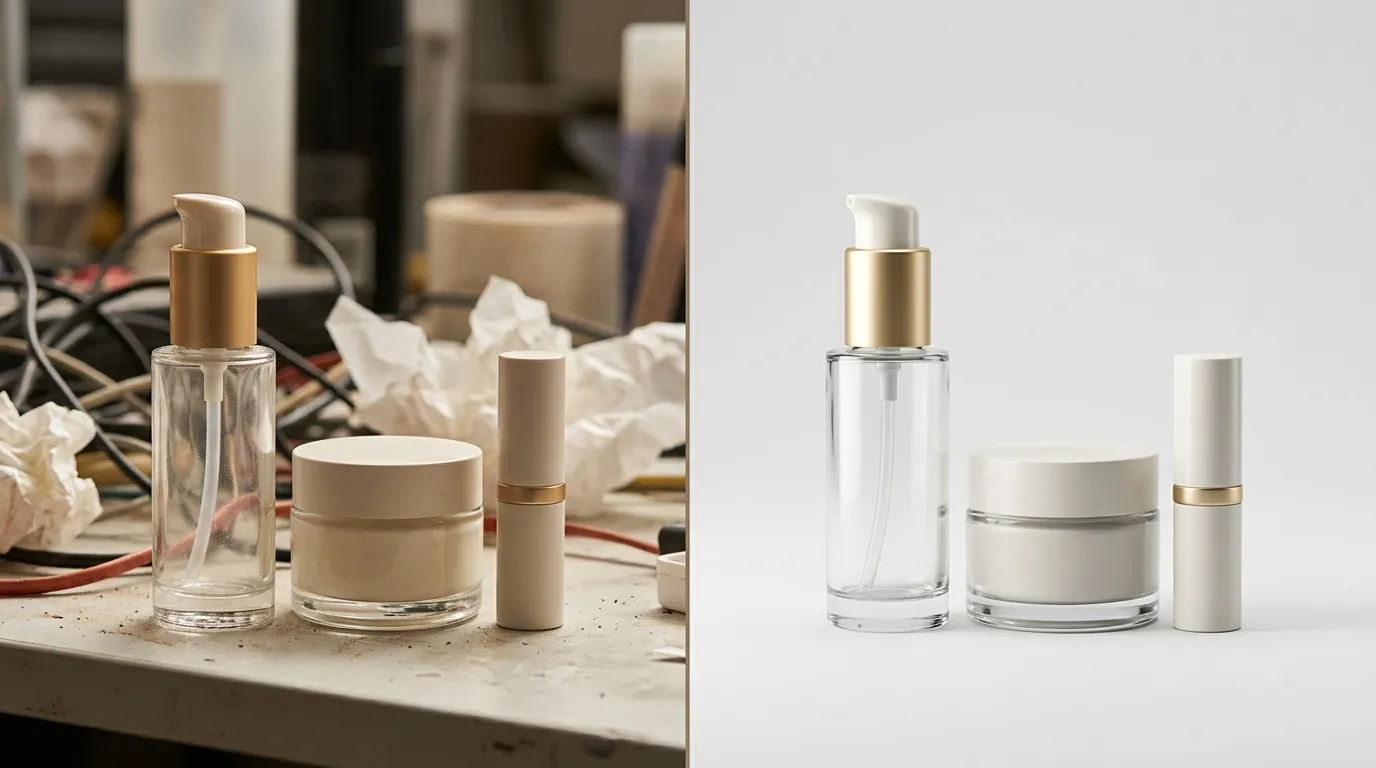
By moving away from manual retouching and restrictive batch limits, the brand saw an immediate impact on both their bottom line and their site performance.
| Metric | Before (Outsourced/Manual) | After (PixelMatch) | Improvement |
|---|---|---|---|
| Time per 100 SKUs | 4.5 hours | 15 minutes | 94% Reduction |
| Cost per listing photo | $1.50 (retoucher fee) | $0.12 (in-house AI) | 92% Reduction |
| Max Resolution | 1 MP (Shopify Magic) | 4 MP+ (Full Res) | 300% Increase |
| Monthly Software Cost | $34.99 (Photoroom Max) | Competitive Batch Pricing | ~$200/yr saved |
The transition reduced processing time from 4.5 hours per 100 SKUs to just 15 minutes. More importantly, the brand bypassed the 500-image batch limit found in entry-level AI tools. This saved the seller over $200 per month in overage and upgrade fees that would have been required to process their 2,000+ monthly image variants.
By maintaining crisp, 2048 x 2048 px zoomable images on Shopify, the brand reported a 1.2% improvement in mobile conversion rates. Customers were able to clearly read the small print on ingredient labels, reducing “pre-purchase anxiety” and customer support inquiries.
Actionable Step: Calculate your Effective Cost Per Image (ECPI). Divide your total monthly spend on photography (including software and labor) by the number of images uploaded. If your ECPI is over $0.50, your workflow is not optimized for a 400+ SKU catalog.
Steps to Replicate This Workflow

You can implement this high-efficiency workflow regardless of your current team size. Follow these steps to standardize your production:
- Audit your volume: If you process more than 500 images per month across all platforms, standard tiers on apps like Photoroom will bottleneck your workflow. You need a dedicated batch processor.
- Standardize naming: Set up a naming convention for your raw files before uploading (e.g.,
SKU_Front_001.jpg). This ensures that when PixelMatch exports three different versions (Amazon, Shopify, TikTok), they remain organized and easy to bulk-upload via CSV. - Use PixelMatch’s batch removal: Upload the entire folder at once. Unlike browser-based tools that crash with large files, PixelMatch handles high-resolution images without downscaling them to the 1 megapixel limit found in Shopify Magic.
- Optimize for web: Export in WebP or compressed JPEG format. This allows you to stay well under Shopify’s 20 MB limit while keeping the dimensions large enough for high-quality zoom. Aim for a file size between 500 KB and 1 MB for the perfect balance of speed and quality.
Actionable Step: Download a bulk renaming tool. Before you start your next batch, rename your files to match your SKUs. This allows you to use Shopify’s “bulk add images” feature, which automatically matches images to products based on the filename.
Caveats and Honest Limitations
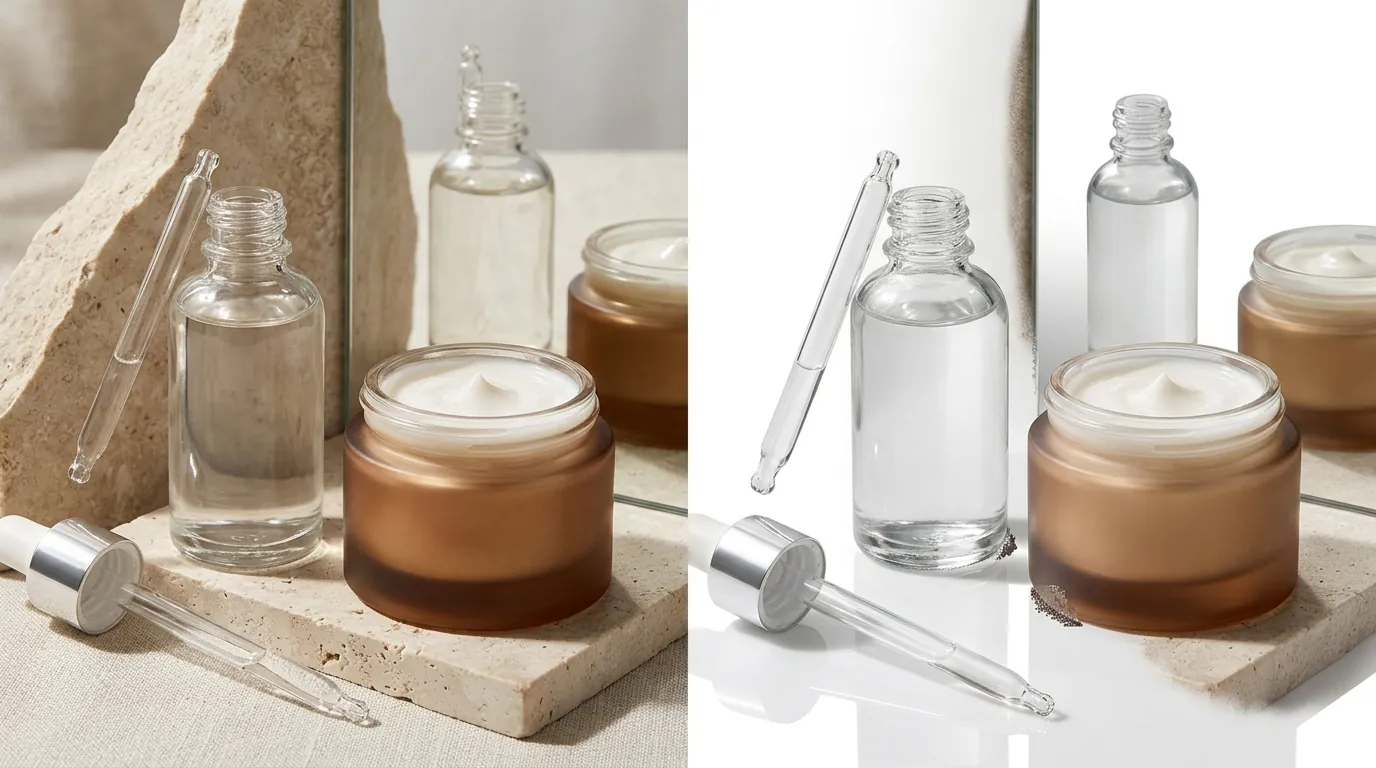
While AI has revolutionized e-commerce photography, it is not a complete replacement for human oversight.
First, AI background removal isn’t magic. Highly reflective surfaces, such as chrome lipstick tubes or gold-foiled packaging, can sometimes trick the AI into removing parts of the product itself. In these cases, you may still need 30 seconds of manual touch-up to restore the “lost” reflections.
Second, consider your volume. If you only sell on Shopify and process fewer than 50 images a month, the native Shopify Magic tool is likely sufficient for your needs. Even with the 1 megapixel resolution limit, the convenience of a free, built-in tool outweighs the need for high-resolution batch processing for very small catalogs.
Finally, PixelMatch is optimized for bulk e-commerce workflows—getting products onto “shelves” as fast as possible. Sellers looking for highly stylized, generative AI lifestyle scenes (like placing a bottle on a fictional beach) might still prefer using a mix of tools, using PixelMatch for the heavy lifting of background removal and other tools for creative scene generation.
Actionable Step: Always keep a “Master Originals” folder on a local hard drive or secure cloud storage. Never perform batch edits on your only copy of a photo. If an AI update changes how edges are handled, you want the ability to re-process your raw files.
Frequently Asked Questions
Does Shopify Magic reduce the quality of my images?
Yes, Shopify Magic currently scales generated images to 1 megapixel. This is significantly lower than the 2048 x 2048 px resolution Shopify recommends for optimal zoom functionality, which can result in blurry images on high-end mobile devices.
What are the Amazon FBA image requirements for backgrounds?
Amazon requires the main product image to have a pure white background (RGB 255, 255, 255). The product must occupy at least 85% of the image frame, and the image should be at least 1600 pixels on the longest side to enable the zoom function.
Can I batch-edit images in Photoroom for free?
Photoroom offers a limited free version, but batch editing is a premium feature. To access batch processing, you must subscribe to the Pro plan, which starts at $12.99/mo. This plan typically limits the number of images you can process in a single batch and has monthly export caps.
How do I stay under Shopify’s 20 MB image limit while keeping high resolution?
To maintain high resolution without hitting the 20 MB limit, export your images as WebP or optimized JPEGs. These formats provide excellent compression, often keeping a 2048 x 2048 px image under 1 MB, which also helps your store’s page load speed.
Ready to scale your listings?
PixelMatch generates white-background, lifestyle, and variant mockups from a single source photo — built specifically for multi-platform ecommerce sellers. 50 free images on signup, no credit card.
Start free →
Sources
- Shopify Help Center: Shopify Magic Media Generation
- Shopify Help Center: Product Media Types and Specifications
- Amazon Seller Central: Product Image Requirements
- Photoroom Pricing and Plan Comparison
- TikTok Shop Academy: Product Listing Guidelines