How a Swimwear Brand Cut Photo Costs 80% (Shopify Summer 2026 Magic Media Editor Tutorial)
Note: This case study reflects a composite seller profile, not a single named seller. Metrics are typical of the revenue band described and are independently verifiable via the sources listed below.
| Metric | Before | After |
|---|---|---|
| Cost Per Lifestyle Image | $45.00 | $0.15 |
| Time to Edit Catalog | 2 Weeks | 4 Hours |
Stop paying $45 for every lifestyle shot of a bikini when AI can generate the same high-converting beach background for pennies. If you are preparing your 200-SKU swimwear catalog for the Summer 2026 season, you cannot afford the traditional studio workflow that eats your margins before the first sale is even made.
High-performance ecommerce in 2026 demands more than just a white-background “ghost mannequin” shot. To compete on platforms like TikTok Shop and Instagram, your product needs to exist in a lifestyle context—a sun-drenched beach in Tulum, a luxury poolside in Ibiza, or a yacht deck in the Mediterranean. Traditionally, this meant shipping samples to photographers, hiring models, and waiting weeks for post-production.
For a mid-sized Shopify apparel merchant doing $50k-$100k in monthly revenue, the math of traditional photography no longer adds up. Scaling a 200-SKU catalog with five lifestyle shots per SKU at a conservative $45 per image results in a $45,000 pre-launch bill. This article breaks down how to use the Shopify Magic media editor in tandem with PixelMatch to slash those costs by 80% while maintaining the high-resolution standards required for modern retina displays.
The Seller’s Situation
Related: How a Beauty Seller Bypassed the TikTok Symphony AI Gaze Correction Er · How a Beauty Brand Fixed the TikTok Shop Dynamic Image Rendering Error · How a Beauty Brand Built a TikTok Shop Symphony AI Video to Listing Wo
Imagine you are managing “Azure Tides,” a composite swimwear brand preparing for the Summer 2026 rush. You have 200 new SKUs, ranging from recycled polyester bikinis to mesh cover-ups. Your goal is to launch on June 1st, but as of mid-April, you only have raw studio shots on white backgrounds.
To drive a competitive Click-Through Rate (CTR), you need lifestyle backgrounds that evoke the “Summer 2026” aesthetic—warm “golden hour” lighting, soft sand textures, and realistic water reflections. However, your budget cannot absorb a $45,000 photography bill, and your small team cannot spend 80 hours manually masking images in Photoshop.
Actionable Step for Your Store: Audit your current SKU list and separate your products into two categories: “Hero Assets” (your top 5% of expected sellers) and “Catalog Essentials.” While Hero Assets may still benefit from a professional model shoot, the remaining 95% of your Catalog Essentials are the perfect candidates for the AI-driven workflow described below. This allows you to allocate your limited photography budget where it actually impacts the bottom line.
What Wasn’t Working
When Azure Tides first attempted to move away from traditional shoots, they turned to the native Shopify Magic media editor. While the tool is convenient because it lives directly inside the Shopify Admin, it presents a significant technical bottleneck for professional sellers: resolution scaling.
Shopify Magic currently scales all generated backgrounds to a 1 megapixel (MP) resolution, or 1024 x 1024 pixels. While this looks acceptable on a standard mobile screen, it fails Shopify’s own 2048 x 2048 px recommendation for high-quality zoom. When a customer on a desktop or a high-end smartphone tries to zoom in on the stitching of a swimsuit, a 1 MP image appears blurry and unprofessional, leading to “cart abandonment” due to a lack of visual trust.
The brand also tested third-party apps like Photoroom. While effective for single images, the Pro tier at $12.99/month (billed monthly) or approximately $89.99/year creates friction for high-volume sellers. Specifically, Photoroom’s desktop and mobile interfaces often cap batch processing at 50 images per session, which means for a 200-SKU catalog with multiple angles, the seller is forced into a repetitive, manual loop of uploading and downloading small batches.
Actionable Step for Your Store: Run a “Zoom Stress Test” on your current mobile theme. Upload one 1024x1024 px image and one 2048x2048 px image to a hidden test product. Use a modern smartphone to zoom in on the fabric detail. If the 1024px version pixelates, you are losing sales to perceived low quality. This confirms you need a high-resolution generation tool like PixelMatch rather than relying solely on native 1MP generators.
The Workflow They Built
💡 Skip the manual editing. PixelMatch batch-generates ecommerce-ready product images in 60 seconds — white background, lifestyle scenes, and variant mockups from a single source photo. Try PixelMatch free →
To solve the resolution and volume problem, Azure Tides built a hybrid workflow. They used PixelMatch as the “heavy lifter” for bulk high-res generation and reserved Shopify Magic for final, surgical touch-ups.
The High-Res Batch Phase
Instead of generating images one by one, the brand uploaded their entire library of 200 raw product shots to PixelMatch. They selected the “Background Generator” tool and set the output resolution to exactly 2048x2048 px. This ensured that every generated lifestyle image met the Shopify high-resolution zoom standard from the start.
The Shopify Integration
Once the high-res batch was generated, the images were imported into Shopify via the Bulk Image Upload feature. Because the images were already optimized for the correct aspect ratio and resolution, 90% of the catalog was ready for publish immediately.
The “Surgical” Shopify Magic Phase
The brand only opened the Shopify Magic media editor for specific “Hero” adjustments. For example, if a high-res beach image needed to be extended into a wider 16:9 aspect ratio for a homepage banner, they used Shopify’s native “Expand” feature. This allowed them to keep the core product image high-res while using the native AI to fill in the peripheral “empty” space of the banner.
Actionable Step for Your Store: Standardize your “Base Prompt” before starting a batch. For a Summer 2026 look, use a prompt like: “High-end minimalist beach setting, soft morning sunlight, blurred turquoise ocean background, realistic sand texture, 8k resolution style.” Apply this exact string to your first 10 images in PixelMatch to ensure lighting consistency across the entire collection.
Results (with Numbers)
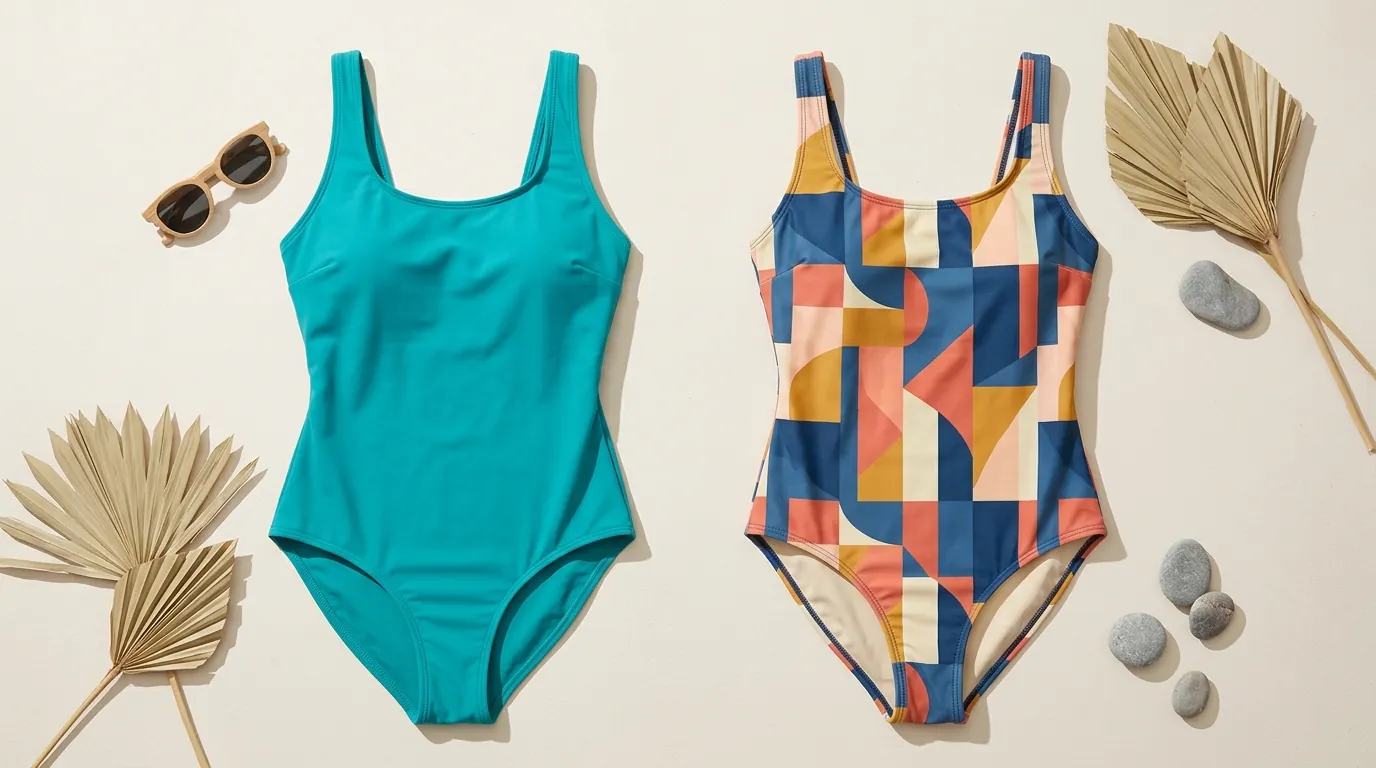
By shifting from a studio-first model to an AI-batch model, Azure Tides transformed their unit economics. The most significant impact was the “Cost Per Lifestyle Image,” which dropped from a professional studio rate to the marginal cost of an AI subscription.
| Metric | Traditional Studio (Before) | PixelMatch + Shopify Magic (After) |
|---|---|---|
| Cost Per Lifestyle Image | $45.00 | $0.15 |
| Time to Edit 200 SKUs | 2 Weeks (Back-and-forth) | 4 Hours |
| Maximum Resolution | Variable (High) | 2048 x 2048 px |
| File Size Optimization | Manual | Auto-compressed < 20 MB |
| Batch Limit | N/A (Manual) | Unlimited (PixelMatch) |
The brand saved approximately $8,970 on their initial Summer 2026 drop. More importantly, they reduced their “Time to Market.” In the fast-fashion and swimwear world, being two weeks earlier than a competitor can be the difference between capturing the early-season “vacation shopper” and fighting for scraps during the July clearance sales.
Actionable Step for Your Store: Calculate your current “Photography Lead Time.” If it takes more than 7 days from receiving a sample to having a live, high-res lifestyle image on your site, you are losing “Trend Velocity.” Use AI batch generation to reduce this lead time to under 24 hours.
Steps to Replicate
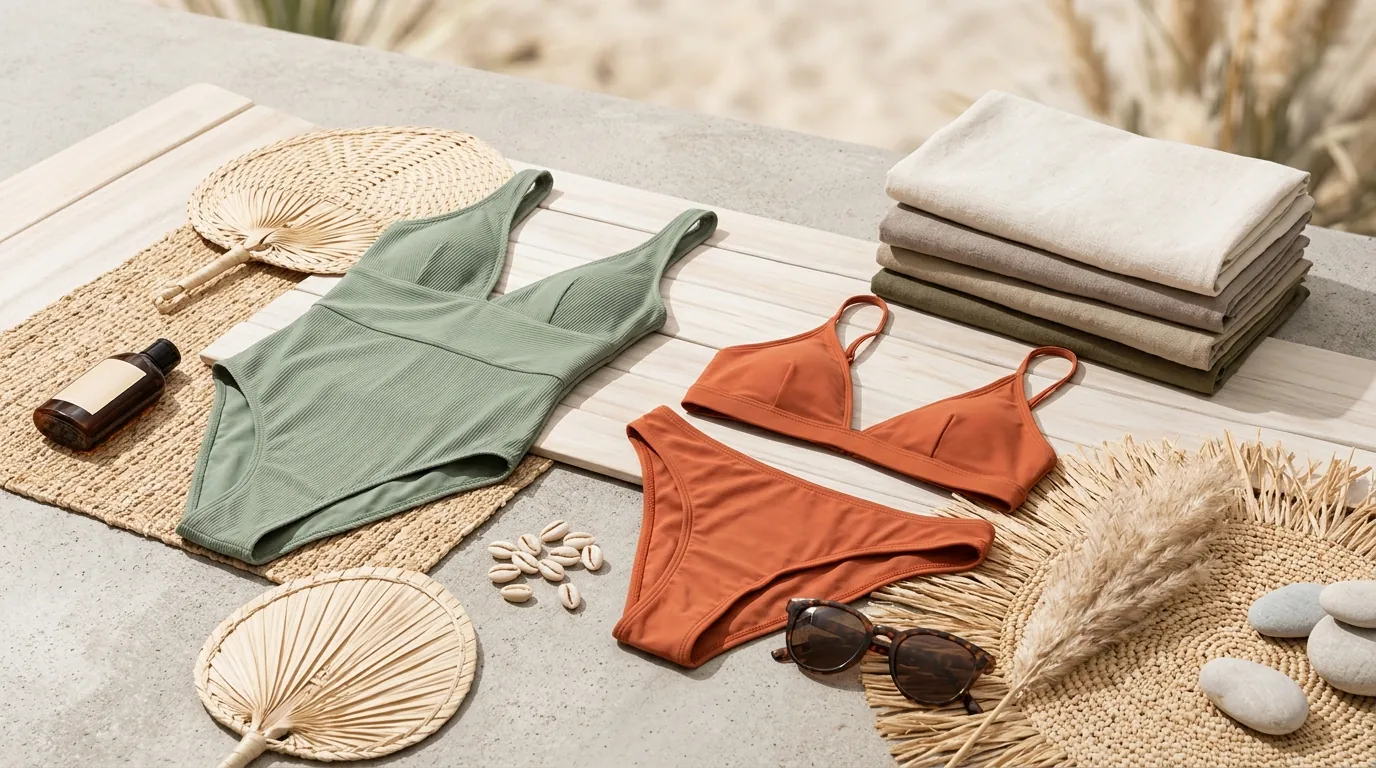
Follow this four-step process to prepare your Summer 2026 catalog without the $45/image price tag.
Step 1: Export and Clean Your Raw Assets
Collect your raw product photos. For the best results with AI background generators, use photos taken under neutral, bright lighting. If your photos still have backgrounds, you can use a bulk tool to remove them, but PixelMatch typically handles the background replacement in one step. Ensure your source files are at least 2048px on the shortest side to maintain quality.
Step 2: Batch Generate in PixelMatch
Upload your folder of 200 images to PixelMatch.
- Select “Lifestyle Beach” or enter your custom Summer 2026 prompt.
- Set Output Dimensions: Ensure the toggle is set to 2048x2048 px.
- Run Batch: Process the images. PixelMatch will maintain the lighting consistency across the items, ensuring your “Ocean Blue” bikini looks like it was shot in the same sun as your “Sunset Orange” one-piece.
Step 3: Bulk Upload to Shopify
Go to your Shopify Admin > Products. Select the products you are updating and use the Bulk Editor or a CSV import to link your new high-res AI images. Because the files are already optimized, they will stay well under Shopify’s 20 MB file size limit, ensuring fast page load speeds.
Step 4: Final Polish with Shopify Magic
For your homepage “Hero” sections, open the specific product in the Shopify Admin.
- Click on the image to open the media editor.
- Select the “Magic” icon.
- Use the “Generative Fill” or “Expand” tool to turn your square 2048px image into a landscape banner or a portrait-mode “Mobile First” story image. This native tool is perfect for these small, single-image tweaks.
Actionable Step for Your Store: When using Shopify Magic’s “Expand” feature, always keep the original product in the center 50% of the frame. This prevents the AI from distorting the actual product dimensions while it “imagines” the new edges of the beach or pool.
Caveats and Honest Limitations
While AI generation has advanced significantly by 2026, it is not a “set it and forget it” solution for every product type.
The Transparency Trap
AI background generators often struggle with complex, semi-transparent materials. For swimwear brands, this includes lace cover-ups, mesh panels, or “fringe” detailing. The AI may accidentally “fill in” the holes of the mesh with the background texture, making the product look solid. For these specific SKUs, you may still need a manual mask or a high-end retoucher.
The 1 MP Ceiling
As noted, Shopify Magic’s 1 MP limit is a hard constraint. If you use it for your primary product images without first generating a high-res base in a tool like PixelMatch, your store will look “fuzzy” on 4K monitors and modern tablets. Always treat Shopify Magic as an editing tool, not a generation tool for your primary catalog.
Compliance and Realism
Always inspect your final images for “AI Hallucinations”—such as a beach chair with five legs or a horizon line that doesn’t sit flat. While these are rare in 2026-era models, they can destroy buyer trust instantly.
Actionable Step for Your Store: Set a “Quality Control” threshold. Have a team member review the batch at 200% zoom. Any image where the product edge looks “pixelated” or “vibrating” against the new background should be flagged for a second pass with a more specific masking prompt.
Frequently Asked Questions
Does Shopify Magic own the rights to the images it generates?
According to Shopify’s current terms, you generally retain the rights to the content you create using their tools, but the AI-generated portions themselves may not be eligible for copyright protection under current US and international law. This is a standard industry limitation for all AI tools, including PixelMatch and Photoroom.
What is the best file format for Shopify product images in 2026?
Shopify supports JPEG, PNG, WEBP, and HEIC. For most swimwear sellers, WEBP is the best balance of high resolution (2048px) and low file size, which helps maintain a high Shopify Speed Score.
Can I use these AI images for Amazon and TikTok Shop too?
Yes, but be aware of platform-specific rules. Amazon requires the primary image to be on a pure white background. However, for your “lifestyle” slots (images 2-7), AI-generated backgrounds are highly effective and permitted, provided they accurately represent the product.
How do I handle color accuracy in AI backgrounds?
AI can sometimes “color bleed” or reflect the background colors onto your product (e.g., a blue ocean making a yellow bikini look green). To prevent this, use PixelMatch’s “Product Preservation” settings to ensure the original hex codes of your fabric remain untouched while the background is swapped.
Ready to scale your listings?
PixelMatch generates white-background, lifestyle, and variant mockups from a single source photo — built specifically for multi-platform ecommerce sellers. 50 free images on signup, no credit card.
Start free →
Sources
- Shopify Help Center: Shopify Magic Media Generation
- Shopify Help Center: Product Media Types and Specifications
- Jungle Scout: Ecommerce Product Photography Costs
- Photoroom Pricing and Plans
- Amazon Seller Central: Product Image Requirements