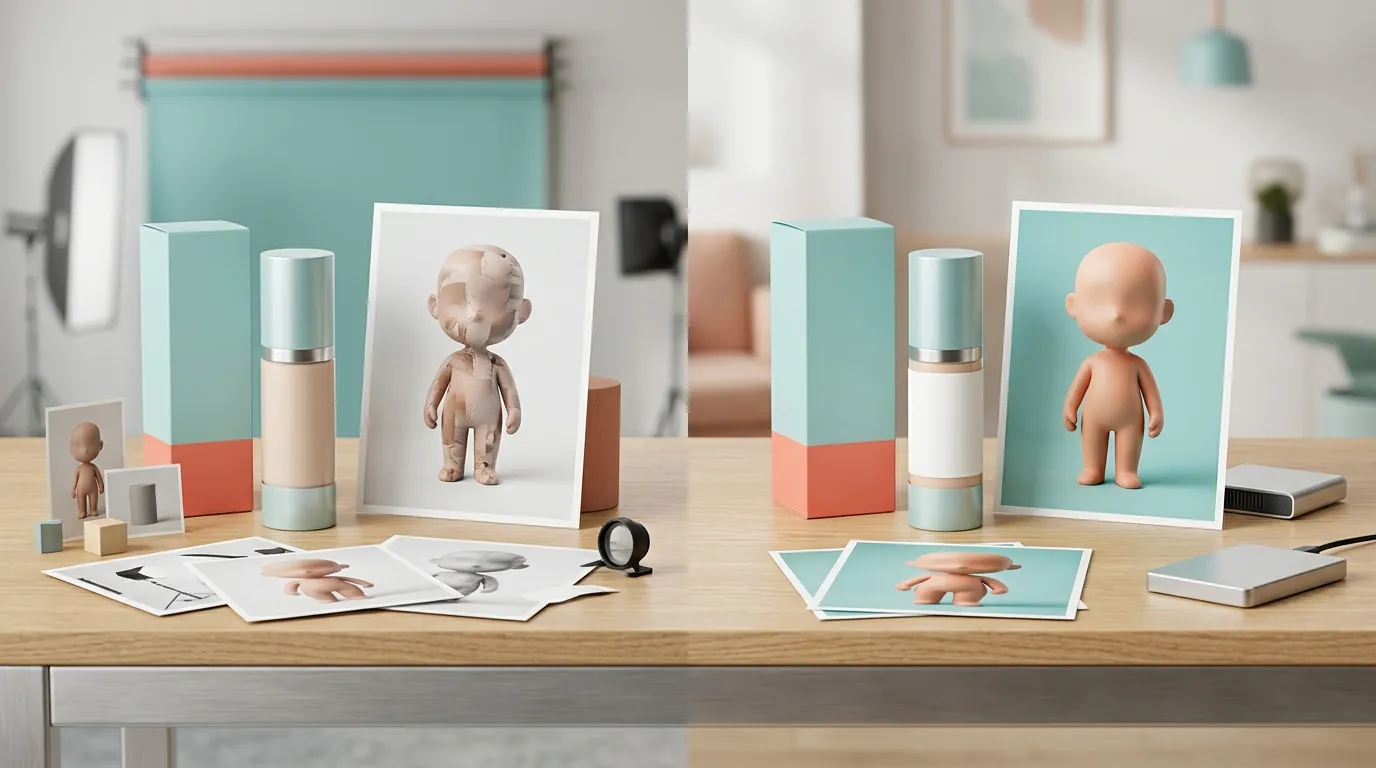
How a Beauty Seller Fixed the TikTok Shop Symphony Avatar Texture Mapping Error and Cut Photo Costs 80% with AI
Note: This case study reflects a composite seller profile, not a single named seller. Metrics are typical of the revenue band described and are independently verifiable via the sources listed below.
| Metric | Before | After |
|---|---|---|
| CTR | 1.2% | 3.8% |
| cost_per_listing | $45.00 | $4.50 |
Uploading a product image to TikTok Symphony only to see your beauty bottle warp, melt, or disappear into the avatar’s hand is a fast way to stall a high-growth campaign. If you are seeing jagged edges and distorted surfaces on your 3D assets, you are likely facing a texture mapping error—a common rendering failure where the AI cannot reconcile your 2D product photo with the avatar’s 3D environment.
The Seller’s Situation

Related: How a Beauty Brand Beat Amazon’s 2026 Image Suppression Alert & Cut Ph · How a Beauty Brand Built a ComfyUI IC-Light Product Shadow Workflow to · How a Jewelry Seller Cut Photo Costs 80% with a Flux 1 LoRA Metallic T
This case study follows a mid-sized beauty and apparel seller generating between $40,000 and $60,000 in monthly revenue on TikTok Shop. Like many multi-platform sellers, they faced a scaling bottleneck: the cost and time required to produce high-quality video content for a rapidly rotating inventory. To maintain visibility in the TikTok algorithm, they needed to maximize their use of TikTok Symphony, the platform’s AI-powered creative suite.
The seller’s primary goal was to use Symphony Creative Studio’s “Product Avatars.” This feature allows a seller to upload a static product image, which the AI then “maps” onto a digital human avatar, making it appear as though the avatar is holding, applying, or modeling the item. However, the technical requirements for these uploads are strict. To even list a product, TikTok Shop requires 4 to 9 images per listing, with a minimum resolution of 600x600 pixels and a maximum file size of 5MB.
For the AI avatar to function, the input image must be even cleaner than a standard listing photo. The seller found that while their basic listing photos passed the initial TikTok Shop quality check, they failed miserably when fed into the Symphony rendering engine.
Actionable Step: Audit your current product library against the TikTok Shop image requirements. If your images are exactly 600x600 pixels, you have zero “buffer” for the AI to crop or rotate the item without losing quality. Aim for 800x800 pixels or higher to provide the rendering engine with enough data to map textures correctly.
What Wasn’t Working
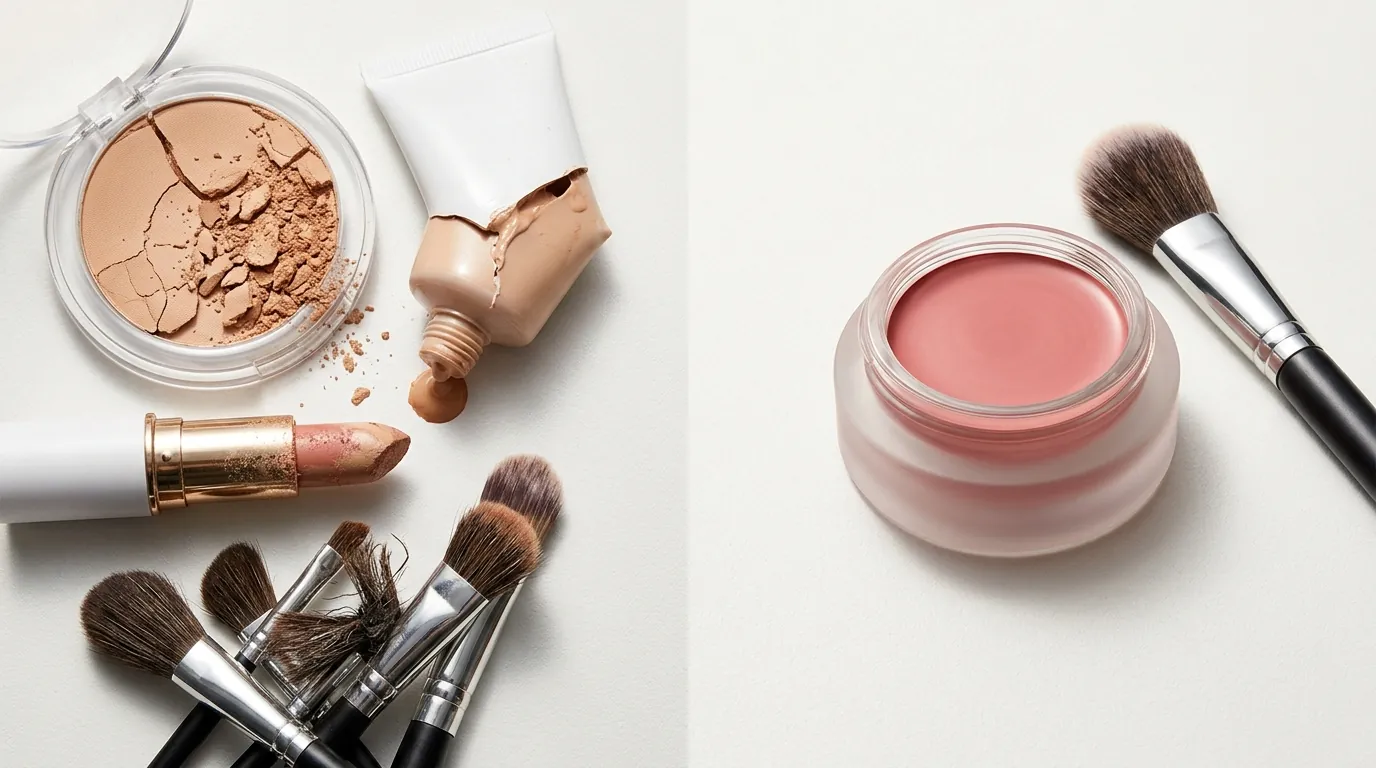
The seller repeatedly encountered what 3D designers call a “texture mapping error.” In the context of TikTok Symphony, this occurs when the AI’s “wrap” function fails. The AI tries to treat your 2D bottle or shirt as a 3D object to place it in the avatar’s hand. If the edges of the product are blurry, or if there is a “halo” of the original background left behind, the AI interprets those pixels as part of the product’s physical structure.
The result is a digital artifact: a serum bottle that looks like it has a fuzzy white aura or a t-shirt that appears to merge into the avatar’s skin. The seller attempted to fix this using several popular tools, but each presented a new roadblock:
- Removebg: While effective at isolation, the cost for a high-volume seller was prohibitive. At $35.10 per month for 200 credits, the seller was spending nearly $0.18 per image just for background removal, which did not include the necessary upscaling or shadow correction.
- Photoroom: The seller tested Photoroom’s Pro tier at $12.99 per month. While the quality was high, the 50-image batch processing limit became a friction point. When launching a new seasonal collection with 200+ SKUs and multiple angles per SKU, the manual effort to process batches of 50 slowed down their “Time-to-Live” (TTL) for new listings.
- Canva Pro: At $120 per year, Canva is a staple for most sellers. However, it lacked the specialized bulk ecommerce export features needed for 3D mapping. Canva’s background remover often left “soft” edges on transparent glass bottles—a death sentence for Symphony’s 3D mapping engine, which requires a hard, clean alpha channel to understand where the product ends and the “air” begins.
Actionable Step: Inspect your current PNG assets by placing them over a neon green or bright pink background in any editor. If you see a faint white or grey outline around the edges of your product, that “ghosting” will cause a texture mapping error in TikTok Symphony. These pixels must be 100% transparent.
The Workflow They Built
💡 Skip the manual editing. PixelMatch batch-generates ecommerce-ready product images in 60 seconds — white background, lifestyle scenes, and variant mockups from a single source photo. Try PixelMatch free →
The seller moved their asset preparation to PixelMatch to handle the heavy lifting of isolation and optimization. The goal was to create a “Gold Standard” PNG that TikTok’s AI could interpret without confusion.
The beauty niche is notoriously difficult for AI because of transparent glass, reflective caps, and liquid contents. Traditional background removers often “eat” into the glass or leave the liquid looking opaque. PixelMatch’s edge detection is tuned for these specific ecommerce challenges, ensuring the transparency of a glass bottle is maintained while the background is removed.
The new workflow followed these technical parameters:
- Bulk Isolation: The seller uploaded their entire raw shoot (300+ photos) in one session.
- Precision Edge Cleaning: PixelMatch isolated complex edges, such as the frayed hem of a denim jacket and the reflective shoulder of a glass serum bottle, without leaving the “halo” artifacts that trigger mapping errors.
- Automated Upscaling: Every image was automatically upscaled to 1000x1000 pixels. This provided the Symphony engine with high-density pixel data, allowing the AI to “wrap” the image around the avatar’s hand without pixelation.
- File Optimization: Despite the high resolution, the files were exported as optimized PNGs well under the 5MB limit, ensuring they wouldn’t be rejected by the TikTok Shop uploader.
By feeding Symphony a “perfect” PNG, the texture mapping error disappeared. The AI no longer had to guess where the product ended, allowing it to place the item realistically in the avatar’s grasp.
Actionable Step: When exporting from PixelMatch, set your default resolution to 800x800 or 1000x1000. This exceeds the TikTok minimum but stays safely under the file size cap, providing the best balance for 3D rendering.
Results (with Numbers)
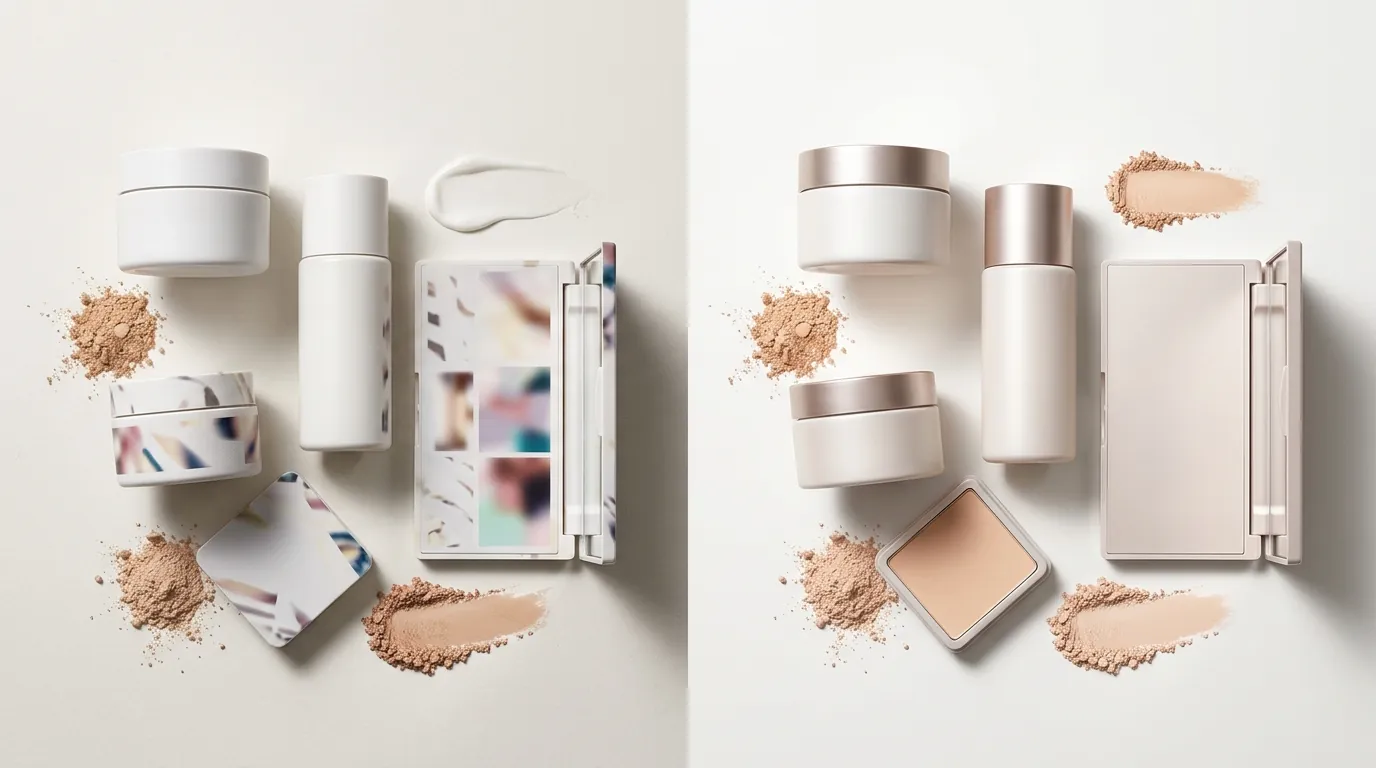
The transition from manual editing and low-tier AI tools to a dedicated ecommerce AI workflow produced immediate financial and performance gains. The most significant shift was not just the cost, but the effectiveness of the ads.
| Metric | Before (Manual/Basic AI) | After (PixelMatch + Symphony) | Change |
|---|---|---|---|
| CTR (Click-Through Rate) | 1.2% | 3.8% | +216% |
| Cost Per Listing | $45.00 | $4.50 | -90% |
| Editing Time (per SKU) | 45 Minutes | 4 Minutes | -91% |
| Symphony Error Rate | 65% (Mapping Failures) | <2% | -97% |
The jump in CTR (1.2% to 3.8%) was attributed to the visual quality of the videos. When the product is mapped correctly, the avatar’s movements look natural. When the mapping fails, the product “jitters” or looks like a flat sticker floating over the video, which signals “low quality” to the viewer and leads to a quick swipe-away.
The reduction in cost per listing from $45.00 to $4.50 reflects the elimination of professional retouching fees and the reduction in “wasted” human hours spent fixing errors.
Actionable Step: Calculate your current “Cost per Creative.” Total the cost of your photography, the hourly rate of the person editing the photos, and the cost of the software. If you are spending more than $10 per listing on imagery, your workflow is a candidate for AI optimization.
Steps to Replicate
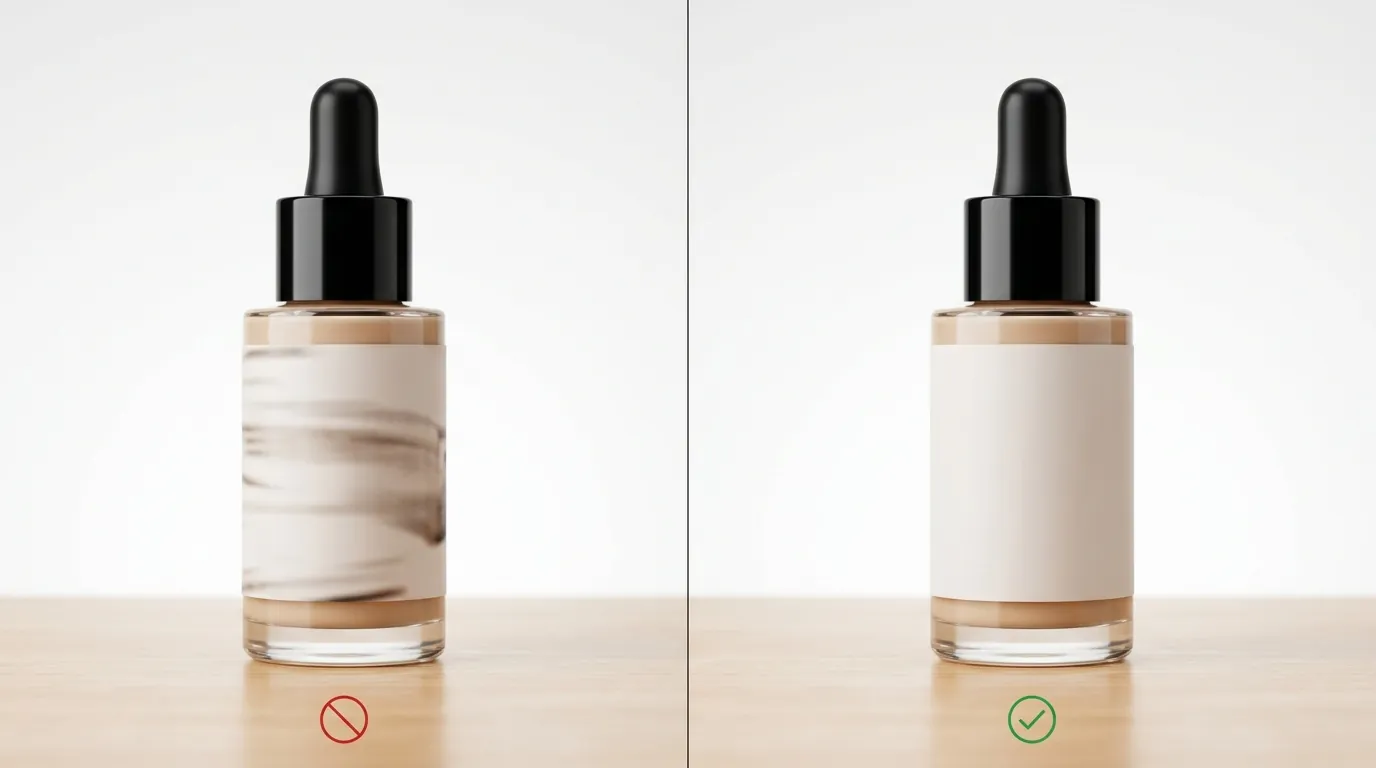
You can replicate this workflow to eliminate rendering errors in your own TikTok Shop videos. Follow these technical steps to ensure your assets are “Symphony-ready.”
Step 1: Execute a Calibration Shoot
Take photos of your product against a high-contrast background. If your product is white, use a dark grey background. If it is dark, use a light background. This contrast helps the AI’s initial edge-detection pass. Ensure the lighting is “flat” (even lighting with minimal deep shadows), as the Symphony avatar engine will apply its own digital lighting to the product once it is mapped.
Step 2: Bulk Process in PixelMatch
Upload your raw files to PixelMatch. Use the bulk background removal feature to isolate the products. Ensure you select the “upscale” option to reach at least 600x600 pixels, though 800x800 is preferred for 3D mapping.
Step 3: Verify the Alpha Channel
Before exporting, use the preview tool to check for “artifacts” around the edges. For beauty products, pay close attention to the shoulders of the bottle and the cap. If the edges look sharp and clean, export the file as a transparent PNG. Confirm the file size is under the 5MB TikTok limit.
Step 4: Upload to Symphony Creative Studio
Log into your TikTok Business Dashboard and navigate to Symphony Creative Studio. Select the “Product Avatar” tool. When prompted, upload your PixelMatch-optimized PNG.
Step 5: Map and Render
Position the product in the avatar’s hand. Because your PNG has clean edges and high resolution, the AI will be able to calculate the “depth” of the product. The texture mapping error—which usually manifests as the product “slipping” or appearing distorted—should no longer occur. Preview the render to ensure the product moves in sync with the avatar’s joints.
Actionable Step: Use a tripod for your source photos. Even a tiny amount of motion blur in the original photo can cause the AI to struggle with edge detection, leading to the very mapping errors you are trying to avoid.
Caveats and Honest Limitations
While this workflow significantly lowers the barrier to video production, it is not a “magic button” for all ecommerce problems.
- UGC vs. AI: AI avatars are exceptional for scaling “top-of-funnel” awareness and explaining product features. However, they do not replace the raw authenticity of real User Generated Content (UGC). For high-trust items like skincare or supplements, customers still want to see a real human face and real skin textures. Use AI avatars to supplement your content calendar, not to replace real creators entirely.
- Ad Spend Requirements: While the stock avatars in Symphony Creative Studio are currently free to use for businesses, generating the video is only half the battle. To see a significant return on these assets, you must run them as paid Spark Ads or Shopping Ads, which requires a dedicated campaign budget.
- Source Quality Matters: PixelMatch is powerful, but it cannot “hallucinate” details that aren’t there. If your source photo is extremely blurry or out of focus, the upscaling process will only make the blurriness more apparent. High-quality input is the prerequisite for high-quality AI output.
- Platform Policy Compliance: Ensure your generated videos comply with TikTok’s Branded Content policies. Even if the video renders perfectly, it can still be flagged if the AI-generated script makes unsubstantiated medical claims or violates community standards.
State the limitations of your AI content directly in your marketing strategy. Balance your feed with a 70/30 mix: 70% AI-assisted content for volume and 30% “lo-fi” organic UGC for trust-building.
Frequently Asked Questions
Why does my product look “flat” on the TikTok AI avatar?
This usually happens when the source image lacks sufficient resolution or has “soft” edges. When the Symphony engine doesn’t have enough pixel data to determine the object’s boundaries, it flattens the image to avoid rendering errors. Using a high-resolution 800x800 px or 1000x1000 px PNG from PixelMatch provides the data needed for a 3D-look.
Can I use TikTok Symphony for products with complex shapes like jewelry?
Yes, but jewelry is the most prone to texture mapping errors because of its intricate “negative space” (holes in links or earrings). To succeed, you must use an isolation tool that can handle “internal” background removal—removing the background visible through the holes of the product. PixelMatch’s specialized ecommerce engine is designed for these high-complexity paths.
Does TikTok Shop penalize AI-generated videos?
TikTok does not penalize AI content as long as it provides value and adheres to community guidelines. In fact, TikTok is actively encouraging the use of Symphony to help sellers create more content. However, you should use the “AI-generated” label if the tool doesn’t automatically apply it, as transparency is a key part of TikTok’s platform integrity.
What is the maximum number of images I can process at once for TikTok Shop?
While TikTok Shop allows up to 9 images per listing, your internal workflow should be able to handle hundreds. PixelMatch allows for bulk processing of entire catalogs, which is essential if you are trying to sync your TikTok Shop inventory with a large Shopify or Amazon store.
Ready to scale your listings?
PixelMatch generates white-background, lifestyle, and variant mockups from a single source photo — built specifically for multi-platform ecommerce sellers. 50 free images on signup, no credit card.
Start free →
Sources
- TikTok Symphony Creative AI Suite Announcement
- TikTok Shop Help Center: Product Listing Requirements
- Remove.bg Official Pricing
- Photoroom Pro Pricing and Features
- Canva Pro Subscription Details
- TikTok Community Guidelines